Characteristics of a Report

Characteristics of a Report
The Page Setup of a Report
Introduction
|
Page setup consists of customizing some of the behind-the-scenes aspects of a piece of paper for printing. These include the size of a report and the orientation, etc. You have various options. After displaying a report, you can click File, click Print, and click Print. On the Print dialog box, click the Setup... button. You can then make modifications on the dialog box and click OK. If you don't want to print, click Cancel on the Print dialog box but the changes you would have made on the Page Setup dialog box would be kept. |
When a report is displaying in the Design View, the Ribbon is equipped with a section named Page Setup:

When the report is displayed in Print Preview, the Ribbon is equipped with a section labeled Page Layout:

The Page Setup dialog box can be used to control the size of the printed area. To open the dialog box:

The Page Layout section is equipped with a button labeled Page Setup. When clicked, this button would open the Page Setup dialog box that provides the same options of the Page Layout section and more.
 Practical
Learning: Introducing Page Setup
Practical
Learning: Introducing Page Setup
The Page Size of a Report
In most cases, when you print, you use one of the standard sizes of printed papers or envelops. To make the selection:
From the list of sizes, click the one you want. Alternatively, in the Page Setup dialog box, click Page. In the Paper section, click the arrow of the Size combo box:

You can then click the desired size and click OK.
Practical
Learning: Using the Page Setup

 |
 |
The Layout of a Report: Portrait or Landscape
Although you can change the size of a report to almost any measures of your choice, in reality, the printing of a report is subject to external influences related to the operating system (the computer itself) and other applications must abide by those common rules. In this particular case, these have to do with the printing process followed by the device used to print. The layout of a paper specifies whether the printed result would be considered vertically or horizontally. This is referred to as the report layout or the paper orientation. There are two main options: portrait and landscape.
When a report is displayed in Design View, to check its orientation, on the Ribbon, click
Page Setup. By default, a report is meant to print in portrait and you can see this if the Portrait button
is clicked
 .
To configure it for landscape, you have various options. While a report is showing in Design View, in the
Page Setup section of the Ribbon, click the Landscape button
.
To configure it for landscape, you have various options. While a report is showing in Design View, in the
Page Setup section of the Ribbon, click the Landscape button
 . Also, when a report is displaying in
Design View, click Page Setup and click the Page Setup button
. Then, in
the Page Setup dialog box, click Page and click the Landscape radio button:
. Also, when a report is displaying in
Design View, click Page Setup and click the Page Setup button
. Then, in
the Page Setup dialog box, click Page and click the Landscape radio button:

And click OK.
If you enlarge the report too much but keep the orientation to portrait, you would receive a warning:

Practical
Learning: Setting the Layout of a Report

 .
You should be back in the Design View
.
You should be back in the Design View


The Margins of a Report
When a report prints, the printer keeps some sections in the left, the top, the right, and the bottom sides empty. These sections are referred to as the margins. The printer is configured to follow some default options for the margins. If you want, you can exercise some control on them. You have two options.
To use some preset options, while a report is displaying in Print Preview, in the Page Size section of the Ribbon, click Margins:

If you see the type of margins you want, click it. As another option, when the report is displaying in either the Design View or in print preview, on the Ribbon, click the Page Setup button. In the Print Options tab of the Ribbon, use the text boxes in the Margins section:

In the Print Options tab, you can change the values of the desired section(s) as you see fit.
Practical Learning: Setting
the Margins of a Report

Zooming a Report
In Print Preview, we mentioned already that a report shows how the printed paper would appear. To give you a better overview, Microsoft Access may "shrink" the view. Although this may make some characters unreadable, the intent is to give you a preview of the resulting piece of paper, not necessarily a read of the contents of the report. If you still want to read the content of the report, you can enlarge its view. On the other hand, if you are not particularly interested in reading the content of the report but preview it, you can shrink the view more or enlarge it more. This is referred to as zooming the view and you can zoom in or zoom out.
Zooming is available and only relevant when previewing a report. Therefore, in order to use it, first display the report in Print Preview. To assist you with zooming, the Ribbon state for the Print Preview is equipped with a Zoom section:

By default, the Print Preview shows only one page of the report and the One Page button of the Zoom section of the Ribbon is clicked. Also, usually in that view, the characters could be difficult to read. To zoom in or zoom out of the view, click inside the report itself or click the (top side of the) Zoom button. This would change the zooming ratio. If you want a more precise zoom ratio, click the arrow button below the Zoom button. This would present a list of zooming ratios and you can select the one you desire:

As mentioned already, by default, the Print Preview presents one piece of paper. If your report contains more than one page and you want to preview a few or all of them, display more than one page. To display two pages, click the Two Pages button. To display 4, 8, or 12 pages, click the More Pages button and select the desired option.
Practical Learning: Zooming
a Report
Characteristics of the Sections of a Report
The Background Color of a Section
By default, each section of a report appears white so its background would print as transparently as possible on a white piece of paper. If you want to change the background color of a section:
If you specify the background color other than white for a section, the controls in that section would print in their own color. If you want bot the section and its controls to be printed the same, set the same background color for the controls in that section.
The Alternate Row Color of a Section
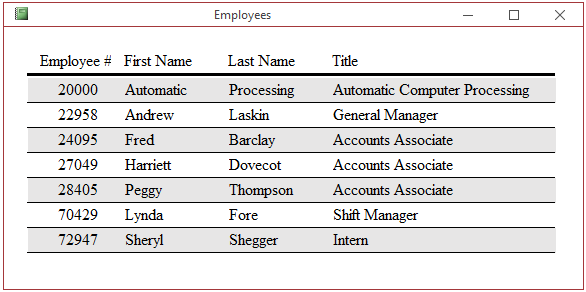
If you create a repeating section on a report, you can make the other occurrences of the section show a different color. To apply the color alternating feature, first select a section and set its background color using the Background Color button. Then:

 to compose a color
Here is an example of the type of result you could get:
Practical Learning: Setting
the Alternate Row Color of a Section

Keeping a Section on its Own Page(s)
If you create a report and design it with the default settings, the first record displays. If its values do not cover the whole page, the values of the next record start displaying on the same page but, if the next record cannot completely fit on that first page, it does not print on that page. Instead, it prints on the next page. This means that more than one record can print on the same page if and only if all those records can fit each completely on that page.
In some cases, such as if you have a report that displays a type of magazine, brochure, or catalog, you may want the first record to print on the first page, when the first record finishes, print the next record on the same page. If both records have printed on the same page and there is still enough room, the next record could start. Once the first page is full, the values left from the previous record continue on the next page. As you may suspect, these two scenarios depend on the types of values that the report is asked to print and of course, this highly depends on your intention.
The ability to keep each record on its own page is controlled by the Keep Together property of a section. To access it, display the report in Design View and double-click either the section or its bar. Keep Together is a Boolean property with a Yes and No options:
 |
 |
 |
 |
 |
A Report With Multiple Columns
All of the reports we have created so far display in one vertical list. Such a list is referred to as a column. If a report is made of a single list and the items of the list are not too wide, you can display the list in various columns. Here is an example:

To create the columns on a report, first make the list wide or narrow enough so it can fit more than once on the piece of paper. Then, display the Page Setup dialog box. In the Page Setup dialog box, set the Number of Columns text box to a value of your choice:

To display the items of the columns, you have two options. This characteristic is set in the Column Layout section:
Practical Learning:
Ending
the Lesson
|
|
||
| Previous | Copyright © 2002-2021, FunctionX | Next |
|
|
||