Tools for Debugging

Tools for Debugging
Debugging Preparation
Introduction
A logic error is called a bug. Debugging is the process of examining code to look for bugs or to identify problems. Debugging is the ability to monitor the behavior of a variable, an object (from a class, an interface, a record, or a structure), or its members throughout a program. Microsoft Visual Studio provides many tools, accessories, and features to perform debugging operations.
Probably the most fundamental way of examining code is to read every word and every line, with your eyes, using your experience as a programmer. This can work for short code written in one file and in one class. If the code to examine covers many pages or many files, it could be awful and tiresome to examine code with your eyes line by line. Fortunately, to assist you with this operation, Microsoft Visual Studio provides various tools and windows you use, one window, or a combination of objects.
 Practical Learning: Introducing Errors
using static System.Console;

int id = 1;
long number = 597_485;
string? firstName = "Lynda";
string? lastName = "Elroy";
double hSal = 25.73;
double time = 36.50;

WriteLine("Employee Record");
WriteLine("------------------------");
WriteLine("Employee Id:\t{0}", id);
WriteLine("Employee #:\t{0}", number);
WriteLine("First Name:\t{0}", firstName);
WriteLine("Last Name:\t{0}", lastName);
WriteLine("Hourly Salary:\t{0}", hSal);
WriteLine("Time Worked:\t{0}", time);
WriteLine("Weekly Salary:\t{0}", hSal * time);
WriteLine("===========================");
To assist you with debugging, Microsoft Visual Studio includes an application named a debugger. As its name suggests, that application is used to debug your code. The code or application that you are debugging is called the debuggee. When you are debugging your code as we will see, the debugger gets "attached" to the compiler (or other applications, such as the lexer) that examines and validates your code.
Besides its main menu, one of the tools Microsoft Visual Studio provides for debugging is a toolbar named Debug. It is equipped with various debugging buttons:

Like its name suggests, the purpose of the Debug toolbar is to assist you with debugging operations. For that reason, the Debug toolbar is equipped with various buttons.
Stepping Into Code
As you may know already, one of the ways you debug an application is to examine code one statement at a time. To perform this operatinn using the Debug toolbar, it is equipped with a Step Into button  . You can click that button to perform the related operation.
Practical Learning: Stepping Into Code
button button.Employee Record ------------------------ Employee Id: 1 Employee #: 597485 First Name: Lynda Last Name: Elroy Hourly Salary: 25.73 Time Worked: 36.5 Weekly Salary: 939.145 =========================== To automatically close the console when debugging stops, enable Tools->Options->Debugging->Automatically close the console when debugging stops. Press any key to close this window . . .
Stopping a Debugging Session
You can use the Debug toolbar to end a debugging operation. To make this possible, the Debug toolbar is equipped with a Stop Debugging button 
We saw that the Step Into operation allows you to examine your code one line at a time. If you keep performing that operation, the effects or results of some lines would become predictable. If that becomes the case, you may want to start the examinations of early lines but then you may want to skeep all the rest of the lines to get to the last line. To let you do this, Microsoft Visual Studio provides an operation named Step Out. To perform the Step Out operation, first start a debugging operation. Then:

Practical Learning: Stepping Out of Code
8 times. 8 timesusing static System.Console;
double machineCost;
double salvageValue;
int estimatedLife;
long estimationNumber;
string? machineIdentification;
Title = "Depreciation: Straight-Line Method";
WriteLine("Enter the values for the machine depreciation");
WriteLine("=============================================");
Write("Machine Make and Model: ");
machineIdentification = ReadLine();
Write("Estimation Number: ");
estimationNumber = int.Parse(ReadLine()!);
Write("Machine Cost: ");
machineCost = double.Parse(ReadLine()!);
Write("Salvage Value: ");
salvageValue = double.Parse(ReadLine()!);
Write("Estimated Life (in Years): ");
estimatedLife = int.Parse(ReadLine()!);
double depreciatiableAmount = machineCost - salvageValue;
double depreciationRate = 100 / estimatedLife;
double yearlyDepreciation = depreciatiableAmount / estimatedLife;
WriteLine("=============================================");
WriteLine("Estimation Number: {0}", estimationNumber);
WriteLine("Machine Identification: {0}", machineIdentification);
WriteLine("Depreciation - Straight-Line Method");
WriteLine("---------------------------------------------");
WriteLine("Machine Cost: {0}", machineCost);
WriteLine("Salvage Value: {0}", salvageValue);
WriteLine("Estimate Life: {0} Years", estimatedLife);
WriteLine("Depreciation Rate: {0}%", depreciationRate);
WriteLine("---------------------------------------------");
WriteLine("Depreciable Amount: {0}", depreciatiableAmount);
WriteLine("Yearly Depreciation: {0:N}", yearlyDepreciation);
WriteLine("=============================================");Introduction
Debugging allows you to identify and fix problems. One way to do that is to monitor the values that a certain variable or object is holding. This is because some time to time, the value of a variable changes. As a result, debugging allows you to monitor the changing values of a variable. There are various ways you can get that information. To assist you in monitoring the values of a variable, Microsoft Visual Studio provides a window named Autos.
As you should be aware already, a C# project can have one or more files, and each file can have 0 or more variables. When you start debugging, the focus is on a certain area of your code, and that area can have 0 or more variables. When you are debugging, in the area where the debugger is acting, if that area has one or more variables, the Autos window shows (only) the variable(s) in that immediate area.
Getting the Autos Window
Normally, when you start debugging, the Autos window shows automatically. During debugging, if the Autos window is hidden, to display it:
The Autos window shows the values of variables as the program is progressing in its execution. Because code can have more than one variable, the Autos window displays a table (or grid) with many rows. The table is organized in columns. Each column displays a title for its role.
Practical Learning: Introducing the Autos Window
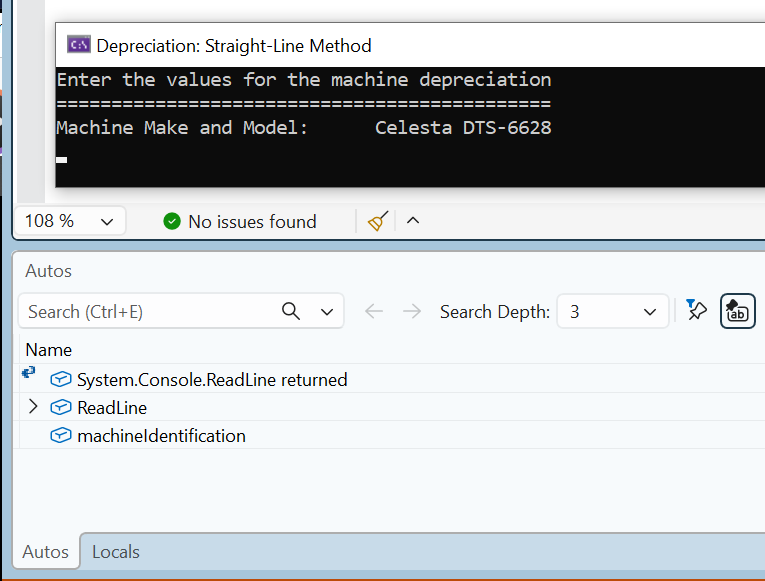
The Name of an Item
The Autos window starts with a column titled Name. If the focus is on a function/method call, the colum displays not only the names of variables but also other items.
Practical Learning: Checking the Names o Variables
The Value of a Variable
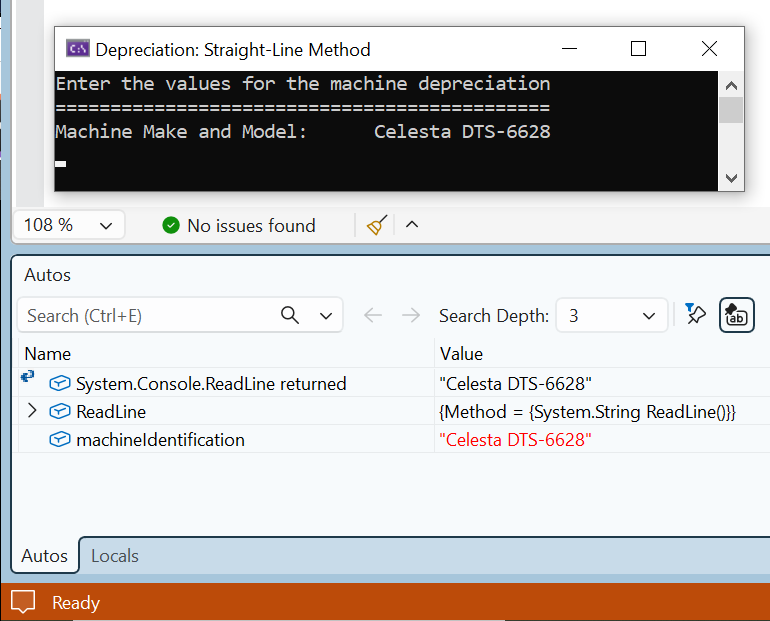
The Value columns shows the value of a variable. As debugging progresses, the Autos window displays the name of the variable that is currently accessed. The current value of that variable is displayed in the Value column.
Practical Learning: Showing the Value of a Variable
The Type of a Variable
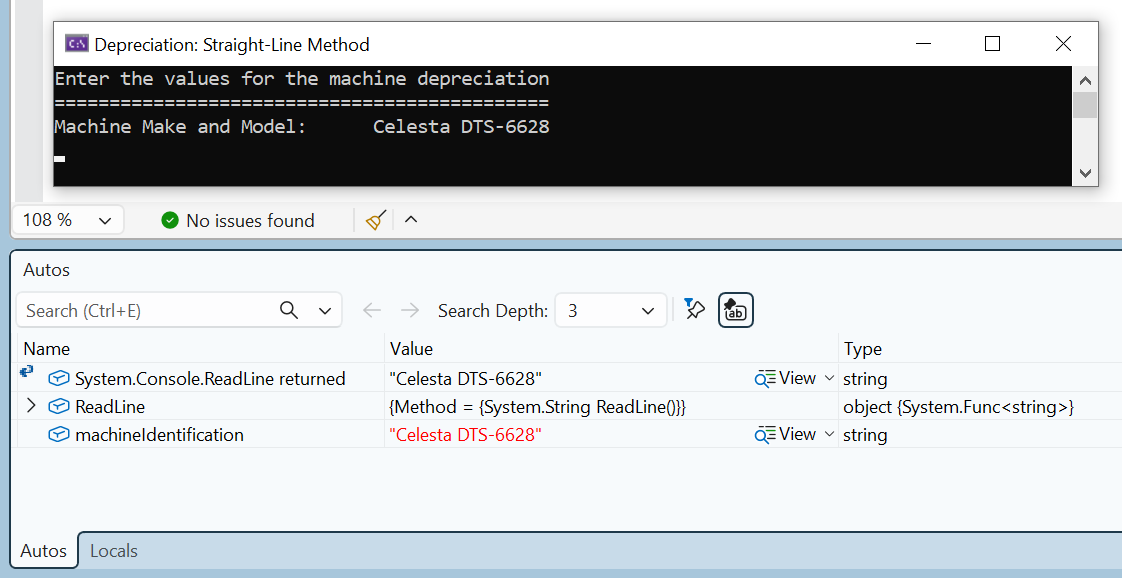
The Type column shows the data type of the variable.
Practical Learning: Checking the Types of Variables
two times to get the caret to blink on the Estimated Number line in the DOS window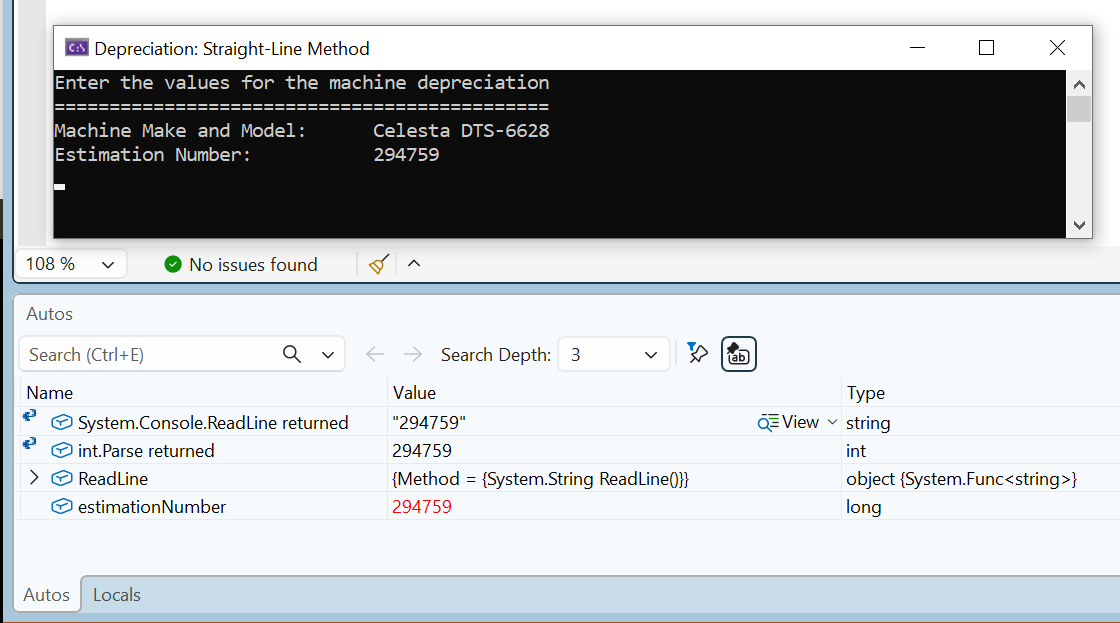
twice twice twice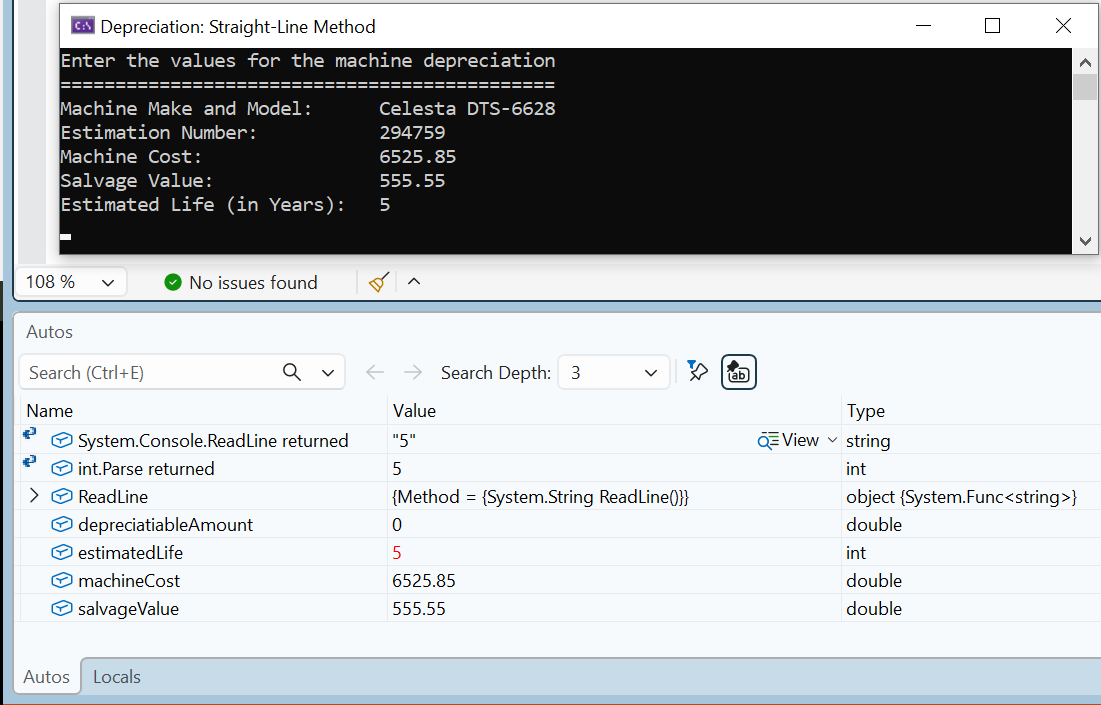
until all the values display in the DOS window:
Enter the values for the machine depreciation
=============================================
Machine Make and Model:      Celesta DTS-6628
Estimation Number:           294759
Machine Cost:                6525.85
Salvage Value:               555.55
Estimated Life (in Years):   5
=============================================
Estimation Number:           294759
Machine Identification:      Celesta DTS-6628
Depreciation - Straight-Line Method
---------------------------------------------
Machine Cost:                6525.85
Salvage Value:               555.55
Estimate Life:               5 Years
Depreciation Rate:           20%
---------------------------------------------
Depreciable Amount:          5970.3
Yearly Depreciation:         1,194.06
=============================================

Press any key to close this window . . .
Introduction
As mentioned already, a C# project can have one or many files, and each file can have 0 or more variables. We saw that the Autos window shows only the variables in the proximity of the debugger's focus. Sometimes, there are variables in another section or other sections of a document.
To let you get a list of all the variables involved in the debugging scope, for example if you are working on the primary document of a C# project (remember that that document may or may not use any explicit function), to get a list of all the variables in that document, Microsoft Visual Studio provides a window named Locals.
Getting the Locals Window
When you start debugging, the Locals window shows automatically, usually in the bottom-left section of Microsoft Visual Studio. During debugging, if the Locals window is not displaying, to display it:
As its name indicates, the Locals window shows the values of local variables as they are changed. Like the Autos window, the Locals window displays a table (with columns and rows) of the variables that are being monitored.
The Name of a Variable
The Name column shows the name of each variable declared in the function or the section that is being debugged.

Practical Learning: Introducing the Locals Window

5 times until the caret is blinking on the Machine Make and Model line in the DOS windowThe Value of a Variable
The Value columns shows the value of each variable. When debugging starts, each variable shows its default or initial value.

As debugging progresses, when a variable acquires a new value, the Locals window updates it in the Value column. In some cases, instead of the debugger changing the value, you can manually select and change it in the Locals window and press Enter.
Practical Learning: Checking the Names of Variables

The Type of a Variable
The Type column shows the data type of the variable.
Practical Learning: Checking the Types of Variables

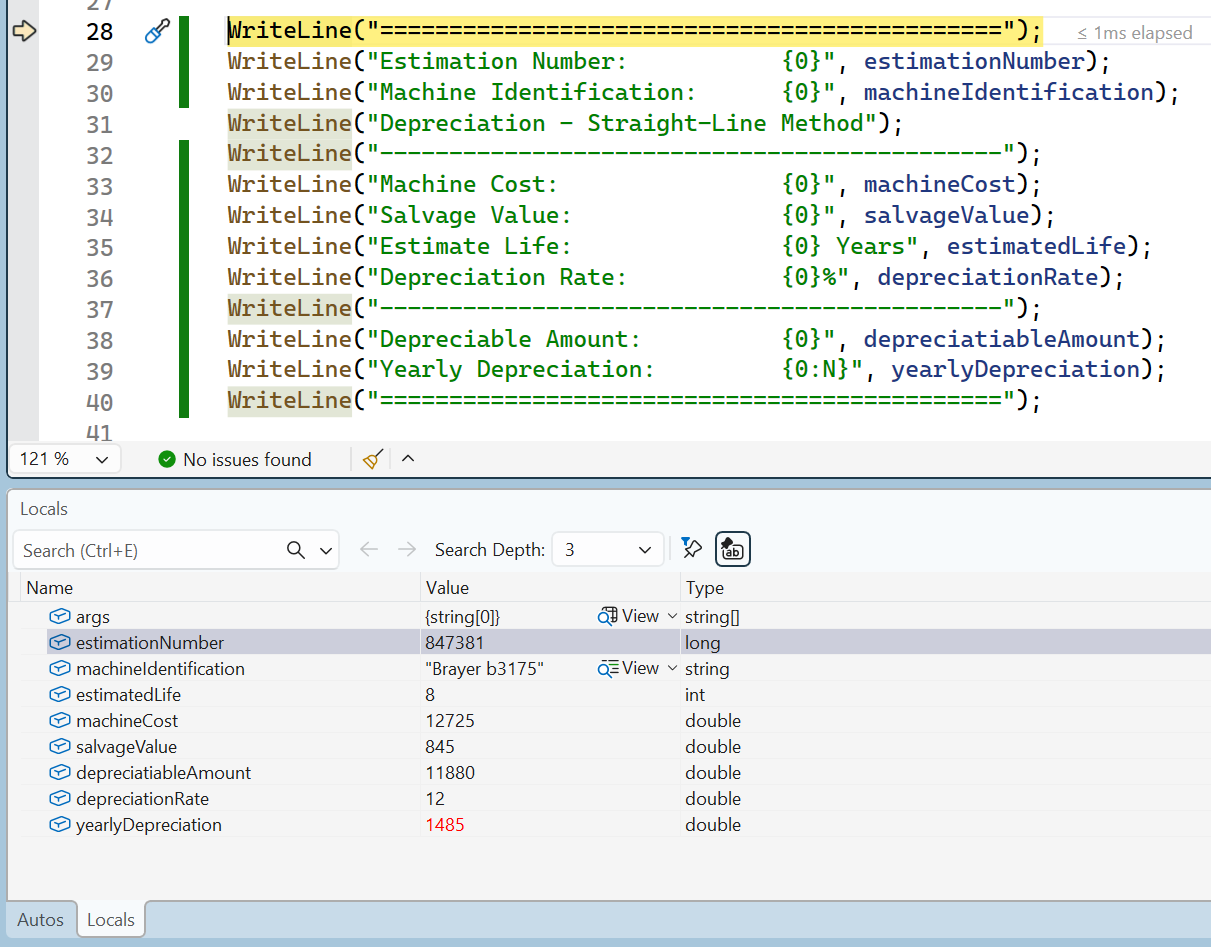
twice until the caret is blinking on the Estimation Number
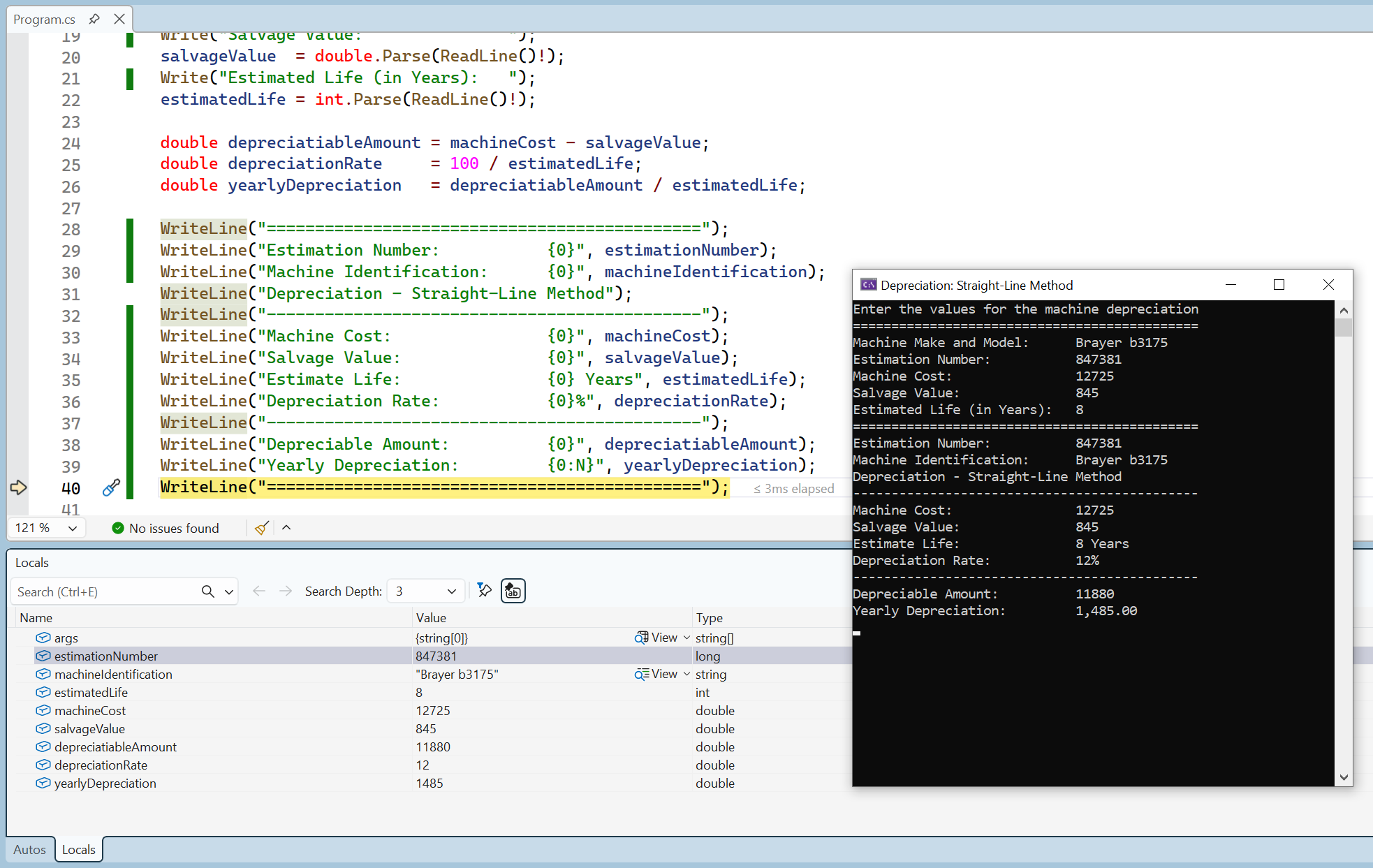
twice twice until the caret is blinking on the Salvage Value twice until the caret is blinking on the Estimated Life (in Years)
and observe the rows in the DOS, the Locals, and the Autos windows:
using static System.Console;

int     employeeId     = 2;
long    employeeNumber = 283_575;
string? firstName      = "James";
string? lastName       = "Wiley";
double  hourlySalary   = 31.63;
double  timeWorked     = 42.50;

double netPay = hourlySalary * timeWorked;

WriteLine("Employee Record");
WriteLine("------------------------");
WriteLine("Employee Id:\t{0}",   employeeId);
WriteLine("Employee #:\t{0}",    employeeNumber);
WriteLine("First Name:\t{0}",    firstName);
WriteLine("Last Name:\t{0}",     lastName);
WriteLine("Hourly Salary:\t{0}", hourlySalary);
WriteLine("Time Worked:\t{0}",   timeWorked);
WriteLine("Weekly Salary:\t{0}", netPay);
WriteLine("===========================");Introduction
The Immediate window is a special text editor that can be used to test values, operations (calculations), variables, and functions or methods. To display the Immediate window, on the main menu, you can click Debug -> Windows -> Immediate. The Immediate window appears as a blank object:
To use it, you must write something in it. What you write depends on what you want to do. An expression you write should start with a question mark but in some cases you can omit that symbol. Because the Immediate window is a text editor, you can copy code from somewhere else and paste it in it.
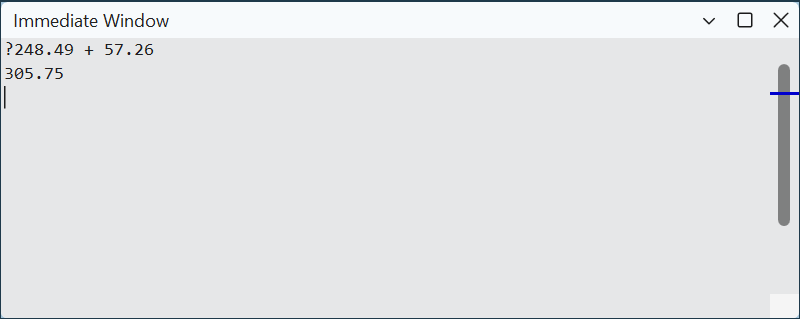
After typing or pasting the expression, press Enter. The next line would show the result. For example, imagine you want to test an arithmetic operation such as the addition of 248.49 and 57.26, you would type ?248.49 + 57.26 (the empty spaces are optional and you can include as many as you want) and press Enter. Here is an example:
If you want to test a variable or a function or method, you must first write code that has the variable. That is, before testing a variable, create a function or use the Main() function and declare the variable in it. If you try testing a variable that is not declared, you would receive an error. One way you can test a variable consists of assigning a certain value, probably a wrong value, to it and observe the result. You can start the assignment expression with a question mark but that mark is not necessary.
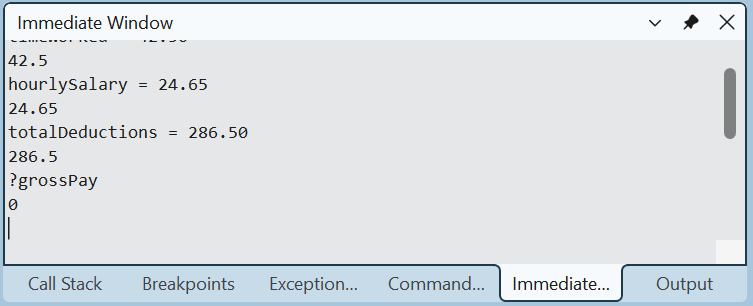
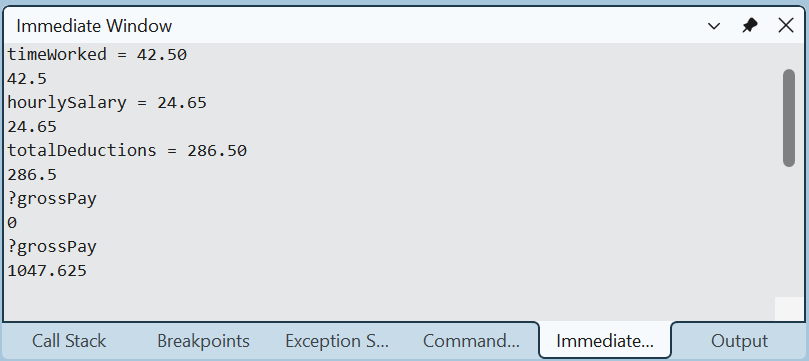
The Immediate window allows you to test the value that a variable is currently holding. To get this information, in the Immediate window, type the name of the variable preceded by a question mark (you can also just type the name of the variable) and press Enter. If the variable had previously received a value, when you enquire of it in the Immediate window, its current value would show. Another test you can perform on a variable consists of adding a value to it to increase it, or subtracting a value from it.
To test a function or method in the Immediate window, the function or method should return a value. To get the value that a method is currently returning, type its name in the Immediate window and press Enter. You can also precede the name of the function or method with a question mark. In the same way, you can create more elaborate methods and test them in the Immediate window.
If the immediate window starts being crowded, to empty it, you can right-click inside the window and click Clear All.
Debugging and the Immediate Window
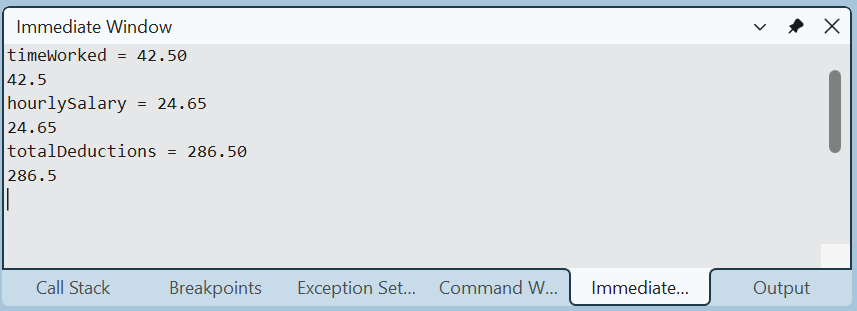
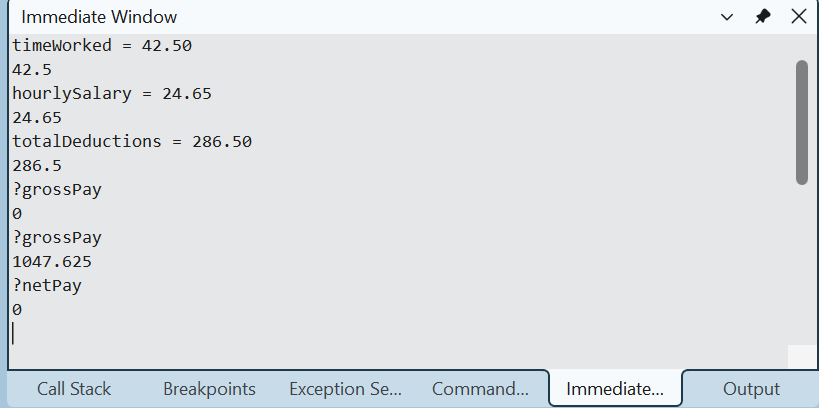
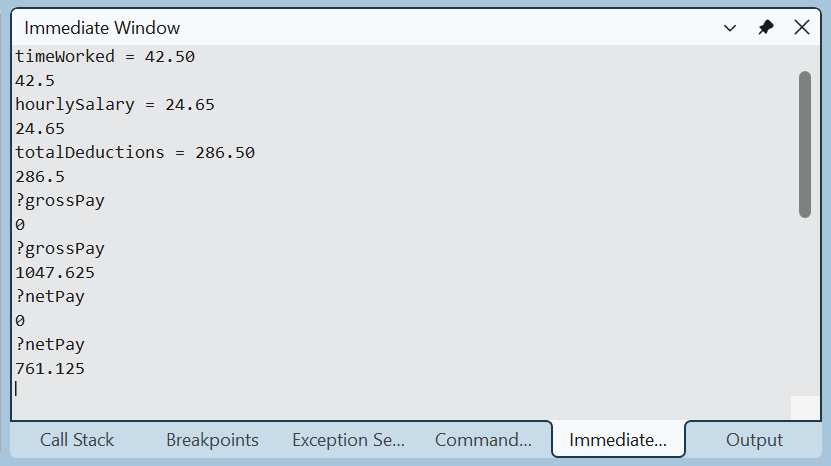
The Immediate window is another one of the windows that can be useful when testing or debugging the variables of an appication. One of the advantages of the Immediate window is that it allows you to apply a new value to a variable and test it right there in the window.
Practical Learning: Using the Immediate Window
using static System.Console;

double grossPay = 0D;
double timeWorked = 0D;
double hourlySalary = 0.00D;
double totalDeductions = 0.0D;
double netPay = 0.00D;

Title = "Payroll Evaluation";

grossPay = hourlySalary * timeWorked;
netPay = grossPay - totalDeductions;

Clear();

WriteLine("=======================");
WriteLine("Payroll Evaluation");
WriteLine("-----------------------");
WriteLine("Time Worked:   {0, 7}", timeWorked.ToString("F"));
WriteLine("Hourly Salary: {0, 7}", hourlySalary.ToString("F"));
WriteLine("Gross Pay:     {0, 7}", grossPay.ToString("F"));
WriteLine("Deductions:    {0, 7}", totalDeductions.ToString("F"));
WriteLine("Net Pay:       {0, 7}", netPay.ToString("F"));
WriteLine("=======================\n");======================= Payroll Evaluation ----------------------- Time Worked: 0.00 Hourly Salary: 0.00 Gross Pay: 0.00 Deductions: 0.00 Net Pay: 0.00 ======================= Press any key to close this window . . .

=======================
Payroll Evaluation
-----------------------
Time Worked:     42.50
Hourly Salary:   24.65
Gross Pay:     1047.62
Deductions:     286.50
Net Pay:        761.12
=======================

Press any key to close this window . . .
Introduction
Imagine you have a variable that is accessed in various parts of your code. One way you can test the behavior of that variable is to test its value as it circumstancially changes time after time. The Watch window is an object that allows you to monitor the values that a variable (or many variables) holds (or have) in various parts of the code.
Getting the Watch Window
To get the Watch window, start debugging your application (Debug -> Start Debugging or Debug -> Step Into). The Watch window would appear, usually next to the Locals window. The Watch window appears as a table with three columns. Their roles will be obvious to you once the window contains something.
Creating a Watch
Before using the services of a Watch window, you must create one or more entries, which are referred to as watches. Before creating a watch, you must start stepping into your code, which is done by clicking Debug -> Step Into or by pressing F11.
To create a watch, after starting a Step Into operation, on the main menu of Microsoft Visual Studio, click Debug -> Window -> Watch -> Watch 1. As an alternative, to create a watch, after starting a Step Into operation, on the mainthen click Debug -> QuickWatch... A window would display. Here is an example:

The window is equipped with a combo box labeld Expression.
Using a Watch
The Watch window is equipped with a combo box labeld Expression. To start using a Watch window, in the Expression combo box, type the name of the variable you want to watch. You can also type an expression such as a value added to a variable. Here is an example:

If you want to submit the entry, click the Add Watch button.
After creating the desired entries in the Watch window, continue debugging. You will see the values being automatically updated in the Value column of the Watch window.
If you don't need a certain entry in the Watch window, you can remove it, or you can delete all entries in the window. To remove an entry, right-click it and click Delete Watch. To remove all entries, right-click anywhere in the Watch window and click Clear All.
Practical Learning: Using the Watch Window


|
|
|||
| Previous | Copyright © 2001-2026, FunctionX | Last Update: Monday 02 March 2026, 13:36 | Next |
|
|
|||