College Park Auto-Parts - XML Serialization

College Park Auto-Parts - XML Serialization
Setting Up the Application
Introduction
.
 Practical Learning: Introducing the Application
Public Enum Answer
    No = 0
    Yes = 1
    Cancel = 2
    Unknown = 3
End Enum

Public Class MsgBox
    Public Shared Sub Regular(message As String)
        Microsoft.VisualBasic.MsgBox(message,
                                     MsgBoxStyle.OkCancel Or MsgBoxStyle.Information,
                                     "College Park Auto-Parts")
    End Sub

    Public Shared Function Question(Message As String) As Answer
        Dim result As MsgBoxResult = Microsoft.VisualBasic.MsgBox(Message,
                                                                  MsgBoxStyle.YesNoCancel Or MsgBoxStyle.Question,
                                                                  "College Park Auto-Parts")

        Select Case result
            Case MsgBoxResult.Yes
                Return Answer.Yes
            Case MsgBoxResult.No
                Return Answer.No
            Case MsgBoxResult.Cancel
                Return Answer.Cancel
            Case Else
                Return Answer.Unknown
        End Select
    End Function
End Class
Parts Manufacturers
The company for which we are building the application sells automobile parts. The primary piece of information you should provide for an automobile part is the manufacturer. In this section, we will create that can allow an employee to create a name for a manufacturer.
Practical Learning: Introducing Parts Manufacturers
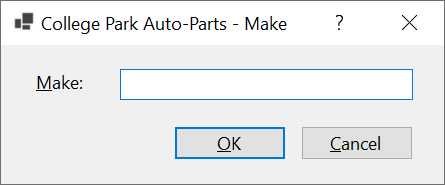
| Control | Text | Name | Other Properties | |
| Label |  |
&Make: | ||
| TextBox |  |
TxtMake | Modifiers: Public | |
| Button |  |
&OK | BtnOK | DialogResult: OK |
| Button | |
&Cancel | BtnCancel | DialogResult: Cancel |
Form Characteristics
| Form Property | Value |
| FormBorderStyle | FixedDialog |
| Text | Make |
| StartPosition | CenterScreen |
| AcceptButton | BtnOK |
| CancelButton | BtnCancel |
| MaximizeBox | False |
| MinimizeBox | False |
| ShowInTaskbar | False |
Parts Models
The second valuable piece of information you should provide about an object sold in a store is the model. In this section, we will create a form that an employee can use to provide that information.
Practical Learning: Introducing Parts Models
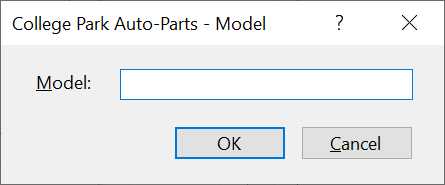
| Control | Text | Name | Other Properties | |
| Label | |
&Model: | ||
| TextBox | |
TxtModel | Modifiers: Public | |
| Button | |
&OK | BtnOK | DialogResult: OK |
| Button | |
&Cancel | BtnCancel | DialogResult: Cancel |
Form Characteristics
| Form Property | Value |
| FormBorderStyle | FixedDialog |
| Text | Category Editor |
| StartPosition | CenterScreen |
| AcceptButton | BtnOK |
| CancelButton | BtnCancel |
| MaximizeBox | False |
| MinimizeBox | False |
| ShowInTaskbar | False |
Parts Categories
A company can make objects that use the same model but some options can different items of the same model. To allow a user to provide such information, we will create a form.
Practical Learning: Introducing Parts Categories
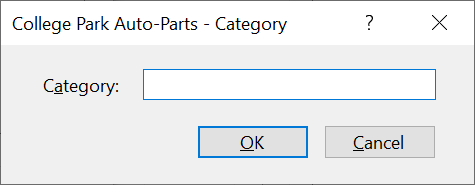
| Control | Text | Name | Other Properties | |
| Label | |
C&ategory: | ||
| TextBox | |
TxtCategory | Modifiers: Public | |
| Button | |
&OK | BtnOK | DialogResult: OK |
| Button | |
&Cancel | BtnCancel | DialogResult: Cancel |
Form Characteristics
| Form Property | Value |
| FormBorderStyle | FixedDialog |
| Text | Category |
| StartPosition | CenterScreen |
| AcceptButton | BtnOK |
| CancelButton | BtnCancel |
| MaximizeBox | False |
| MinimizeBox | False |
| ShowInTaskbar | False |
A Class for Auto-Parts
To keep our application simple, we will conside that the business is mainly selling only automobile parts. Each part will be represented by some characteristics that we will list in a class.
Practical Learning: Creating a Class for Auto-Parts
Public Class AutoPart
    Public Property PartNumber As Long
    Public Property Year As Integer
    Public Property Make As String
    Public Property Model As String
    Public Property Category As String
    Public Property PartName As String
    Public Property PictureFile As String
    Public Property UnitPrice As Double
End Class
A New Store Item
A store item is an object that a store sells. When it comes to a company that sells automobile parts, the employees must create records for what the company is selling. For that reason, we will create a form that can be used to create records for the items sold in the store.
Practical Learning: Creating an Auto-Part

| Control | (Name) | Text | Other Properties | |
| Label | |
&Part #: | ||
| Text Box | |
TxtPartNumber | ||
| Button | |
BtnSelectPicture | &Select Picture... | |
| Label | |
lblPictureFile | . | |
| Label | |
&Year: | ||
| Combo Box |  |
CbxYears | ||
| Picture Box |  |
PbxPartImage | BorderStyle: FixedSingle: SizeMode: AutoSize |
|
| Label | |
&Make: | ||
| Combo Box | |
CbxMakes | ||
| Button | |
BtnNewMake | New M&ke... | |
| Label | |
M&odel: | ||
| Combo Box | |
CbxModels | ||
| Button | |
New Mo&del | ||
| Label | |
Ca&tegory: | ||
| Combo Box | |
CbxCategories | ||
| Button | |
BtnNewCategory | New Cat&egory... | |
| Label | |
Part Na&me: | ||
| Text Box | |
TxtPartName | ScrollBars: Vertical Multiline: True |
|
| Label | |
&Unit Price | ||
| Text Box | |
TxtUnitPrice | ||
| Label | |
_________________ | ||
| Button | |
BtnSaveAutoPart | Sa&ve Auto-Part | |
| Button | |
BtnClose | &Close | |
| OpenFileDialog |  |
PictureFile | ||
Imports System.IO
Imports System.Xml.Serialization

Public Class StoreItemNew
    Public Property AutoParts As List(Of AutoPart) = New List(Of AutoPart)()

    Private Sub InitializeAutoParts()
        Dim strFileName As String = "C:\College Park Auto-Parts10\AutoParts.xml"
        Dim XsAutoParts As XmlSerializer = New XmlSerializer(GetType(List(Of AutoPart)))

        Dim CarYear As Integer

        For CarYear = Today.Year + 1 To CarYear >= DateTime.Today.Year - 20 Step -1
            CbxYears.Items.Add(CarYear)
        Next

        If File.Exists(strFileName) Then
            Dim RndNumber As Random = New Random()

            CbxManufaturers.Items.Clear()
            CbxModels.Items.Clear()
            CbxCategories.Items.Clear()
            TxtPartName.Text = Nothing
            TxtUnitPrice.Text = Nothing
            TxtPartNumber.Text = RndNumber.Next(100000, 999999)

            Using FsAutoParts As FileStream = New FileStream(strFileName,
                                                                FileMode.Open,
                                                                FileAccess.Read,
                                                                FileShare.Read)
                AutoParts = CType(XsAutoParts.Deserialize(FsAutoParts), List(Of AutoPart))

                Dim Counter As Integer

                For Counter = 0 To AutoParts.Count
                    If Not CbxManufaturers.Items.Contains(AutoParts(Counter).Make) Then
                        CbxManufaturers.Items.Add(AutoParts(Counter).Make)
                    End If
                Next

                For Counter = 0 To AutoParts.Count
                    If Not CbxCategories.Items.Contains(AutoParts(Counter).Category)) Then
                        CbxCategories.Items.Add(AutoParts(Counter).Category)
                    End If
                Next
            End Using
        End If

        LblPicturePath.Text = "C:\College Park Auto-Parts10\Generic.png"
        PbxImage.Image = Image.FromFile("C:\College Park Auto-Parts10\Generic.png")

        Width = PbxImage.Right + 40
        Height = PbxImage.Bottom + 75
    End Sub

    Private Sub StoreItemNew_Load(sender As Object, e As EventArgs) Handles MyBase.Load
        InitializeAutoParts
    End Sub
End ClassPrivate Sub BtnSelectPicture_Click(sender As Object, e As EventArgs) Handles BtnSelectPicture.Click
If OfdPartImage.ShowDialog() = DialogResult.OK Then
LblPicturePath.Text = OfdPartImage.FileName
PbxImage.Image = Image.FromFile(OfdPartImage.FileName)
Else
PbxImage.Image = Image.FromFile("C:\College Park Auto-Parts10\Generic.png")
End If
Width = PbxImage.Right + 40
Height = PbxImage.Bottom + 75
End SubPrivate Sub CbxManufaturers_SelectedIndexChanged(sender As Object, e As EventArgs) Handles CbxManufaturers.SelectedIndexChanged
CbxModels.Items.Clear()
CbxModels.Text = Nothing
For Each Part As AutoPart In AutoParts
If Part.Make = CbxManufaturers.Text Then
If Not CbxModels.Items.Contains(Part.Model) Then
CbxModels.Items.Add(Part.Model)
End If
End If
Next
End SubPrivate Sub BtnNewMake_Click(sender As Object, e As EventArgs) Handles BtnNewMake.Click
Dim Editor As Make = New Make()
If Editor.ShowDialog() = DialogResult.OK Then
If Len(Editor.TxtMake.Text) > 0 Then
Dim StrMake = Editor.TxtMake.Text
If CbxManufaturers.Items.Contains(StrMake) Then
MsgBox.Regular(StrMake + " is already in the list.")
Else
CbxManufaturers.Items.Add(StrMake)
End If
CbxManufaturers.Text = StrMake
End If
End If
End SubPrivate Sub BtnNewModel_Click(sender As Object, e As EventArgs) Handles BtnNewModel.Click
Dim Editor As Model = New Model()
If Editor.ShowDialog() = DialogResult.OK Then
If Len(Editor.TxtModel.Text) > 0 Then
Dim StrModel = Editor.TxtModel.Text
If CbxModels.Items.Contains(strModel) Then
MsgBox.Regular(StrModel + " is already in the list.")
Else
CbxModels.Items.Add(StrModel)
End If
CbxModels.Text = StrModel
End If
End If
End SubPrivate Sub BtnNewCategory_Click(sender As Object, e As EventArgs) Handles BtnNewCategory.Click
Dim Editor = New Category()
If Editor.ShowDialog() = DialogResult.OK Then
If Len(Editor.TxtCategory.Text) > 0 Then
Dim StrCategory = Editor.TxtCategory.Text
If CbxCategories.Items.Contains(StrCategory) Then
MsgBox.Regular(StrCategory + " is already in the list.")
Else
CbxCategories.Items.Add(StrCategory)
End If
CbxCategories.Text = StrCategory
End If
End If
End Sub
Private Sub BtnSaveAutoPart_Click(sender As Object, e As EventArgs) Handles BtnSaveAutoPart.Click
    ' Make sure the user had selected a year
    If String.IsNullOrEmpty(CbxYears.Text) Then
        MsgBox.Regular("You must specify the year.")
        Exit Sub
    End If

    ' Make sure the user had selected a make
    If String.IsNullOrEmpty(CbxManufacturers.Text) Then
        MsgBox.Regular("You must specify the car name.")
        Exit Sub
    End If

    ' Make sure the user had selected a model
    If String.IsNullOrEmpty(CbxModels.Text) Then
        MsgBox.Regular("You must specify the model of the car.")
        Exit Sub
    End If

    ' Make sure the user had entered a name/description
    If String.IsNullOrEmpty(TxtPartName.Text) Then
        MsgBox.Regular("You must enter the name (or a " &
                            "short description) for the part.")
        TxtPartName.Focus()
        Exit Sub
    End If

    ' Make sure the user had typed a price for the item
    If String.IsNullOrEmpty(TxtUnitPrice.Text) Then
        MsgBox.Regular("You must enter the price of the item.")
        TxtUnitPrice.Focus()
        Exit Sub
    End If

    Dim StrFileName As String = "C:\College Park Auto-Parts2\AutoParts.xml"
    Dim XsAutoParts As XmlSerializer = New XmlSerializer(GetType(List(Of AutoPart)))

    If File.Exists(StrFileName) Then
        ' If the inventory file exists, open it

        Using FsAutoParts As FileStream = New FileStream(StrFileName,
                                                            FileMode.Open,
                                                            FileAccess.Read,
                                                            FileShare.Read)


            ' Retrieve the list of items from file
            AutoParts = CType(XsAutoParts.Deserialize(FsAutoParts), List(Of AutoPart))
        End Using
    End If

    Dim Part As AutoPart = New AutoPart()

    Part.PartNumber = CLng(TxtPartNumber.Text)
    Part.Year = CInt(CbxYears.Text)
    Part.Make = CbxManufacturers.Text
    Part.Model = CbxModels.Text
    Part.Category = CbxCategories.Text
    Part.PartName = TxtPartName.Text
    Part.UnitPrice = CDbl(TxtUnitPrice.Text)
    Part.PictureFile = LblPicturePath.Text

    ' Call the Add method of our collection class to add the part
    AutoParts.Add(Part)

    Dim TwAutoParts As TextWriter = New StreamWriter(StrFileName)
    XsAutoParts.Serialize(TwAutoParts, AutoParts)
    TwAutoParts.Close()

    InitializeAutoParts()
End SubPrivate Sub BtnClose_Click(sender As Object, e As EventArgs) Handles BtnClose.Click
Close()
End SubApplication Design
Our application will have a central form from which all the regular operations are performed. To start, we will design it to show the user interface that will allow the employees to interact with the application.
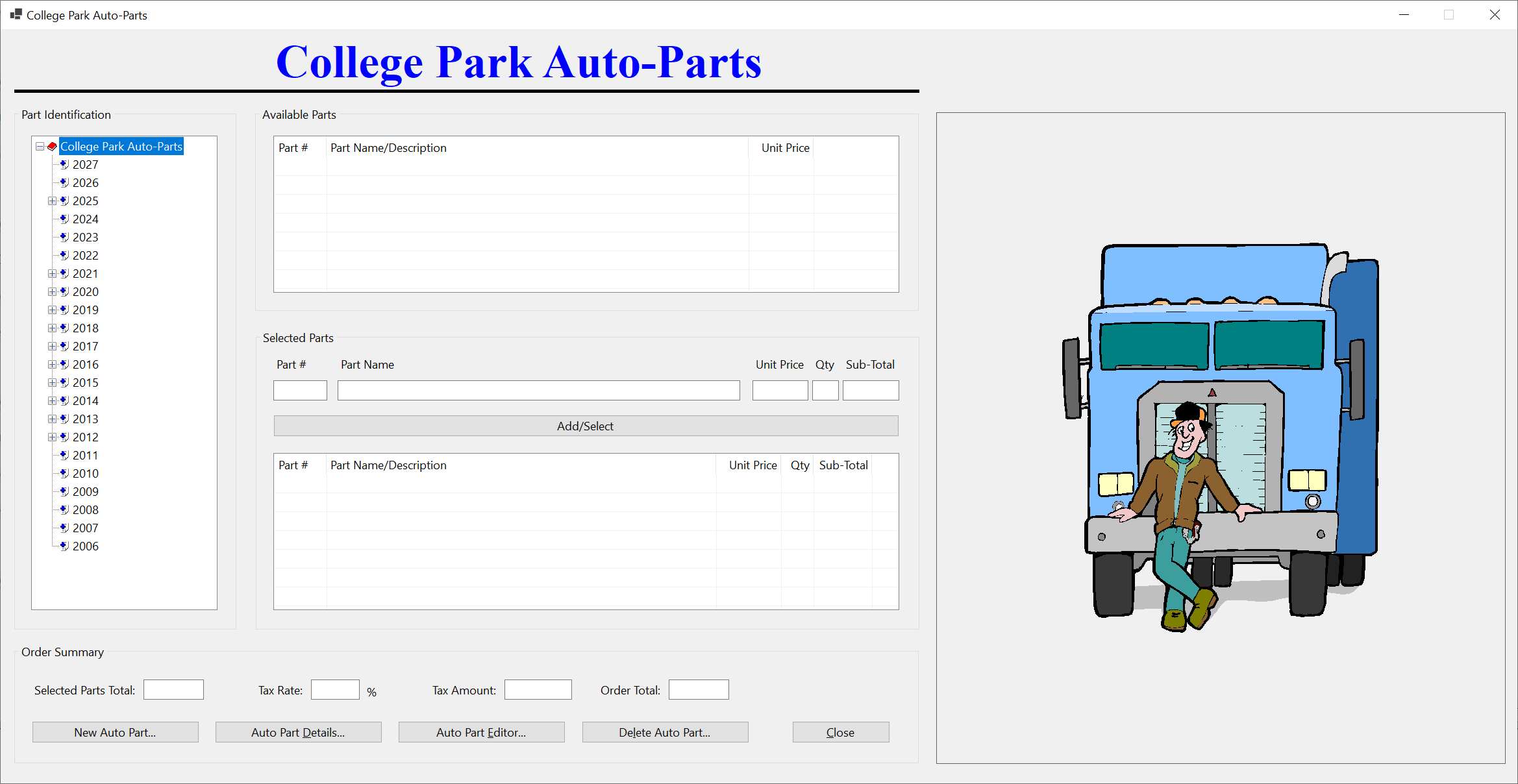
Practical Learning: Designing the Application
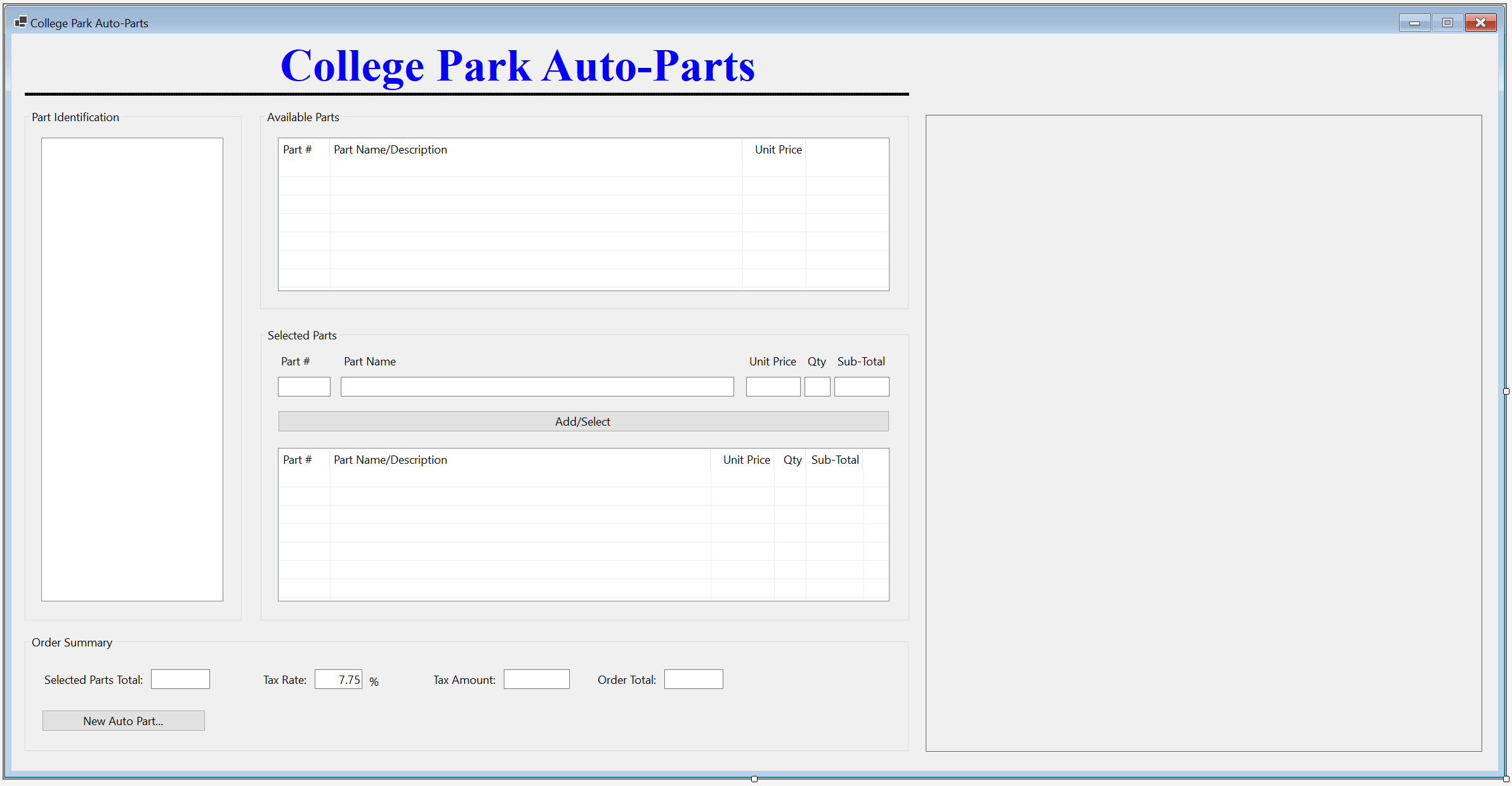
| Control | (Name) | Text | Other Properties | |||||||||||||||||||||||||
| Label | |
College Park Auto-Parts | Font: Times New Roman, 24pt, style=Bold ForeColor: Blue |
|||||||||||||||||||||||||
| PictureBox | |
BackColor: Black Size -> Height: 5 |
||||||||||||||||||||||||||
| GroupBox |  |
Part Identification | ||||||||||||||||||||||||||
| TreeView |  |
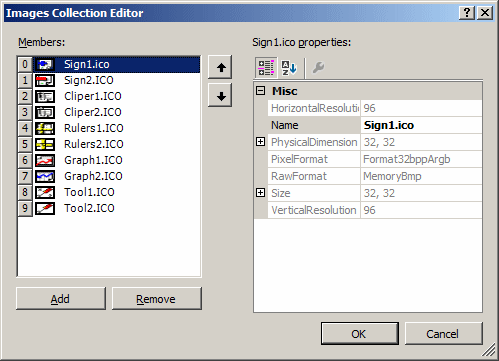
tvwAutoParts | ImageList: AutoPartsImages | |||||||||||||||||||||||||
| GroupBox | |
Available Parts | ||||||||||||||||||||||||||
| ListView |  |
LvwAvailableParts | View: Details FullRowSelect: True GridLines: True |
|||||||||||||||||||||||||
| Columns |
|
|||||||||||||||||||||||||||
| PictureBox | |
PbxPartImage | BorderStyle: FixedSingle SizeMode: AutoSize |
|||||||||||||||||||||||||
| GroupBox | |
Selected Parts | ||||||||||||||||||||||||||
| Label | |
Part # | ||||||||||||||||||||||||||
| Label | |
Part Name | ||||||||||||||||||||||||||
| Label | |
Unit Price | ||||||||||||||||||||||||||
| Label | |
Qty | ||||||||||||||||||||||||||
| Label | |
Sub-Total | ||||||||||||||||||||||||||
| Text Box | |
TxtPartNumber | ||||||||||||||||||||||||||
| Text Box | |
TxtPartName | ||||||||||||||||||||||||||
| Text Box | |
TxtUnitPrice | TextAlign: Right | |||||||||||||||||||||||||
| Text Box | |
TxtQuantity | TextAlign: Right | |||||||||||||||||||||||||
| Text Box | |
TxtSubTotal | TextAlign: Right | |||||||||||||||||||||||||
| Button | |
BtnAdd | Add/Select | |||||||||||||||||||||||||
| ListView | |
LvwSelectedParts | View: Details FullRowSelect: True GridLines: True |
|||||||||||||||||||||||||
| Columns |
|
|||||||||||||||||||||||||||
| GroupBox | |
Order Summary | ||||||||||||||||||||||||||
| Button | |
BtnNewAutoPart | New Auto Part... | |||||||||||||||||||||||||
| Label | |
Selected Parts Total: | ||||||||||||||||||||||||||
| Text Box | |
TxtSelectedPartsTotal | TextAlign: Right | |||||||||||||||||||||||||
| Label | |
Tax Rate: | ||||||||||||||||||||||||||
| Text Box | |
TxtTaxRate | TextAlign: Right | |||||||||||||||||||||||||
| Label | |
Tax Amount: | ||||||||||||||||||||||||||
| Text Box | |
TxtTaxAmount | TextAlign: Right | |||||||||||||||||||||||||
| Label | |
Order Total: | ||||||||||||||||||||||||||
| Text Box | |
TxtOrderTotal | TextAlign: Right | |||||||||||||||||||||||||
Imports System.IO
Imports System.Xml.Serialization

Public Class StoreInventory
    ' We will need a list of auto-parts.
    ' For demonstration purpose, we are creating the list as a property
    ' (but a global list Is Not necessary; we could have used local list variables).
    Public Property AutoParts As List(Of AutoPart) = New List(Of AutoPart)()

    ' This function Is used to reset the form
    Sub InitializeAutoParts()
        ' When the form must be reset, removes all nodes from the tree view
        TvwAutoParts.Nodes.Clear()
        ' Create the root node of the tree view
        Dim NodRoot As TreeNode = TvwAutoParts.Nodes.Add("College Park Auto-Parts",
                                                      "College Park Auto-Parts", 0, 1)
        ' Add the cars years to the tree view.
        ' Our application will deal only with the cars in the last 21 years.
        For CarYears = Today.Year + 1 To Today.Year - 20 Step -1
            NodRoot.Nodes.Add(CarYears.ToString(), CarYears.ToString(), 2, 3)
        Next

        ' Select the root node
        TvwAutoParts.SelectedNode = NodRoot
        ' Expand the root node
        TvwAutoParts.ExpandAll()

        ' AutoParts = new List<AutoPart>();

        ' This is the file that holds the list of auto parts
        Dim StrFileName As String = "C:\College Park Auto-Parts10\AutoParts.xml"
        Dim XsAutoParts As XmlSerializer = New XmlSerializer(GetType(List(Of AutoPart)))

        If File.Exists(StrFileName) Then
            ' If the inventory file exists, open it
            Using FsAutoParts As FileStream = New FileStream(StrFileName,
                                                            FileMode.Open,
                                                            FileAccess.Read,
                                                            FileShare.Read)

                ' Retrieve the list of items from file
                AutoParts = CType(XsAutoParts.Deserialize(FsAutoParts), List(Of AutoPart))

                ' Show the makes nodes
                For Each NodYear As TreeNode In NodRoot.Nodes
                    Dim LstMakes As List(Of String) = New List(Of String)()

                    For Each Part As AutoPart In AutoParts

                        If NodYear.Text = CStr(Part.Year) Then
                            If Not LstMakes.Contains(Part.Make) Then
                                LstMakes.Add(Part.Make)
                            End If
                        End If
                    Next

                    For Each StrMake As String In LstMakes
                        NodYear.Nodes.Add(StrMake, StrMake, 4, 5)
                    Next
                Next

                ' Showing the models nodes
                For Each NodYear As TreeNode In NodRoot.Nodes
                    For Each NodMake As TreeNode In NodYear.Nodes
                        Dim LstModels As List(Of String) = New List(Of String)()

                        For Each Part As AutoPart In AutoParts
                            If (NodYear.Text = CStr(Part.Year)) AndAlso
                                (NodMake.Text = CStr(Part.Make)) Then
                                If Not lstModels.Contains(Part.Model) Then
                                    lstModels.Add(Part.Model)
                                End If
                            End If
                        Next

                        For Each StrModel As String In LstModels
                            NodMake.Nodes.Add(StrModel, StrModel, 6, 7)
                        Next
                    Next
                Next

                ' Showing the categories nodes
                For Each NodYear As TreeNode In NodRoot.Nodes
                    For Each NodMake As TreeNode In NodYear.Nodes
                        For Each NodModel As TreeNode In NodMake.Nodes
                            Dim LstCategories As List(Of String) = New List(Of String)()

                            For Each Part As AutoPart In AutoParts
                                If (NodYear.Text = CStr(Part.Year)) AndAlso
                                        (NodMake.Text = Part.Make) AndAlso
                                        (NodModel.Text = Part.Model) Then
                                    If Not LstCategories.Contains(Part.Category) Then
                                        LstCategories.Add(Part.Category)
                                    End If
                                End If
                            Next

                            For Each StrCategory As String In LstCategories
                                NodModel.Nodes.Add(StrCategory, StrCategory, 8, 9)
                            Next
                        Next
                    Next
                Next
            End Using
        End If

        LvwSelectedParts.Items.Clear()
        LvwAvailableParts.Items.Clear()
        TxtTaxRate.Text = Nothing
        TxtPartName.Text = Nothing
        TxtQuantity.Text = Nothing
        TxtSubTotal.Text = Nothing
        TxtUnitPrice.Text = Nothing
        TxtTaxAmount.Text = Nothing
        TxtOrderTotal.Text = Nothing
        TxtPartNumber.Text = Nothing
        TxtSelectedPartsTotal.Text = Nothing
        PbxPartImage.Image = Image.FromFile("C:\College Park Auto-Parts10\Generic.png")

        Width = PbxPartImage.Right + 40
    End Sub

    Private Sub StoreInvetory_Load(sender As Object, e As EventArgs) Handles MyBase.Load
        InitializeAutoParts()
    End Sub
End Class
Private Sub LvwAvailableParts_ItemSelectionChanged(sender As Object, e As ListViewItemSelectionChangedEventArgs) Handles LvwAvailableParts.ItemSelectionChanged
    Dim PictureFound As Boolean = False
    Dim StrFileName As String = "C:\College Park Auto-Parts10\AutoParts.xml"
    Dim XsAutoParts As XmlSerializer = New XmlSerializer(GetType(List(Of AutoPart)))

    If File.Exists(StrFileName) Then
        Using FsAutoParts As FileStream = New FileStream(StrFileName,
                                                       FileMode.Open,
                                                       FileAccess.Read,
                                                       FileShare.Read)
            AutoParts = CType(XsAutoParts.Deserialize(FsAutoParts), List(Of AutoPart))

            For Each Part As AutoPart In AutoParts
                If Part.PartNumber = CLng(e.Item.SubItems(0).Text) Then
                    PictureFound = True
                    PbxPartImage.Image = Image.FromFile(Part.PictureFile)
                    Exit For
                End If
            Next
        End Using
    End If

    If pictureFound = False Then
        PbxPartImage.Image = Image.FromFile("C:\College Park Auto-Parts10\Generic.png")
    End If

    Width = PbxPartImage.Right + 40
    Height = PbxPartImage.Bottom + 75
End SubPrivate Sub LvwAvailableParts_DoubleClick(sender As Object, e As EventArgs) Handles LvwAvailableParts.DoubleClick
Dim LviAutoPart As ListViewItem = LvwAvailableParts.SelectedItems(0)
If (LvwAvailableParts.SelectedItems.Count = 0) Or
(LvwAvailableParts.SelectedItems.Count > 1) Then
Exit Sub
End If
TxtPartNumber.Text = LviAutoPart.Text
TxtPartName.Text = LviAutoPart.SubItems(1).Text
TxtUnitPrice.Text = LviAutoPart.SubItems(2).Text
TxtQuantity.Text = "1"
TxtSubTotal.Text = LviAutoPart.SubItems(2).Text
TxtQuantity.Focus()
End SubPrivate Sub TxtUnitPrice_Leave(sender As Object, e As EventArgs) Handles TxtUnitPrice.Leave
Dim SubTotal As Double
Dim UnitPrice As Double = 0
Dim Quantity As Double = 0.00
Try
UnitPrice = CDbl(TxtUnitPrice.Text)
Catch Fex As FormatException
MsgBox.Regular("Invalid Unit Price!")
End Try
Try
Quantity = CInt(TxtQuantity.Text)
Catch Fex As FormatException
MsgBox.Regular("Invalid Quandtity!")
End Try
SubTotal = UnitPrice * Quantity
TxtSubTotal.Text = FormatNumber(SubTotal, 2)
End SubPrivate Sub TxtPartNumber_Leave(sender As Object, e As EventArgs) Handles TxtPartNumber.Leave
Dim Found = False
For Each Part As AutoPart In AutoParts
If Part.PartNumber = CLng(TxtPartNumber.Text) Then
TxtPartName.Text = Part.PartName
TxtUnitPrice.Text = Part.UnitPrice,2))
If String.IsNullOrEmpty(TxtQuantity.Text) Then
TxtQuantity.Text = "1"
End If
TxtSubTotal.Text = FormatNumber(Part.UnitPrice, 2)
TxtQuantity.Focus()
Found = True
Exit For
End If
Next
If Found = False Then
TxtPartName.Text = ""
TxtUnitPrice.Text = "0.00"
TxtQuantity.Text = "0"
TxtSubTotal.Text = "0.00"
MsgBox.Regular("There is no part with that number.")
End If
End SubPrivate Sub CalculateOrder() Dim PartsTotal As Double = 0.00 Dim TaxRate As Double = 0.00 Dim TaxAmount As Double Dim OrderTotal As Double If String.IsNullOrEmpty(TxtTaxRate.Text) Then TxtTaxRate.Text = "7.25" End If For Each Lvi As ListViewItem In LvwSelectedParts.Items Dim SubItem As ListViewItem.ListViewSubItem = Lvi.SubItems(4) PartsTotal = PartsTotal + SubItem.Text Next Try TaxRate = TxtTaxRate.Text / 100 Catch Fex As FormatException MsgBox.Regular("Invalid Tax Rate") End Try TaxAmount = PartsTotal * TaxRate OrderTotal = PartsTotal + TaxAmount TxtSelectedPartsTotal.Text = FormatNumber(PartsTotal, 2) TxtTaxAmount.Text = FormatNumber(TaxAmount, 2) TxtOrderTotal.Text = FormatNumber(OrderTotal, 2) End Sub Private Sub BtnAdd_Click(sender As Object, e As EventArgs) Handles BtnAdd.Click If (String.IsNullOrEmpty(TxtPartNumber.Text)) Then MsgBox.Regular("There is no part to be added to the order.") Exit Sub End If For Each Part As AutoPart In AutoParts If Part.PartNumber = CLng(TxtPartNumber.Text) Then Dim lviSelectedPart As ListViewItem = New ListViewItem(Part.PartNumber.ToString()) lviSelectedPart.SubItems.Add(Part.PartName) lviSelectedPart.SubItems.Add(Part.UnitPrice.ToString()) lviSelectedPart.SubItems.Add(TxtQuantity.Text) lviSelectedPart.SubItems.Add(TxtSubTotal.Text) LvwSelectedParts.Items.Add(lviSelectedPart) End If Next CalculateOrder() End Sub
Private Sub LvwSelectedParts_DoubleClick(sender As Object, e As EventArgs) Handles LvwSelectedParts.DoubleClick
    Dim LviSelectedPart As ListViewItem = LvwSelectedParts.SelectedItems(0)

    If (LvwSelectedParts.SelectedItems.Count = 0) Or
    (LvwSelectedParts.SelectedItems.Count > 1) Then
        Exit Sub
    End If

    TxtPartNumber.Text = LviSelectedPart.Text
    TxtPartName.Text = LviSelectedPart.SubItems(1).Text
    TxtUnitPrice.Text = LviSelectedPart.SubItems(2).Text
    TxtQuantity.Text = LviSelectedPart.SubItems(3).Text
    TxtSubTotal.Text = LviSelectedPart.SubItems(4).Text

    LvwSelectedParts.Items.Remove(LviSelectedPart)
    CalculateOrder()
End SubPrivate Sub TvwAutoParts_NodeMouseClick(sender As Object, e As TreeNodeMouseClickEventArgs) Handles TvwAutoParts.NodeMouseClick
Dim NodClicked As TreeNode = e.Node
If NodClicked.Level = 4 Then
LvwAvailableParts.Items.Clear()
End If
Try
For Each Part As AutoPart In AutoParts
If ((Part.Category = NodClicked.Text) AndAlso
(Part.Model = NodClicked.Parent.Text) AndAlso
(Part.Make = NodClicked.Parent.Parent.Text) AndAlso
(Part.Year.ToString() = NodClicked.Parent.Parent.Parent.Text)) Then
Dim LviAutoPart As ListViewItem = New ListViewItem(Part.PartNumber)
LviAutoPart.SubItems.Add(Part.PartName)
LviAutoPart.SubItems.Add(FormatNumber(Part.UnitPrice, 2))
LvwAvailableParts.Items.Add(LviAutoPart)
End If
Next
Catch Nrf As NullReferenceException
End Try
End SubPrivate Sub BtnNewAutoPart_Click(sender As Object, e As EventArgs) Handles BtnNewAutoPart.Click
Dim Nsi As StoreItemNew = New StoreItemNew()
Nsi.ShowDialog()
InitializeAutoParts()
End Sub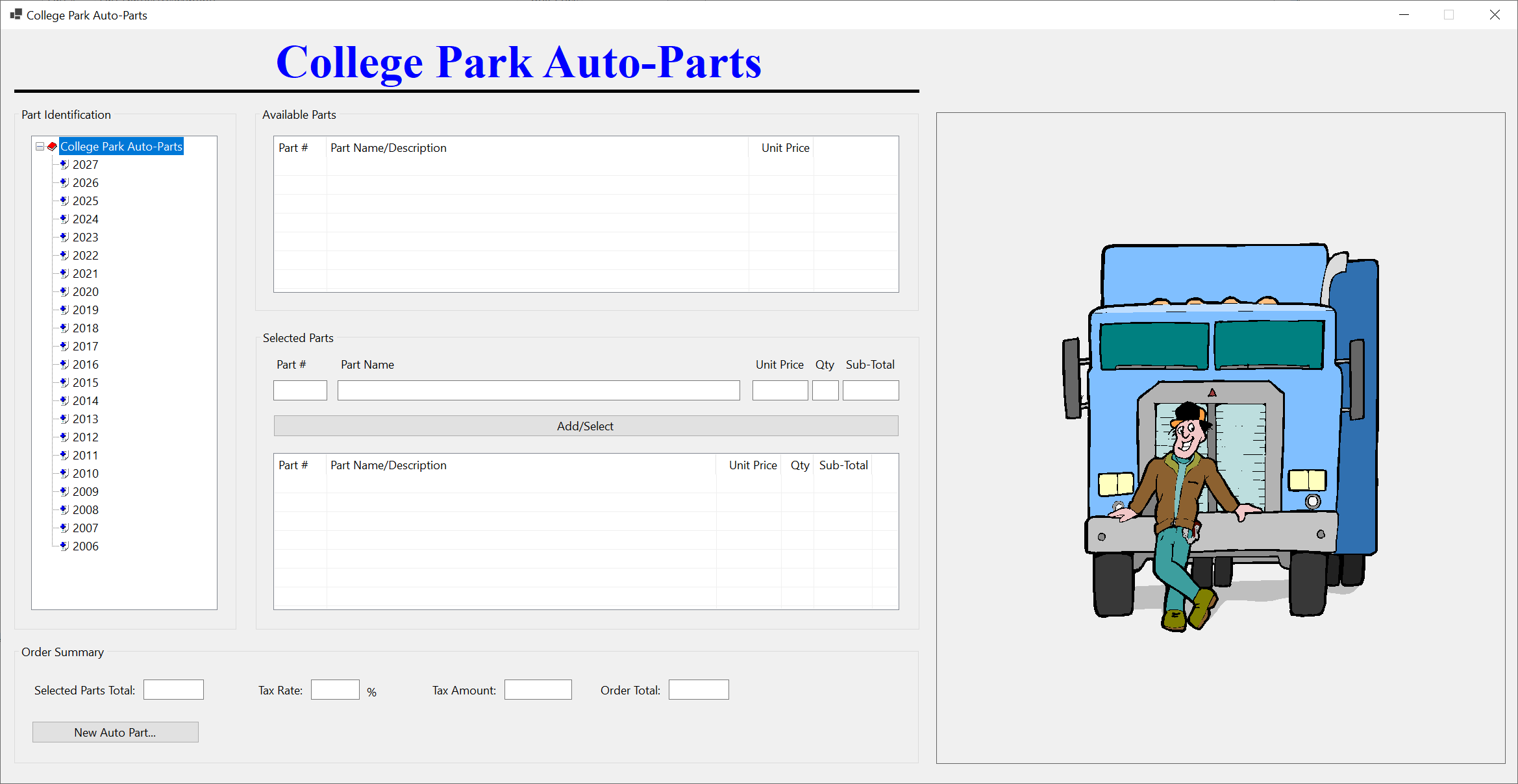
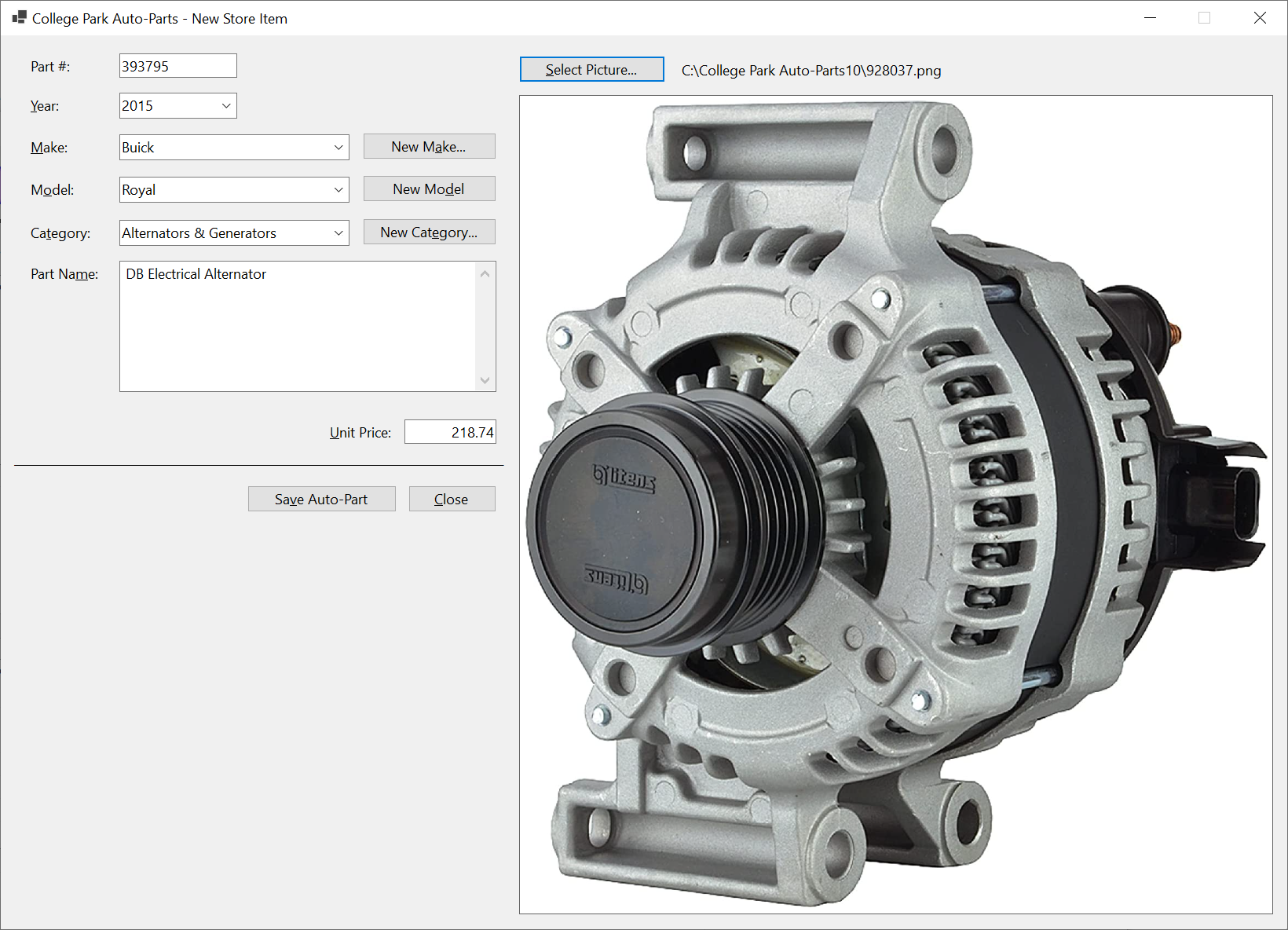
| Part # | Year | Make | Model | Category | Item Name | Unit Price | Picture File |
| 393795 | 2015 | Buick | Regal | Alternators & Generators | DB Electrical Alternator | 218.74 | 928037 |
| 155975 | 2010 | Buick | Lacrosse | Hub Assemblies | Front/Rear Wheel Hub Bearing Assembly | 94.98 | 155975 |
| 928374 | 2018 | Chevrolet | Express 3500 | Shocks, Struts & Suspension | Suspension Kit (Front; with 3 Groove Pitman Arm) | 142.44 | 304031 |
| 730283 | 2020 | Jeep | Wrangler Unlimited Sahara | Oil Filters | Hydraulic Cylinder Timing Belt Tensioner | 14.15 | 730283 |
| 290741 | 2015 | Ford | F-150 XL 3.5L V6 Flex Regular Cab 2 Full-Size Doors | Shocks, Struts & Suspension | Front Strut and Coil Spring Assembly - Set of 2 | 245.68 | 290741 |
| 740248 | 2013 | Chevrolet | Equinox | Bearings & Seals | Wheel hub bearing Assembly | 99.95 | 740248 |
| 283759 | 2012 | Dodge | Charger 3.6L | Starters | DB Electrical SND0787 Starter | 212.58 | 283759 |
| 799428 | 2012 | Cadillac | XTS | Bearings & Seals | Front/Rear Wheel Hub Bearing Assembly 5 Lugs w/ABS | 79.97 | 799428 |
| 648203 | 2018 | Honda | CRV | Alternator | Alternator | 202.47 | 593804 |
| 502853 | 2014 | GMC | Terrain | Bearings & Seals | Wheel Hub Bearing Assembly | 48.85 | 927944 |
| 520384 | 2020 | Jeep | Wrangler Unlimited Sahara | Drum Brake | Rear Dynamic Friction Company True-Arc Brake Shoes | 42.22 | 520384 |
| 727394 | 2018 | Toyota | Corolla SE 1.8L L4 Gas | Alternators | DB Electrical 400-40169 Alternator Compatible With/Replacement For 125 Internal Fan Type Decoupler Pulley Type Internal Regulator CW Rotation | 215.84 | 727394 |
| 927944 | 2017 | Chevrolet | Equinox | Bearings & Seals | Wheel Hub Bearing Assembly | 48.85 | 927944 |
| 749471 | 2019 | Toyota | Prius | Shocks, Struts & Suspension | 2-Piece Suspension Strut and Coil Spring Kit (593024) | 299.97 | 593024 |
| 927307 | 2014 | Buick | Regal | Alternators & Generators | DB Electrical Alternator | 218.74 | 928037 |
| 304031 | 2017 | Chevrolet | Express 2500 | Shocks, Struts & Suspension | Suspension Kit (Front; with 3 Groove Pitman Arm) | 142.44 | 304031 |
| 497249 | 2013 | GMC | Sierra 1500 | Drum Brake | ACDelco Gold 17960BF1 Bonded Rear Drum Brake Shoe Set | 58.92 | 497249 |
| 973947 | 2012 | Honda | Accord | Brake Kits | R1 Concepts Front Rear Brakes and Rotors Kit |Front Rear Brake Pads| Brake Rotors and Pads| Ceramic Brake Pads and Rotors | 292.84 | 973947 |
| 182694 | 2016 | Chevrolet | Impala | Bearings & Seals | Wheel Hub Bearing Assembly | 48.85 | 927944 |
| 497249 | 2013 | Chevrolet | Silverado 1500 | Drum Brake | ACDelco Gold 17960BF1 Bonded Rear Drum Brake Shoe Set | 58.92 | 497249 |
| 297149 | 2020 | Jeep | Wrangler | Air Filters | ACDelco Gold A3408C Air Filter | 22.83 | 297149 |
| 927397 | 2016 | Chevrolet | Impala | Bearings & Seals | Front/Rear Wheel Hub Bearing Assembly 5 Lugs w/ABS | 79.97 | 799428 |
| 392972 | 2020 | Toyota | Prius AWD-e | Shocks, Struts & Suspension | 2-Piece Suspension Strut and Coil Spring Kit (593024) | 299.97 | 593024 |
| 928037 | 2017 | Buick | Regal | Alternators & Generators | DB Electrical Alternator | 218.74 | 928037 |
| 502481 | 2016 | Chevrolet | Equinox | Bearings & Seals | Wheel hub bearing Assembly | 99.95 | 740248 |
| 593804 | 2019 | Honda | Accord LX 1.5L L4 Gas | Alternator | Alternator | 202.47 | 593804 |
| 293748 | 2014 | Toyota | Corolla SE 1.8L L4 Gas | Alternators | DB Electrical 400-40169 Alternator Compatible With/Replacement For 125 Internal Fan Type Decoupler Pulley Type Internal Regulator CW Rotation | 215.84 | 727394 |
| 639704 | 2021 | Kia | Sorento | Brake Kits | Rear Brakes and Rotors Kit |Rear Brake Pads| Brake Rotors and Pads| Optimum OEp Brake Pads and Rotors | 125.15 | 639704 |
| 829385 | 2020 | Jeep | Wrangler Unlimited Sahara | Drum Brake | Centric Brake Shoe | 22.05 | 829385 |
| 484695 | 2014 | GMC | Terrain | Bearings & Seals | Front/Rear Wheel Hub Bearing Assembly 5 Lugs w/ABS | 79.97 | 799428 |
| 807204 | 2016 | Chevrolet | Camaro | Alternators & Generators | DB Electrical Alternator | 218.74 | 928037 |
| 939283 | 2015 | Chevrolet | Equinox | Bearings & Seals | Wheel Hub Bearing Assembly | 48.85 | 927944 |
| 738628 | 2021 | Toyota | Prius AWD-e | Shocks, Struts & Suspension | 2-Piece Suspension Strut and Coil Spring Kit (593024) | 299.97 | 593024 |
| 186950 | 2017 | Honda | CRV | Alternator | Alternator | 202.47 | 593804 |
| 329573 | 2012 | Chevrolet | Equinox | Bearings & Seals | Front/Rear Wheel Hub Bearing Assembly 5 Lugs w/ABS | 79.97 | 799428 |
| 594085 | 2015 | Buick | Regal | Bearings & Seals | Front/Rear Wheel Hub Bearing Assembly 5 Lugs w/ABS | 79.97 | 799428 |
| 928405 | 2018 | Chevrolet | Camaro | Alternators & Generators | DB Electrical Alternator | 218.74 | 928037 |
| 927937 | 2012 | Ford | Focus SE | Starters | Duralast Starter 19481 | 188.88 | 927937 |
| 283948 | 2018 | GMC | Savana 3500 | Shocks, Struts & Suspension | Suspension Kit (Front; with 3 Groove Pitman Arm) | 142.44 | 304031 |
| 495116 | 2020 | Chrysler | Voyager | Brake Kits | Power Stop K7845 Rear Z23 Carbon Fiber Brake Pads with Drilled & Slotted Brake Rotors Kit | 269.75 | 293748 |
| 180400 | 2012 | Cadillac | CTS FWD | Bearings & Seals | Front/Rear Wheel Hub Bearing Assembly 5 Lugs w/ABS | 79.97 | 799428 |
| 593024 | 2021 | Toyota | Prius | Shocks, Struts & Suspension | 2-Piece Suspension Strut and Coil Spring Kit (593024) | 299.97 | 593024 |
| 302839 | 2014 | Chevrolet | Equinox | Bearings & Seals | Wheel Hub Bearing Assembly | 48.85 | 927944 |
| 649394 | 2020 | Jeep | Wrangler Unlimited Sahara | Brake Kits | Power Stop K7940 Front Z23 Evolution Sport Brake Upgrade Kit | 354.46 | 495116 |
| 820684 | 2015 | Buick | LaCrosse | Bearings & Seals | Front/Rear Wheel Hub Bearing Assembly 5 Lugs w/ABS | 79.97 | 799428 |
Store Item Details
In our application, we will provide a form that an employee can use to view the information related to a certain auto part.
Practical Learning: Getting the Details of an Auto Part

| Control | (Name) | Text | Other Properties | |
| Label | |
&Part #: | ||
| Text Box | |
TxtPartNumber | ||
| Button | |
BtnFindAutoPart | &Find Auto-Part | |
| Label | |
lblPictureFile | Generic | |
| Label | |
&Year: | ||
| Text Box | |
TxtYear | ||
| Picture Box | |
PbxPartImage | BorderStyle: FixedSingle: SizeMode: AutoSize |
|
| Label | |
&Make: | ||
| Text Box | |
TxtMake | ||
| Label | |
M&odel: | ||
| Text Box | |
TxtModel | ||
| Label | |
Ca&tegory: | ||
| Text Box | |
TxtCategory | ||
| Label | |
Part Na&me: | ||
| Text Box | |
TxtPartName | ScrollBars: Vertical Multiline: True |
|
| Label | |
&Unit Price | ||
| Text Box | |
TxtUnitPrice | ||
| Label | |
____________________ | ||
| Button | |
BtnClose | &Close | |
using CollegeParkAutoParts1.Models;
using System.Xml.Serialization;

namespace CollegeParkAutoParts1
{
    public partial class StoreItemDetails : Form
    {
        dim AutoParts as List      (             of           AutoPart)  { get; set; } = new List      (             of           AutoPart)

        public StoreItemDetails()
        {
            InitializeComponent()
        }

        private  sub    BtnFindStoreItem_Click(object sender, EventArgs e)
        {
            if               string.IsNullOrEmpty(TxtPartNumber.Text))
            {
                MsgBox.Regular("You must enter a (valid) number for an auto-part.")
                exit                            sub
            }

            bool foundAutoPart = false;
            dim StrFileName as string = "C:\College Park Auto-Parts10\AutoParts.xml"
            dim              XsAutoParts        as         XmlSerializer = new XmlSerializer(typeof(List      (             of           AutoPart)))

            if               File.Exists(strFileName))
            {
                using  FsAutoParts      as    FileStream                = new(strFileName, FileMode.Open, FileAccess.Read, FileShare.Read))
                {
                    AutoParts = (List      (             of           AutoPart))xsAutoParts.Deserialize(fsAutoParts)

                    for i as integer  = 0 to              AutoParts.Count; i++)
                    {
                        if               AutoParts(i).PartNumber.Equals(CLng(TxtPartNumber.Text)))
                        {
                            foundAutoPart = true;

                            TxtMake.Text = AutoParts(i).Make;
                            TxtModel.Text = AutoParts(i).Model;
                            TxtCategory.Text = AutoParts(i).Category;
                            TxtPartName.Text = AutoParts(i).PartName;
                            TxtYear.Text = AutoParts(i).Year.ToString()
                            TxtUnitPrice.Text = AutoParts(i).UnitPrice,2))
                            PbxPartImage.Image = Image.FromFile(AutoParts(i).PictureFile)
                            lblPictureFile.Text = AutoParts(i).PictureFile;

                            exit for
                        }
                    }
                }
            }

            if               foundAutoPart =               false)
            {
                MsgBox.Regular("There is no auto-part with that number in our records.")

                lblPictureFile.Text = "C:\College Park Auto-Parts10\Generic.png"
                PbxPartImage.Image = Image.FromFile(                                "C:\College Park Auto-Parts10\Generic.png")
            }

            Width = PbxPartImage.Right + 40
            Height = PbxPartImage.Bottom + 75
        }
    }
}using CollegeParkAutoParts1.Models;
using System.Xml.Serialization;
namespace CollegeParkAutoParts1
{
public partial class StoreItemDetails : Form
{
' The list of auto-parts of our database will be retrieved using a collection class.
* This property will hold the list of auto-parts.
dim AutoParts as List ( of AutoPart) { get; set; } = new List ( of AutoPart)
public StoreItemDetails()
{
InitializeComponent()
}
private sub BtnFindStoreItem_Click(object sender, EventArgs e)
{
' When the user clicks the Find Store Item button, make sure the user typed something.
* If the Part # text box is empty (meaning the user didn't type a number), ...*/
if string.IsNullOrEmpty(TxtPartNumber.Text))
{
' ... display a message box to the user, ...
MsgBox.Regular("You must enter a (valid) number for an auto-part.")
' ... and stop everything
exit sub
}
' This Boolean variable will allow us to know if an auto part was found.
bool foundAutoPart = false;
' Our list of auto-parts is stored in an XML file.
* Let's get a reference to that file.
dim StrFileName as string = "C:\College Park Auto-Parts10\AutoParts.xml"
' We process our records through XML serialization.
* Create a reference for XML serialization that is initialized with a collection class*/
dim XsAutoParts as XmlSerializer = new XmlSerializer(typeof(List ( of AutoPart)))
' Before doing anything, check whether a file of auto-parts exists
if File.Exists(strFileName))
{
' Create a stream reference for our file of au-parts
using FsAutoParts as FileStream = new(strFileName, FileMode.Open, FileAccess.Read, FileShare.Read))
{
' If the file of auto-parts exists, open that file, get the list of
* auto-parts, and store that list in our collection variable.
AutoParts = (List ( of AutoPart))xsAutoParts.Deserialize(fsAutoParts)
' Now that the list of auto-parts exists, navigate to each item of the list
for i as integer = 0 to AutoParts.Count; i++)
{
' When you reach an auto-part, check whether its part number is
* the same as the number the user typed.*/
if AutoParts(i).PartNumber.Equals(CLng(TxtPartNumber.Text)))
{
' If the auto-part was found, make a not by updating our Boolean variable
foundAutoPart = true;
' Get the values of the auto-part and display them in the Windows controls
TxtMake.Text = AutoParts(i).Make;
TxtModel.Text = AutoParts(i).Model;
TxtCategory.Text = AutoParts(i).Category;
TxtPartName.Text = AutoParts(i).PartName;
TxtYear.Text = AutoParts(i).Year.ToString()
TxtUnitPrice.Text = AutoParts(i).UnitPrice,2))
PbxPartImage.Image = Image.FromFile(AutoParts(i).PictureFile)
lblPictureFile.Text = AutoParts(i).PictureFile;
' Since an auto-part was found
* and its values have been displayed, stop searching.
exit for
}
}
}
}
' Check the value of our Boolean variable. If that value is false, ...
if foundAutoPart = false)
{
' ... it means no auto-part was found. Display a message box to the user
MsgBox.Regular("There is no auto-part with that number in our records.")
lblPictureFile.Text = "C:\College Park Auto-Parts10\Generic.png"
PbxPartImage.Image = Image.FromFile( "C:\College Park Auto-Parts10\Generic.png")
}
Width = PbxPartImage.Right + 40
Height = PbxPartImage.Bottom + 75
}
private sub BtnClose_Click(object sender, EventArgs e)
{
Close()
}
}
}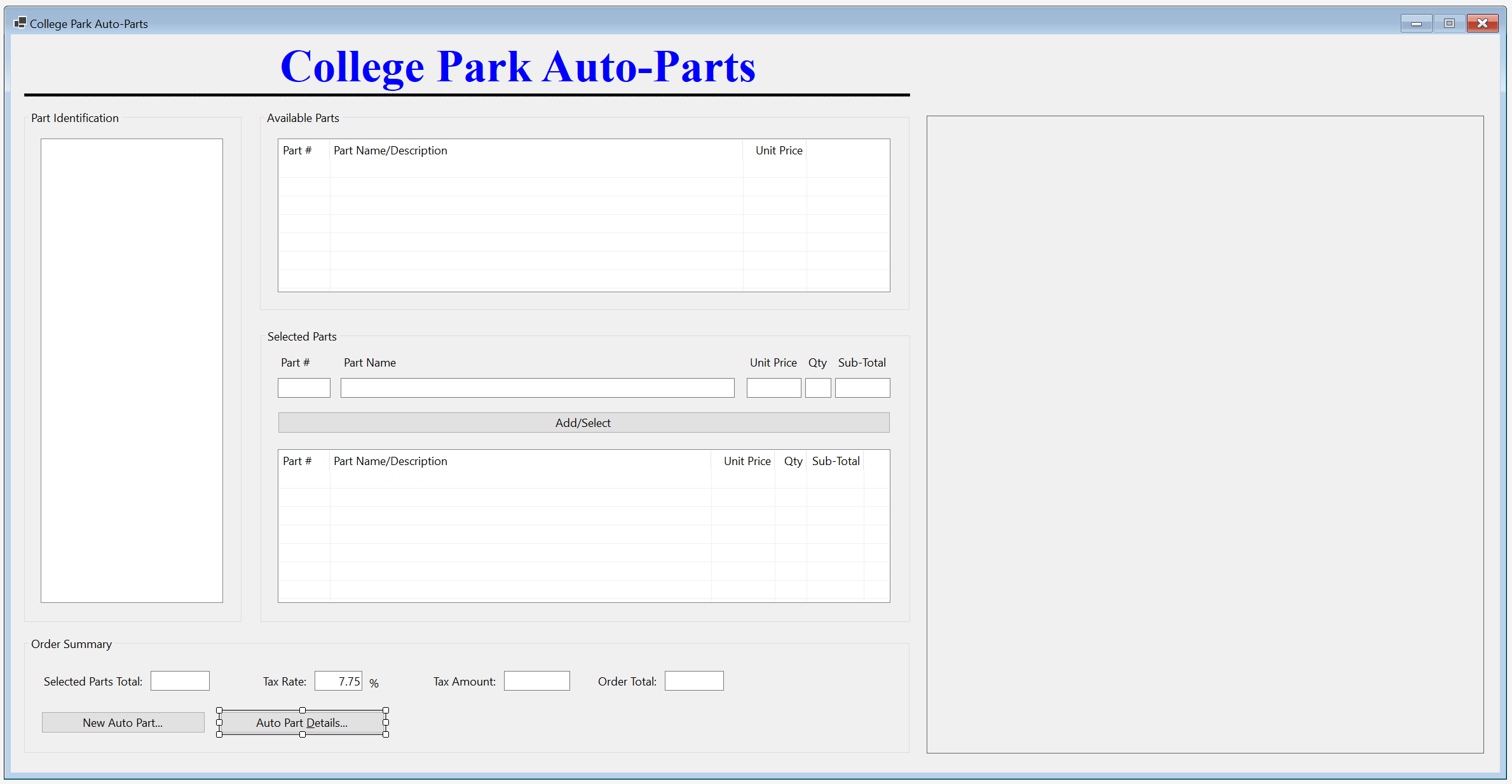
| Control | (Name) | Text | |
| Button | |
BtnAutoPartDetails | Auto Part &Details... |
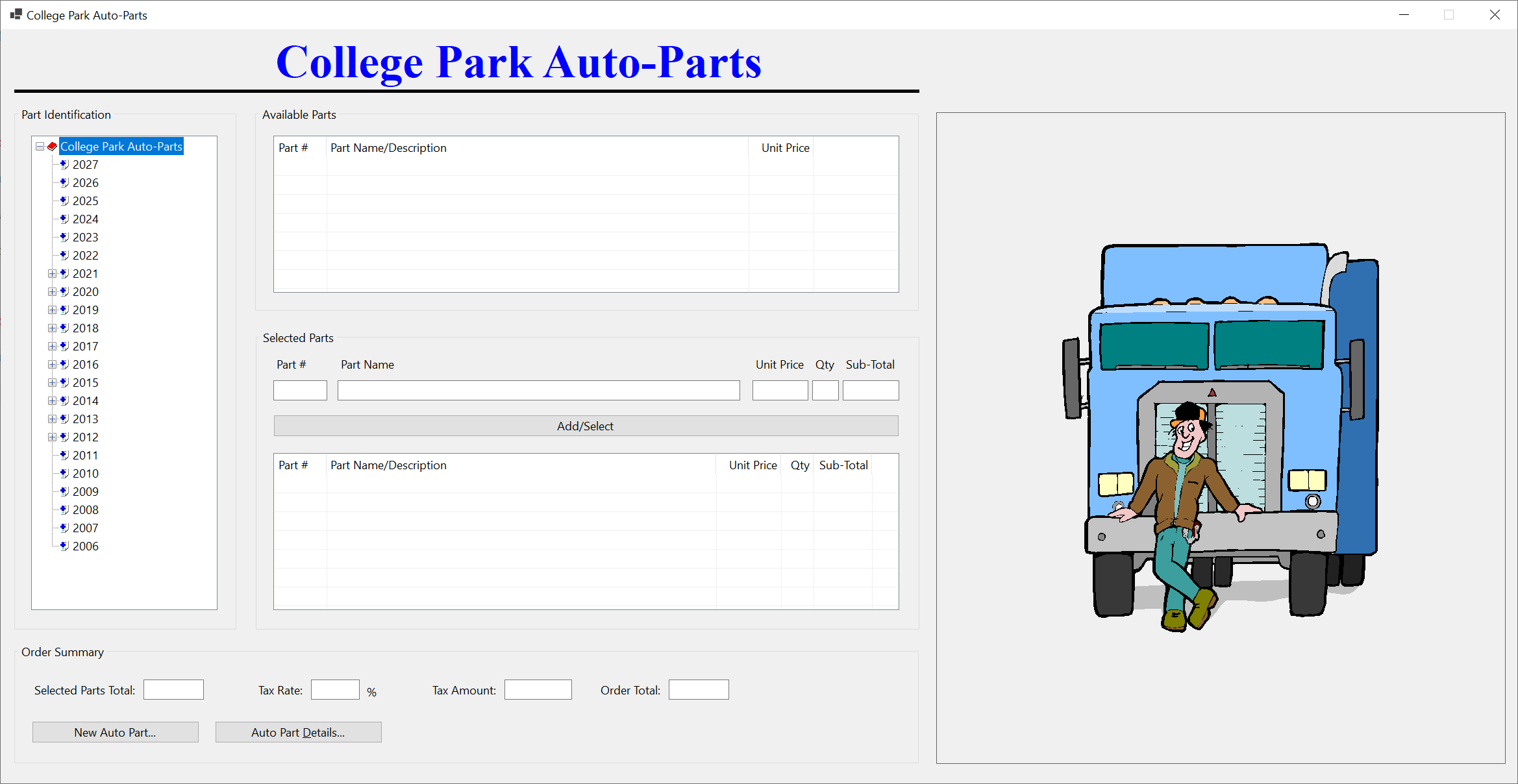
private  sub    BtnAutoPartDetails_Click(object sender, EventArgs e)
{
    StoreItemDetails details = new StoreItemDetails()

    details.Show()
}


Store Item EdItor
Updating a record consists of changing one or more of its details. To support this operation in our application, we will create an appropriate form.
Practical Learning: Creating a Store Item Editor

| Control | (Name) | Text | |
| Button | |
BtnFindStoreItem | &Find Store Item |
| Button | |
BtnUpdateAutoPart | Up&date Auto-Part |
using CollegeParkAutoParts1.Models;
using System.Xml.Serialization;

namespace CollegeParkAutoParts1
{
    public partial class StoreItemEditor : Form
    {
        dim AutoParts as List      (             of           AutoPart)  { get; set; } = new List      (             of           AutoPart)

        public StoreItemEditor()
        {
            InitializeComponent()
        }

        private  sub    InitializeAutoPart()
        {
            dim StrFileName as string = "C:\College Park Auto-Parts10\AutoParts.xml"
            dim              XsAutoParts        as         XmlSerializer = new XmlSerializer(typeof(List      (             of           AutoPart)))

            CbxYears.Items.Clear()

            for CarYear as integer = DateTime.Today.Year + 1   to CarYear >= DateTime.Today.Year - 20 CarYear = CarYear -1)
            {
                CbxYears.Items.Add(year);
            }

            if               File.Exists(strFileName))
            {
                CbxMakes.Items.Clear()
                CbxModels.Items.Clear()
                CbxCategories.Items.Clear()
                TxtPartName.Text = nothing
                TxtUnitPrice.Text = nothing
                TxtPartNumber.Text = nothing

                using  FsAutoParts      as    FileStream                = new FileStream(strFileName,
                                                               FileMode.Open,
                                                               FileAccess.Read,
                                                               FileShare.Read))
                {
                    AutoParts = (List      (             of           AutoPart))xsAutoParts.Deserialize(fsAutoParts)

                    for i as integer  = 0 to              AutoParts.Count; i++)
                    {
                        if               not             CbxMakes.Items.Contains(AutoParts(i).Make))
                        {
                            CbxMakes.Items.Add(AutoParts(i).Make)
                        }
                    }

                    for i as integer  = 0 to              AutoParts.Count; i++)
                    {
                        if               not             CbxCategories.Items.Contains(AutoParts(i).Category))
                        {
                            CbxCategories.Items.Add(AutoParts(i).Category)
                        }
                    }
                }
            }

            lblPictureFile.Text = "C:\College Park Auto-Parts10\Generic.png"
            PbxPartImage.Image = Image.FromFile(                                "C:\College Park Auto-Parts10\Generic.png")

            Width = PbxPartImage.Right + 40
            Height = PbxPartImage.Bottom + 75
        }

        private  sub    StoreItemEditor_Load(object sender, EventArgs e)
        {
            InitializeAutoPart()
        }
    }
}private sub BtnFindStoreItem_Click(object sender, EventArgs e)
{
if string.IsNullOrEmpty(TxtPartNumber.Text))
{
MsgBox.Regular("You must enter a (valid) number for an auto-part.")
exit sub
}
bool foundAutoPart = false;
dim StrFileName as string = "C:\College Park Auto-Parts10\AutoParts.xml"
dim XsAutoParts as XmlSerializer = new XmlSerializer(typeof(List ( of AutoPart)))
if File.Exists(strFileName))
{
using FsAutoParts as FileStream = new(strFileName, FileMode.Open, FileAccess.Read, FileShare.Read))
{
AutoParts = (List ( of AutoPart))xsAutoParts.Deserialize(fsAutoParts)
for i as integer = 0 to AutoParts.Count; i++)
{
if AutoParts(i).PartNumber.Equals(CLng(TxtPartNumber.Text)))
{
foundAutoPart = true;
CbxMakes.Text = AutoParts(i).Make;
CbxModels.Text = AutoParts(i).Model;
CbxCategories.Text = AutoParts(i).Category;
TxtPartName.Text = AutoParts(i).PartName;
CbxYears.Text = AutoParts(i).Year.ToString()
TxtUnitPrice.Text = AutoParts(i).UnitPrice,2))
PbxPartImage.Image = Image.FromFile(AutoParts(i).PictureFile)
lblPictureFile.Text = AutoParts(i).PictureFile;
exit for
}
}
}
}
if foundAutoPart = false)
{
MsgBox.Regular("There is no auto-part with that number in our records.")
lblPictureFile.Text = "C:\College Park Auto-Parts2\Generic.png"
PbxPartImage.Image = Image.FromFile("C:\College Park Auto-Parts2\Generic.png")
}
Width = PbxPartImage.Right + 40
Height = PbxPartImage.Bottom + 75
}private sub BtnSelectPicture_Click(object sender, EventArgs e)
{
if ofdPictureFile.ShowDialog() = DialogResult.OK THEN
{
lblPictureFile.Text = ofdPictureFile.FileName
PbxPartImage.Image = Image.FromFile(ofdPictureFile.FileName)
}
else
{
PbxPartImage.Image = Image.FromFile( "C:\College Park Auto-Parts10\Generic.png")
}
Width = PbxPartImage.Right + 40
Height = PbxPartImage.Bottom + 75
}private sub CbxMakes_SelectedIndexChanged(object sender, EventArgs e)
{
CbxModels.Items.Clear()
CbxModels.Text = nothing
for each Part as AutoPart in AutoParts
{
if part.Make = CbxMakes.Text)
{
if not CbxModels.Items.Contains(part.Model))
{
CbxModels.Items.Add(part.Model)
}
}
}
}private sub BtnNewMake_Click(object sender, EventArgs e)
{
dim Editor as Make = new Make()
if editor.ShowDialog() = DialogResult.OK THEN
{
if editor.TxtMake.Text.Length > 0)
{
string strMake = editor.TxtMake.Text
if CbxMakes.Items.Contains(strMake))
{
MsgBox.Regular(strMake + " is already in the list.")
}
else
{
CbxMakes.Items.Add(strMake);
}
CbxMakes.Text = strMake;
}
}
}private sub BtnNewModel_Click(object sender, EventArgs e)
{
dim Editor as Model = new()
if editor.ShowDialog() = DialogResult.OK THEN
{
if editor.TxtModel.Text.Length > 0)
{
string strModel = editor.TxtModel.Text
if CbxModels.Items.Contains(strModel))
{
MsgBox.Regular(strModel + " is already in the list.")
}
else
{
CbxModels.Items.Add(strModel);
}
CbxModels.Text = strModel;
}
}
}private sub BtnNewCategory_Click(object sender, EventArgs e)
{
var editor = new Category()
if editor.ShowDialog() = DialogResult.OK THEN
{
if editor.TxtCategory.Text.Length > 0)
{
string strCategory = editor.TxtCategory.Text
if CbxCategories.Items.Contains(strCategory))
{
MsgBox.Regular(strCategory + " is already in the list.")
}
else
{
CbxCategories.Items.Add(strCategory);
}
CbxCategories.Text = strCategory;
}
}
}private sub BtnUpdateAutoPart_Click(object sender, EventArgs e)
{
dim StrFileName as string = "C:\College Park Auto-Parts10\AutoParts.xml"
dim XsAutoParts as XmlSerializer = new XmlSerializer(typeof(List ( of AutoPart)))
if File.Exists(strFileName))
{
using FsAutoParts as FileStream = new FileStream(strFileName,
FileMode.Open,
FileAccess.Read,
FileShare.Read))
{
AutoParts = (List ( of AutoPart))xsAutoParts.Deserialize(fsAutoParts)
}
}
for i as integer = 0 to AutoParts.Count; i++)
{
if AutoParts(i).PartNumber.Equals(CLng(TxtPartNumber.Text)))
{
AutoParts(i).Year = Convert.ToInt32(CbxYears.Text);
AutoParts(i).Make = CbxMakes.Text
AutoParts(i).Model = CbxModels.Text
AutoParts(i).Category = CbxCategories.Text
AutoParts(i).PartName = TxtPartName.Text
AutoParts(i).UnitPrice = Convert.ToDouble(TxtUnitPrice.Text);
AutoParts(i).PictureFile = lblPictureFile.Text
TextWriter twAutoParts = new StreamWriter(strFileName);
xsAutoParts.Serialize(twAutoParts, AutoParts);
twAutoParts.Close()
exit for
}
}
InitializeAutoPart()
}using CollegeParkAutoParts1.Models;
using System.Xml.Serialization;
namespace CollegeParkAutoParts1
{
public partial class StoreItemEditor : Form
{
' This property is used to hold the list of auto-parts of our application.
* (We didn't have to use a global variable. We could have used local variables.)
dim AutoParts as List ( of AutoPart) { get; set; } = new List ( of AutoPart)
public StoreItemEditor()
{
InitializeComponent()
}
' This function is used to reset the form.
* It can be called when necessary.
private sub InitializeAutoPart()
{
' This file is the repository of our database
dim StrFileName as string = "C:\College Park Auto-Parts10\AutoParts.xml"
' We will use XML serialization to manage the records of our database
dim XsAutoParts as XmlSerializer = new XmlSerializer(typeof(List ( of AutoPart)))
CbxYears.Items.Clear()
' Show the years in the top combo box.
* We will consider only the cars made in the last 20 years.
for CarYear as integer = DateTime.Today.Year + 1 to CarYear >= DateTime.Today.Year - 20 CarYear = CarYear -1)
{
CbxYears.Items.Add(year);
}
' Check whether the file that holds the store inventory was created already
if File.Exists(strFileName))
{
CbxMakes.Items.Clear()
CbxModels.Items.Clear()
CbxCategories.Items.Clear()
TxtPartName.Text = nothing
TxtUnitPrice.Text = nothing
TxtPartNumber.Text = nothing
' If the inventory file exists, open it
using FsAutoParts as FileStream = new FileStream(strFileName,
FileMode.Open,
FileAccess.Read,
FileShare.Read))
{
' Retrieve the list of items from file
AutoParts = (List ( of AutoPart))xsAutoParts.Deserialize(fsAutoParts)
' Display the cars manufacturers in the combo box
for i as integer = 0 to AutoParts.Count; i++)
{
' Make sure the list box doesn't yet have the category being added
if not CbxMakes.Items.Contains(AutoParts(i).Make))
{
CbxMakes.Items.Add(AutoParts(i).Make)
}
}
' Display the categories in the box
for i as integer = 0 to AutoParts.Count; i++)
{
' Make sure the list box doesn't yet have the category being added
if not CbxCategories.Items.Contains(AutoParts(i).Category))
{
CbxCategories.Items.Add(AutoParts(i).Category)
}
}
}
}
' Display the path of the default picture file of the auto part in the top-right label
lblPictureFile.Text = "C:\College Park Auto-Parts10\Generic.png"
' Display the default auto-part image in the picture box
PbxPartImage.Image = Image.FromFile( "C:\College Park Auto-Parts10\Generic.png")
' Resize the form to show the whole auto-part image
Width = PbxPartImage.Right + 40
Height = PbxPartImage.Bottom + 75
}
private sub StoreItemEditor_Load(object sender, EventArgs e)
{
InitializeAutoPart()
}
private sub BtnFindStoreItem_Click(object sender, EventArgs e)
{
' When the user clicks the Find Store Item button, make sure the user typed something.
* If the Part # text box is empty (meaning the user didn't type a number), ...*/
if string.IsNullOrEmpty(TxtPartNumber.Text))
{
' ... display a message box to the user, ...
MsgBox.Regular("You must enter a (valid) number for an auto-part.")
' ... and stop everything
exit sub
}
' This Boolean variable will allow us to know if an auto part was found.
bool foundAutoPart = false;
' Our list of auto-parts is stored in an XML file.
* Let's get a reference to that file.
dim StrFileName as string = "C:\College Park Auto-Parts10\AutoParts.xml"
' We process our records through XML serialization.
* Create a reference for XML serialization that is initialized with a collection class*/
dim XsAutoParts as XmlSerializer = new XmlSerializer(typeof(List ( of AutoPart)))
' Before doing anything, check whether a file of auto-parts exists
if File.Exists(strFileName))
{
' Create a stream reference for our file of au-parts
using FsAutoParts as FileStream = new(strFileName, FileMode.Open, FileAccess.Read, FileShare.Read))
{
' If the file of auto-parts exists, open that file, get the list of
* auto-parts, and store that list in our collection variable.
AutoParts = (List ( of AutoPart))xsAutoParts.Deserialize(fsAutoParts)
' Now that the list of auto-parts exists, navigate to each item of the list
for i as integer = 0 to AutoParts.Count; i++)
{
' When you reach an auto-part, check whether its part number is
* the same as the number the user typed.*/
if AutoParts(i).PartNumber.Equals(CLng(TxtPartNumber.Text)))
{
' If the auto-part was found, make a not by updating our Boolean variable
foundAutoPart = true;
CbxMakes.Text = AutoParts(i).Make;
CbxModels.Text = AutoParts(i).Model;
CbxCategories.Text = AutoParts(i).Category;
TxtPartName.Text = AutoParts(i).PartName;
CbxYears.Text = AutoParts(i).Year.ToString()
TxtUnitPrice.Text = AutoParts(i).UnitPrice,2))
PbxPartImage.Image = Image.FromFile(AutoParts(i).PictureFile)
lblPictureFile.Text = AutoParts(i).PictureFile;
' Since an auto-part was found
* and its values have been displayed, stop searching.
exit for
}
}
}
}
' Check the value of our Boolean variable. If that value is false, ...
if foundAutoPart = false)
{
' ... it means no auto-part was found. Display a message box to the user
MsgBox.Regular("There is no auto-part with that number in our records.")
lblPictureFile.Text = "C:\College Park Auto-Parts2\Generic.png"
PbxPartImage.Image = Image.FromFile("C:\College Park Auto-Parts2\Generic.png")
}
Width = PbxPartImage.Right + 40
Height = PbxPartImage.Bottom + 75
}
private sub BtnSelectPicture_Click(object sender, EventArgs e)
{
' When the user clicks the Select Picture button, display the Open File Dialog box
if ofdPictureFile.ShowDialog() = DialogResult.OK THEN
{
' If the user selects a picture and clicks OK, ...
* display the path of the picture file in the top-right label, ...*/
lblPictureFile.Text = ofdPictureFile.FileName
' ... display the auto picture in the picture box
PbxPartImage.Image = Image.FromFile(ofdPictureFile.FileName)
}
else
{
' If the user didn't select a valid picture, display the default one
PbxPartImage.Image = Image.FromFile( "C:\College Park Auto-Parts10\Generic.png")
}
' Resize the form to show the whole auto-part image
Width = PbxPartImage.Right + 40
Height = PbxPartImage.Bottom + 75
}
private  sub    CbxMakes_SelectedIndexChanged(object sender, EventArgs e)
{
    CbxModels.Items.Clear()
    CbxModels.Text = nothing

    for each Part   as   AutoPart  in AutoParts
    {
        if               part.Make =               CbxMakes.Text)
        {
            if               not             CbxModels.Items.Contains(part.Model))
            {
                CbxModels.Items.Add(part.Model)
            }
        }
    }
}
private  sub    BtnNewMake_Click(object sender, EventArgs e)
{
    dim   Editor   as Make  = new Make()

    if               editor.ShowDialog() =               DialogResult.OK                         THEN
    {
        if               editor.TxtMake.Text.Length > 0)
        {
            string strMake = editor.TxtMake.Text

            if               CbxMakes.Items.Contains(strMake))
            {
                MsgBox.Regular(strMake + " is already in the list.")
            }
            else
            {
                CbxMakes.Items.Add(strMake);
            }

            CbxMakes.Text = strMake;
        }
    }
}
private  sub    BtnNewModel_Click(object sender, EventArgs e)
{
    dim   Editor             as                     Model  = new()

    if               editor.ShowDialog() =               DialogResult.OK                         THEN
    {
        if               editor.TxtModel.Text.Length > 0)
        {
            string strModel = editor.TxtModel.Text

            if               CbxModels.Items.Contains(strModel))
            {
                MsgBox.Regular(strModel + " is already in the list.")
            }
            else
            {
                CbxModels.Items.Add(strModel);
            }

            CbxModels.Text = strModel;
        }
    }
}
private  sub    BtnNewCategory_Click(object sender, EventArgs e)
{
    var editor = new Category()

    if               editor.ShowDialog() =               DialogResult.OK                         THEN
    {
        if               editor.TxtCategory.Text.Length > 0)
        {
            string strCategory = editor.TxtCategory.Text

            if               CbxCategories.Items.Contains(strCategory))
            {
                MsgBox.Regular(strCategory + " is already in the list.")
            }
            else
            {
                CbxCategories.Items.Add(strCategory);
            }

            CbxCategories.Text = strCategory;
        }
    }
}
private  sub    BtnUpdateAutoPart_Click(object sender, EventArgs e)
{
    dim StrFileName as string = "C:\College Park Auto-Parts10\AutoParts.xml"
    dim              XsAutoParts        as         XmlSerializer = new XmlSerializer(typeof(List      (             of           AutoPart)))

    if               File.Exists(strFileName))
    {
        using  FsAutoParts      as    FileStream                = new FileStream(strFileName,
                                                        FileMode.Open,
                                                        FileAccess.Read,
                                                        FileShare.Read))
        {
            AutoParts = (List      (             of           AutoPart))xsAutoParts.Deserialize(fsAutoParts)
        }
    }

    for i as integer  = 0 to              AutoParts.Count; i++)
    {
        if               AutoParts(i).PartNumber.Equals(CLng(TxtPartNumber.Text)))
        {
            AutoParts(i).Year = Convert.ToInt32(CbxYears.Text);
            AutoParts(i).Make = CbxMakes.Text
            AutoParts(i).Model = CbxModels.Text
            AutoParts(i).Category = CbxCategories.Text
            AutoParts(i).PartName = TxtPartName.Text
            AutoParts(i).UnitPrice = Convert.ToDouble(TxtUnitPrice.Text);
            AutoParts(i).PictureFile = lblPictureFile.Text

            TextWriter twAutoParts = new StreamWriter(strFileName);
            xsAutoParts.Serialize(twAutoParts, AutoParts);
            twAutoParts.Close()

            exit for
        }
    }

    InitializeAutoPart()
}
private sub BtnClose_Click(object sender, EventArgs e)
{
Close()
}
}
}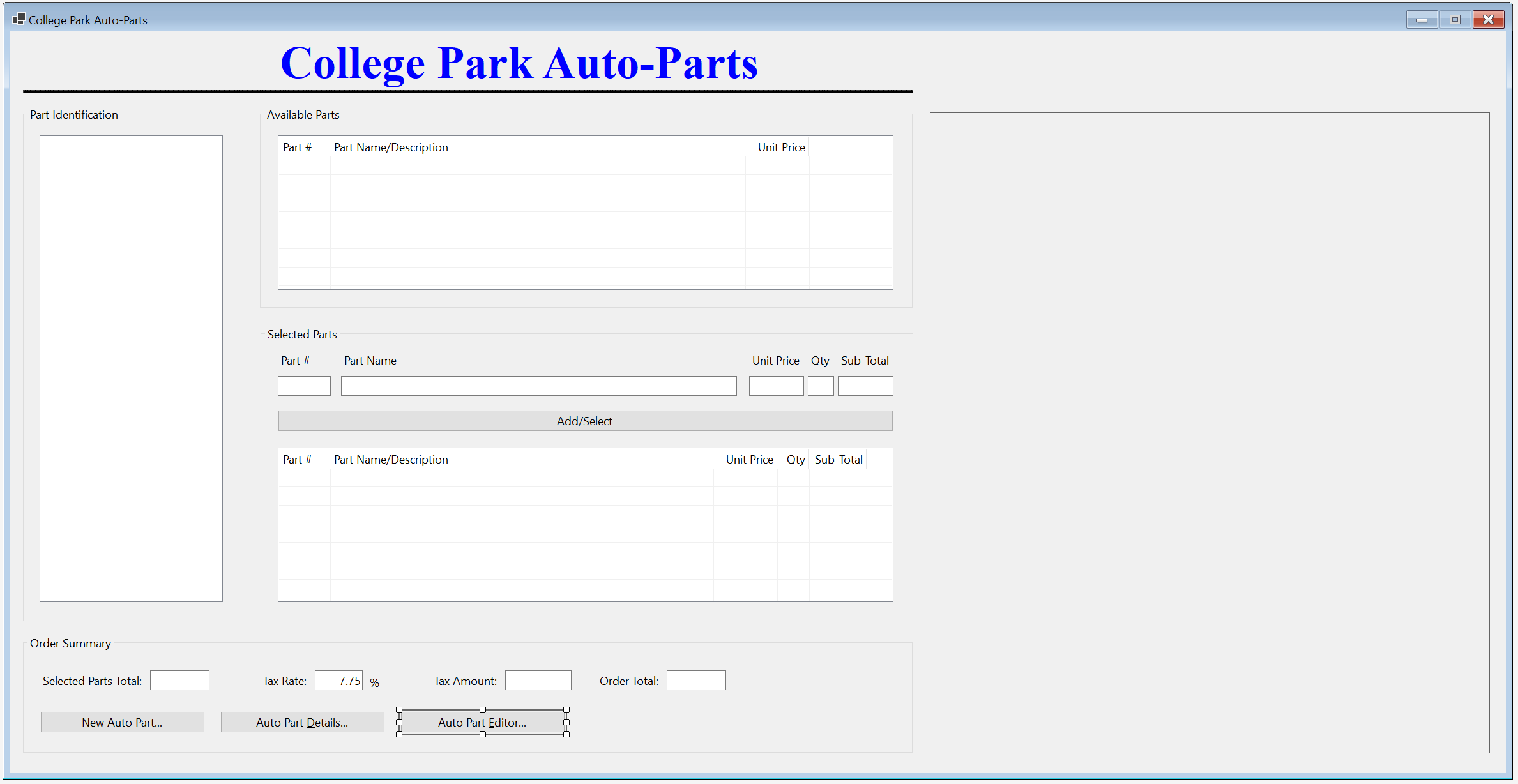
| Control | (Name) | Text | |
| Button | |
BtnUpdateAutoPart | Update Auto Part... |
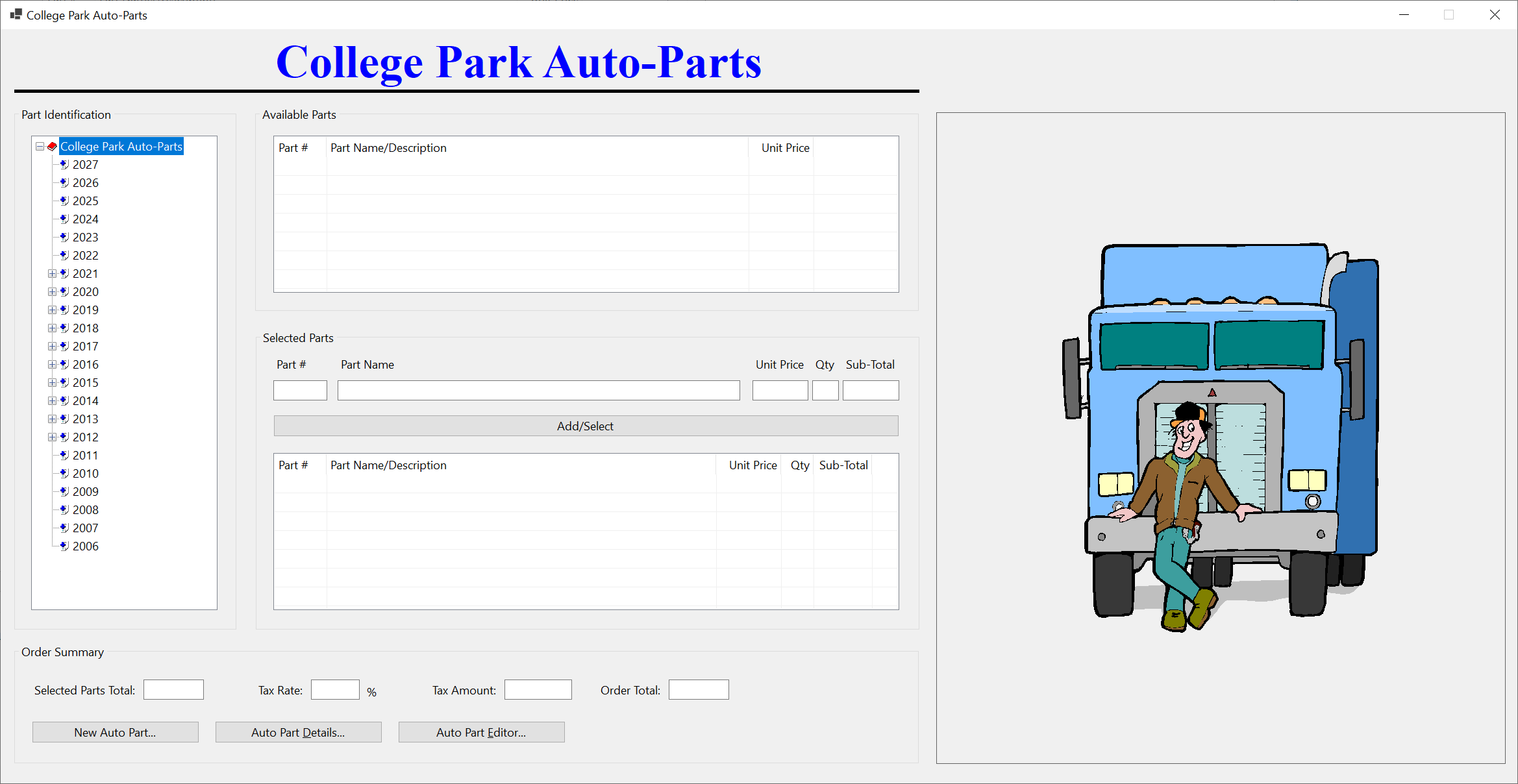
private  sub    BtnAutoPartEditor_Click(object sender, EventArgs e)
{
    StoreItemEditor editor = new StoreItemEditor()

    editor.ShowDialog()

    InitializeAutoParts()
}


Year:       2025
Model:      Envista
Part Name:  Multi-Part Front and Rear Wheel Bearing Assembly
Unit Price: 122.86
Store Item Deletion
In a typical database application, when an item is not necessary anymore, its records can be removed. To support this operation, we will create an appropriate form.
Practical Learning: Delting a Store Item

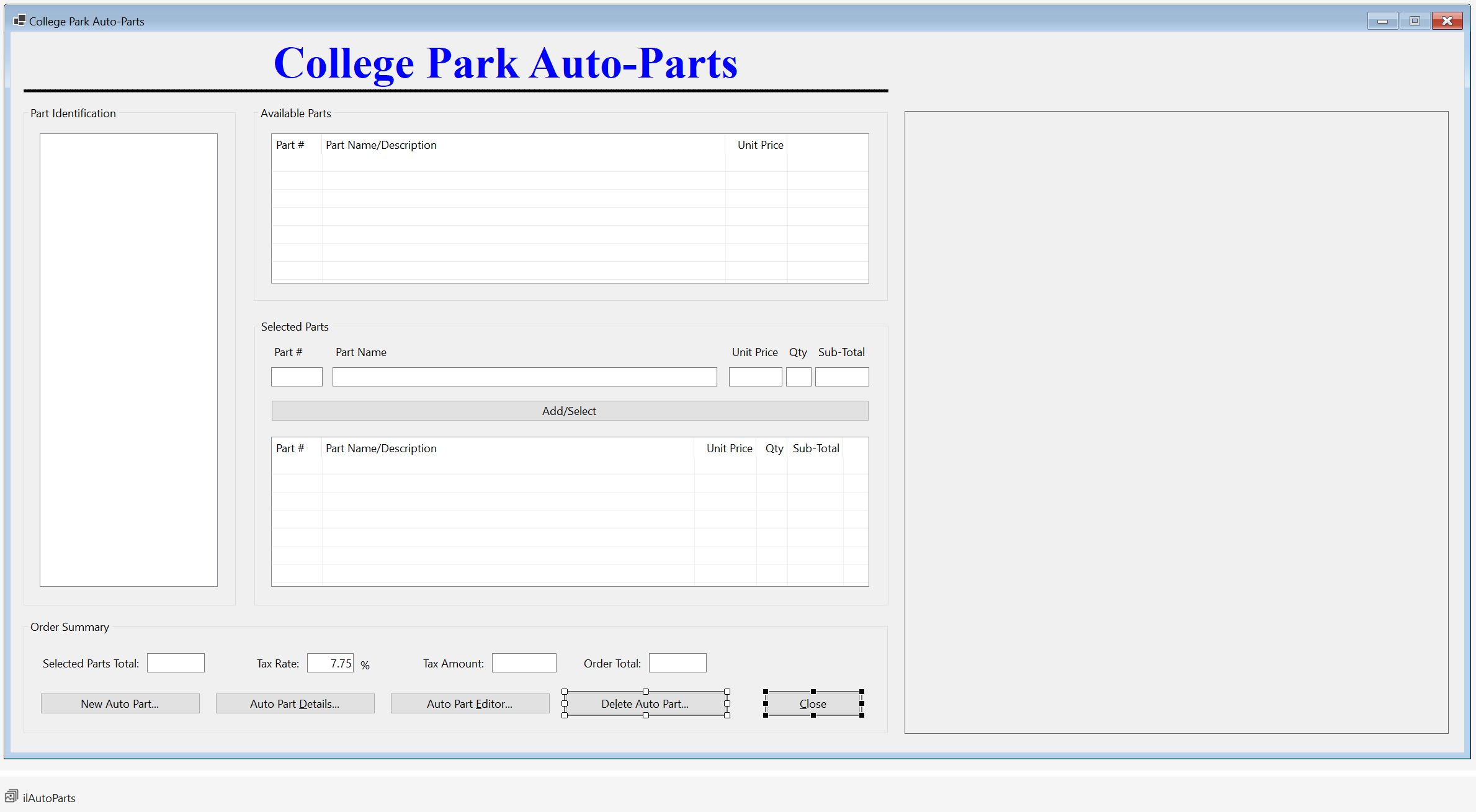
| Control | (Name) | Text | |
| Button | |
BtnDeleteAutoPart | Delete Auto Part... |
| Button | |
BtnClose | Close |
using CollegeParkAutoParts1.Models;
using System.Xml.Serialization;

namespace CollegeParkAutoParts1
{
    public partial class StoreItemDelete : Form
    {
        dim AutoParts as List      (             of           AutoPart)  { get; set; } = new List      (             of           AutoPart)

        public StoreItemDelete()
        {
            InitializeComponent()
        }

        private  sub    BtnFindStoreItem_Click(object sender, EventArgs e)
        {
            ' When the user clicks the Find Store Item button, make sure the user typed something.
             * If the Part # text box is empty (meaning the user didn't type a number), ...*/
            if               string.IsNullOrEmpty(TxtPartNumber.Text))
            {
                ' ... display a message box to the user, ...
                MsgBox.Regular("You must enter a (valid) number for an auto-part.")
                ' ... and stop everything
                exit                            sub
            }

            ' This Boolean variable will allow us to know if an auto part was found.
            bool foundAutoPart = false;
            ' Our list of auto-parts is stored in an XML file.
             * Let's get a reference to that file.
            dim StrFileName as string = "C:\College Park Auto-Parts10\AutoParts.xml"
            ' We process our records through XML serialization.
             * Create a reference for XML serialization that is initialized with a collection class*/
            dim              XsAutoParts        as         XmlSerializer = new XmlSerializer(typeof(List      (             of           AutoPart)))

            ' Before doing anything, check whether a file of auto-parts exists
            if               File.Exists(strFileName))
            {
                ' Create a stream reference for our file of au-parts
                using  FsAutoParts      as    FileStream                = new(strFileName, FileMode.Open, FileAccess.Read, FileShare.Read))
                {
                    ' If the file of auto-parts exists, open that file, get the list of
                     * auto-parts, and store that list in our collection variable.
                    AutoParts = (List      (             of           AutoPart))xsAutoParts.Deserialize(fsAutoParts)

                    ' Now that the list of auto-parts exists, navigate to each item of the list
                    for i as integer  = 0 to              AutoParts.Count; i++)
                    {
                        ' When you reach an auto-part, check whether its part number is
                         * the same as the number the user typed.*/
                        if               AutoParts(i).PartNumber.Equals(CLng(TxtPartNumber.Text)))
                        {
                            ' If the auto-part was found, make a not by updating our Boolean variable
                            foundAutoPart = true;

                            ' Get the values of the auto-part and display them in the Windows controls
                            TxtMake.Text = AutoParts(i).Make;
                            TxtModel.Text = AutoParts(i).Model;
                            TxtCategory.Text = AutoParts(i).Category;
                            TxtPartName.Text = AutoParts(i).PartName;
                            TxtYear.Text = AutoParts(i).Year.ToString()
                            TxtUnitPrice.Text = AutoParts(i).UnitPrice,2))
                            PbxPartImage.Image = Image.FromFile(AutoParts(i).PictureFile)
                            lblPictureFile.Text = AutoParts(i).PictureFile;
                            ' Since an auto-part was found
                             * and its values have been displayed, stop searching.
                            exit for
                        }
                    }
                }
            }

            ' Check the value of our Boolean variable. If that value is false, ...
            if               foundAutoPart =               false)
            {
                ' ... it means no auto-part was found. Display a message box to the user
                MsgBox.Regular("There is no auto-part with that number in our records.")

                lblPictureFile.Text = "C:\College Park Auto-Parts10\Generic.png"
                PbxPartImage.Image = Image.FromFile(                                "C:\College Park Auto-Parts10\Generic.png")
            }

            Width = PbxPartImage.Right + 40
            Height = PbxPartImage.Bottom + 75
        }
    }
}private sub BtnDeleteAutoPart_Click(object sender, EventArgs e)
{
XmlSerializer xsAutoParts = new(typeof(List ( of AutoPart)))
dim StrFileName as string = "C:\College Park Auto-Parts10\AutoParts.xml"
if File.Exists(strFileName))
{
using FileStream fsAutoParts = new(strFileName, FileMode.Open,
FileAccess.Read, FileShare.Read);
AutoParts = (List ( of AutoPart))xsAutoParts.Deserialize(fsAutoParts)
}
for i as integer = 0 to AutoParts.Count; i++)
{
if AutoParts(i).PartNumber.Equals(CLng(TxtPartNumber.Text)))
{
AutoParts.Remove(AutoParts(i));
TextWriter twAutoParts = new StreamWriter(strFileName);
xsAutoParts.Serialize(twAutoParts, AutoParts);
twAutoParts.Close()
exit for
}
}
InitializeAutoPart()
}private sub BtnClose_Click(object sender, EventArgs e)
{
Close()
}
| Control | (Name) | Text | |
| Label | |
BtnDeleteAutoPart | Delete Auto-Part |
| Button | |
BtnClose | Close |
private sub BtnDeleteAutoPart_Click(object sender, EventArgs e)
{
StoreItemDelete delete = new StoreItemDelete()
delete.ShowDialog()
InitializeAutoParts()
}using CollegeParkAutoParts1.Models;
using System.Xml.Serialization;
namespace CollegeParkAutoParts1
{
public partial class StoreInventory : Form
{
' We will need a list of auto-parts.
* For demonstration purpose, we are creating the list as a property
* (but a global list is not necessary; we could have used local list variables).*/
public dim AutoParts as List ( of AutoPart) { get; set; } = new List ( of AutoPart)
public StoreInventory()
{
InitializeComponent()
}
' This function is used to reset the form
void InitializeAutoParts()
{
' When the form must be reset, removes all nodes from the tree view
tvwAutoParts.Nodes.Clear()
' Create the root node of the tree view
TreeNode nodRoot = tvwAutoParts.Nodes.Add("College Park Auto-Parts",
"College Park Auto-Parts", 0, 1);
' Add the cars years to the tree view.
* Our application will deal only with the cars in the last 21 years.
for CarYear as integers = DateTime.Today.Year + 1; years >= DateTime.Today.Year - 20; years--)
{
nodRoot.Nodes.Add(years.ToString(), years.ToString(), 2, 3);
}
' Select the root node
tvwAutoParts.SelectedNode = nodRoot;
' Expand the root node
tvwAutoParts.ExpandAll()
' AutoParts = new List ( of AutoPart)
' This is the file that holds the list of auto parts
dim StrFileName as string = "C:\College Park Auto-Parts10\AutoParts.xml"
' Create an XmlSerializer object to retrieve the list of auto parts from file
XmlSerializer xsAutoParts = new(typeof(List ( of AutoPart)))
if File.Exists(strFileName))
{
' If the inventory file exists, open it
using FsAutoParts as FileStream = new FileStream(strFileName,
FileMode.Open,
FileAccess.Read,
FileShare.Read))
{
' Retrieve the list of items from file
AutoParts = (List ( of AutoPart))xsAutoParts.Deserialize(fsAutoParts)
' Show the makes nodes
foreach (TreeNode nodYear in nodRoot.Nodes)
{
' Start a new list of car manufacturers
List<string> lstMakes = new List<string>()
' Visit each item from the AutoParts list
for each Part as AutoPart in AutoParts
{
' When you get to an auto part with the same year as the year of the node, ...
if nodYear.Text = part.Year.ToString())
{
' ... add the make to the list of makes
if not lstMakes.Contains(part.Make!))
{
lstMakes.Add(part.Make)
}
}
}
' For the current year node in the tree view, and from the list of auto-parts, ...
foreach (string strMake in lstMakes)
{
' ... add the make as a node to the tree view
nodYear.Nodes.Add(strMake, strMake, 4, 5);
}
}
' Show the models that correspond to the makes and years nodes
foreach (TreeNode nodYear in nodRoot.Nodes)
{
foreach (TreeNode nodMake in nodYear.Nodes)
{
List<string> lstModels = new List<string>()
for each Part as AutoPart in AutoParts
{
if (nodYear.Text = part.Year.ToString()) &
(nodMake.Text = part.Make))
{
if not lstModels.Contains(part.Model!))
lstModels.Add(part.Model)
}
}
foreach (string strModel in lstModels)
nodMake.Nodes.Add(strModel, strModel, 6, 7);
}
}
' Show the categories of items
foreach (TreeNode nodYear in nodRoot.Nodes)
{
foreach (TreeNode nodMake in nodYear.Nodes)
{
foreach (TreeNode nodModel in nodMake.Nodes)
{
List<string> lstCategories = new List<string>()
for each Part as AutoPart in AutoParts
{
if (nodYear.Text = part.Year.ToString()) &
(nodMake.Text = part.Make) &
(nodModel.Text = part.Model))
{
if not lstCategories.Contains(part.Category!))
lstCategories.Add(part.Category)
}
}
foreach (string strCategory in lstCategories)
nodModel.Nodes.Add(strCategory, strCategory, 8, 9);
}
}
}
}
}
' Reset the form
LvwSelectedParts.Items.Clear()
LvwAvailableParts.Items.Clear()
TxtTaxRate.Text = nothing
TxtPartName.Text = nothing
TxtQuantity.Text = nothing
TxtSubTotal.Text = nothing
TxtUnitPrice.Text = nothing
TxtTaxAmount.Text = nothing
TxtOrderTotal.Text = nothing
TxtPartNumber.Text = nothing
TxtSelectedPartsTotal.Text = nothing
PbxPartImage.Image = Image.FromFile( "C:\College Park Auto-Parts10\Generic.png")
Width = PbxPartImage.Right + 40
}
private sub StoreInventory_Load(object sender, EventArgs e)
{
InitializeAutoParts()
}
private sub LvwAvailableParts_ItemSelectionChanged(object sender, ListViewItemSelectionChangedEventArgs e)
{
bool pictureFound = false;
dim StrFileName as string = "C:\College Park Auto-Parts10\AutoParts.xml"
dim XsAutoParts as XmlSerializer = new XmlSerializer(typeof(List ( of AutoPart)))
if File.Exists(strFileName))
{
using FsAutoParts as FileStream = new FileStream(strFileName,
FileMode.Open,
FileAccess.Read,
FileShare.Read))
{
AutoParts = (List ( of AutoPart))xsAutoParts.Deserialize(fsAutoParts)
for each Part as AutoPart in AutoParts
{
if part.PartNumber = CLng(e.Item.SubItems(0).Text))
{
pictureFound = true;
PbxPartImage.Image = Image.FromFile(part.PictureFile)
exit for
}
}
}
}
if pictureFound = false)
{
PbxPartImage.Image = Image.FromFile( "C:\College Park Auto-Parts10\Generic.png")
}
Width = PbxPartImage.Right + 40
Height = PbxPartImage.Bottom + 75
}
private sub LvwAvailableParts_DoubleClick(object sender, EventArgs e)
{
ListViewItem LviAutoPart = LvwAvailableParts.SelectedItems(0)
if (LvwAvailableParts.SelectedItems.Count = 0) OR
(LvwAvailableParts.SelectedItems.Count > 1))
exit sub
TxtPartNumber.Text = LviAutoPart.Text
TxtPartName.Text = LviAutoPart.SubItems(1).Text
TxtUnitPrice.Text = LviAutoPart.SubItems(2).Text
TxtQuantity.Text = "1"
TxtSubTotal.Text = LviAutoPart.SubItems(2).Text
TxtQuantity.Focus()
}
private sub TxtUnitPrice_Leave(object sender, EventArgs e)
{
double subTotal;
double unitPrice = 0D;
double quantity = 0.00d;
try
{
unitPrice = cdbl(TxtUnitPrice.Text);
}
catch Fex as FormatException
{
MsgBox.Regular("Invalid Unit Price!")
}
try
{
quantity = cint(TxtQuantity.Text);
}
catch Fex as FormatException
{
MsgBox.Regular("Invalid Quandtity!")
}
subTotal = unitPrice * quantity;
TxtSubTotal.Text = subTotal,2))
}
private sub TxtPartNumber_Leave(object sender, EventArgs e)
{
bool found = false;
for each Part as AutoPart in AutoParts
{
if part.PartNumber = CLng(TxtPartNumber.Text))
{
TxtPartName.Text = part.PartName;
TxtUnitPrice.Text = part.UnitPrice,2))
if string.IsNullOrEmpty(TxtQuantity.Text))
TxtQuantity.Text = "1"
TxtSubTotal.Text = part.UnitPrice,2))
TxtQuantity.Focus()
found = true;
exit for
}
}
if found = false)
{
TxtPartName.Text = ""
TxtUnitPrice.Text = "0.00"
TxtQuantity.Text = "0"
TxtSubTotal.Text = "0.00"
MsgBox.Regular("There is no part with that number.")
}
}
private sub CalculateOrder()
{
double partsTotal = 0.00D;
double taxRate = 0.00D;
double taxAmount, orderTotal;
if string.IsNullOrEmpty(TxtTaxRate.Text))
TxtTaxRate.Text = "7.25"
foreach (ListViewItem lvi in LvwSelectedParts.Items)
{
ListViewItem.ListViewSubItem SubItem = lvi.SubItems(4)
partsTotal += cdbl(SubItem.Text);
}
try
{
taxRate = cdbl(TxtTaxRate.Text) / 100;
}
catch Fex as FormatException
{
MsgBox.Regular("Invalid Tax Rate")
}
taxAmount = partsTotal * taxRate;
orderTotal = partsTotal + taxAmount;
TxtSelectedPartsTotal.Text = partsTotal,2))
TxtTaxAmount.Text = taxAmount,2))
TxtOrderTotal.Text = orderTotal,2))
}
private sub BtnAdd_Click(object sender, EventArgs e)
{
if string.IsNullOrEmpty(TxtPartNumber.Text))
{
MsgBox.Regular("There is no part to be added to the order.")
exit sub
}
for each Part as AutoPart in AutoParts
{
if part.PartNumber = CLng(TxtPartNumber.Text))
{
ListViewItem lviSelectedPart = new ListViewItem(part.PartNumber.ToString());
lviSelectedPart.SubItems.Add(part.PartName);
lviSelectedPart.SubItems.Add(part.UnitPrice.ToString());
lviSelectedPart.SubItems.Add(TxtQuantity.Text);
lviSelectedPart.SubItems.Add(TxtSubTotal.Text);
LvwSelectedParts.Items.Add(lviSelectedPart);
}
}
CalculateOrder()
}
private sub LvwSelectedParts_DoubleClick(object sender, EventArgs e)
{
ListViewItem lviSelectedPart = LvwSelectedParts.SelectedItems(0)
if (LvwSelectedParts.SelectedItems.Count = 0) OR
(LvwSelectedParts.SelectedItems.Count > 1))
exit sub
TxtPartNumber.Text = lviSelectedPart.Text
TxtPartName.Text = lviSelectedPart.SubItems(1).Text
TxtUnitPrice.Text = lviSelectedPart.SubItems(2).Text
TxtQuantity.Text = lviSelectedPart.SubItems(3).Text
TxtSubTotal.Text = lviSelectedPart.SubItems(4).Text
LvwSelectedParts.Items.Remove(lviSelectedPart);
CalculateOrder()
}
private sub tvwAutoParts_NodeMouseClick(object sender, TreeNodeMouseClickEventArgs e)
{
TreeNode nodClicked = e.Node!;
if nodClicked.Level = 4)
LvwAvailableParts.Items.Clear()
try
{
for each Part as AutoPart in AutoParts
{
if (part.Category = nodClicked.Text) andalso
(part.Model = nodClicked.Parent!.Text) andalso
(part.Make = nodClicked.Parent.Parent!.Text) andalso
(part.Year.ToString() = nodClicked.Parent.Parent.Parent!.Text))
{
ListViewItem LviAutoPart = new ListViewItem(part.PartNumber.ToString());
LviAutoPart.SubItems.Add(part.PartName);
LviAutoPart.SubItems.Add(part.UnitPrice,2)));
LvwAvailableParts.Items.Add(LviAutoPart);
}
}
}
catch (NullReferenceException)
{
}
}
private sub BtnNewAutoPart_Click(object sender, EventArgs e)
{
StoreItemNew @new = new StoreItemNew()
@new.ShowDialog()
InitializeAutoParts()
}
private sub BtnAutoPartDetails_Click(object sender, EventArgs e)
{
StoreItemDetails details = new StoreItemDetails()
details.Show()
}
private sub BtnAutoPartEditor_Click(object sender, EventArgs e)
{
StoreItemEditor editor = new StoreItemEditor()
editor.ShowDialog()
InitializeAutoParts()
}
private sub BtnDeleteAutoPart_Click(object sender, EventArgs e)
{
StoreItemDelete delete = new StoreItemDelete()
delete.ShowDialog()
InitializeAutoParts()
}
private  sub    BtnClose_Click(object sender, EventArgs e)
{
    Close()
}
}
}


Example Application: Stellar Water Point
| Home | Copyright © 2010-2026, FunctionX | Last Update: Friday 02 December 2022 | Home |