Conditional Selections

Introduction
If you have a large number of conditions to examine, the If...Then...Else statement will go through each one of them. The Visual Basic language offers the alternative of jumping to the statement that applies to the state of the condition. This is done with the Select and Case keywords.
The formula of the Select Case statement is:
Select Case Expression
    Case Expression1
        Statement1
    Case Expression2
        Statement2
    Case ExpressionX
        StatementX
End Select
The statement starts with Select Case and ends with End Select. On the right side of Select Case, enter a value, the Expression factor, that will be used as a tag. The value of Expression can be Boolean value (a Boolean type), a character (Char type), a string (a String type), a natural number (a Byte, an SByte, a Short, a UShort, an Integer, a UInteger, a Long, or a ULong type), a decimal number (a Single, a Double, or a Decimal type), a date or time value (a Date type), an enumeration (an Enum type), or else (an Object type). Inside the Select Case and the End Select lines, you provide one or more sections that each contains a Case keyword followed by a value. The value on the right side of Case, ExpresionX, must be the same type as the value of Expression or it can be implied from it. After the case and its expression, you can write a statement.
When this section of code is accessed, the value of Expression is considered. Then the value of Expression is compared to each ExpressionX of each case:
- If the value of Expression1 is equal to that of Expression, then Statement1 is executed. If the value of Expression1 is not equal to that of Expression, then the compiler moves to Expression2
- If the value of Expression2 is equal to that of Expression, then Statement2 is executed
- This will continue down to the last ExpressionX
Here is an example:
Module Exercise

    Public Function Main() As Integer
        Dim Answer As Byte

        Answer = CByte(InputBox( _
                     "One of the following is not a Visual Basic keyword" & vbCrLf &
                     "1) Function" & vbCrLf &
                     "2) Except" & vbCrLf &
                     "3) ByRef" & vbCrLf &
                     "4) Each" & vbCrLf & vbCrLf &
                     "Your Answer? "))

        Select Case Answer
            Case 1
                MsgBox("Wrong: Function is a Visual Basic keyword." & vbCrLf &
                       "It is used to create a procedure of a function type")
            Case 2
                MsgBox("Correct: Except is not a keyword in " & vbCrLf &
                       "Visual Basic but __except is a C++ " & vbCrLf &
                       "keyword used in Exception Handling")
            Case 3
                MsgBox("Wrong: ByRef is a Visual Basic keyword used " & vbCrLf &
                       "to pass an argument by reference to a procedure")
            Case 4
                MsgBox("Wrong: The ""Each"" keyword is used in " & vbCrLf &
                       "Visual Basic in a type of looping " & vbCrLf &
                       "used to ""scan"" a list of item.")
        End Select

        Return 0
    End Function

End Module
Here is an example of running the program:


The above code supposes that one of the cases will match the value of the Expression factor. This is not always so. If you anticipate that there could be no match between the Expression and one of the Expressions, you can use a Case Else statement at the end of the list. The statement would then look like this:
Select Case Expression
    Case Expression1
        Statement1
    Case Expression2
        Statement2
    Case Expressionk
        Statementk
    Case Else
        Statementk
End Select
In this case, the statement after the Case Else will execute if none of the previous expressions matches the Expression factor. Here is an example:
Module Exercise

    Public Function Main() As Integer
        Dim Answer As Byte

        Answer = CByte(InputBox( _
                     "One of the following is not a Visual Basic keyword" & vbCrLf &
                     "1) Function" & vbCrLf &
                     "2) Except" & vbCrLf &
                     "3) ByRef" & vbCrLf &
                     "4) Each" & vbCrLf & vbCrLf &
                     "Your Answer? "))

        Select Case Answer
            Case 1
                MsgBox("Wrong: Function is a Visual Basic keyword." & vbCrLf &
                       "It is used to create a procedure of a function type")
            Case 2
                MsgBox("Correct: Except is not a keyword in " & vbCrLf &
                       "Visual Basic but __except is a C++ " & vbCrLf &
                       "keyword used in Exception Handling")
            Case 3
                MsgBox("Wrong: ByRef is a Visual Basic keyword used " & vbCrLf &
                       "to pass an argument by reference to a procedure")
            Case 4
                MsgBox("Wrong: The ""Each"" keyword is used in " & vbCrLf &
                       "Visual Basic in a type of looping " & vbCrLf &
                       "used to ""scan"" a list of item.")
            Case Else
                MsgBox("Invalid Selection")
        End Select

        Return 0
    End Function

End Module
Here is an example of running the program:


|
|
 Practical
Learning: Using a Select...Case Condition
Practical
Learning: Using a Select...Case Condition- Start Microsoft Visual Basic and create a Console Application named BCR4
- In the Solution Explorer, right-click Module1.vb and click Rename
- Type BethesdaCarRental.vb and press Enter
- Accept to change the name of the module
- To use a Select...Case condition, change the document as follows:
Module BethesdaCarRental Private Function GetEmployeeName(ByVal EmplNbr As Long) As String Dim Name As String If EmplNbr = 22804 Then Name = "Helene Mukoko" ElseIf EmplNbr = 92746 Then Name = "Raymond Kouma" ElseIf EmplNbr = 54080 Then Name = "Henry Larson" ElseIf EmplNbr = 86285 Then Name = "Gertrude Monay" Else Name = "Unknown" End If Return Name End Function Public Function Main() As Integer Dim EmployeeNumber As Long, EmployeeName As String Dim CustomerName As String Dim TagNumber As String, CarSelected As String Dim CarStatus As Integer, CarCondition As String Dim Tank As Integer, TankLevel As String Dim RentStartDate As Date, RentEndDate As Date Dim NumberOfDays As Integer Dim RateType As String, RateApplied As Double Dim OrderTotal As Double Dim OrderInvoice As String RateType = "Weekly Rate" RateApplied = 0 OrderTotal = RateApplied EmployeeNumber = CLng(InputBox("Employee number (who processed this order):", "Bethesda Car Rental", "00000")) EmployeeName = GetEmployeeName(EmployeeNumber) CustomerName = InputBox("Enter Customer Name:", "Bethesda Car Rental", "John Doe") TagNumber = InputBox("Enter the tag number of the car to rent:", "Bethesda Car Rental", "000000") CarSelected = Microsoft.VisualBasic.Switch( TagNumber = "297419", "BMW 335i", TagNumber = "485M270", "Chevrolet Avalanche", TagNumber = "247597", "Honda Accord LX", TagNumber = "924095", "Mazda Miata", TagNumber = "772475", "Chevrolet Aveo", TagNumber = "M931429", "Ford E150XL", TagNumber = "240759", "Buick Lacrosse", True, "Unidentified Car") CarStatus = CInt(InputBox("After inpecting it, enter car condition:" & vbCrLf & "1. Excellent - No scratch, no damage, no concern" & vbCrLf & "2. Good - Some concerns (scratches or missing something)." & "Make sure the customer is aware." & vbCrLf & "3. Drivable - The car is good enough to drive." & "The customer must know the status of the car " & "and agree to rent it", "Bethesda Car Rental", 1)) Select Case CarStatus Case 1 CarCondition = "Excellent" Case 2 CarCondition = "Good" Case 3 CarCondition = "Drivable" Case Else CarCondition = "Unknown" End Select Tank = CInt(InputBox("Enter Tank Level:" & vbCrLf & "1. Empty" & vbCrLf & "2. 1/4 Empty" & vbCrLf & "3. 1/2 Full" & vbCrLf & "4. 3/4 Full" & vbCrLf & "5. Full", "Bethesda Car Rental", 1)) TankLevel = Choose(Tank, "Empty", "1/4 Empty", "1/2 Full", "3/4 Full", "Full") RentStartDate = CDate(InputBox("Enter Rent Start Date:", "Bethesda Car Rental", #1/1/1900#)) RentEndDate = CDate(InputBox("Enter Rend End Date:", "Bethesda Car Rental", #1/1/1900#)) NumberOfDays = DateDiff(DateInterval.Day, RentStartDate, RentEndDate) RateApplied = CDbl(InputBox("Enter Rate Applied:", "Bethesda Car Rental", 0)) OrderInvoice = "===========================" & vbCrLf & "=//= BETHESDA CAR RENTAL =//=" & vbCrLf & "==-=-= Order Processing =-=-==" & vbCrLf & "------------------------------------------------" & vbCrLf & "Processed by:" & vbTab & EmployeeName & vbCrLf & "Processed for:" & vbTab & CustomerName & vbCrLf & "------------------------------------------------" & vbCrLf & "Car Selected:" & vbCrLf & _ vbTab & "Tag #:" & vbTab & TagNumber & vbCrLf & vbTab & "Car:" & vbTab & CarSelected & vbCrLf & vbTab & "Tank:" & vbTab & TankLevel & vbCrLf & "Car Condition:" & vbTab & CarCondition & vbCrLf & "------------------------------------------------" & vbCrLf & "Start Date:" & vbTab & RentStartDate & vbCrLf & "End Date:" & vbTab & RentEndDate & vbCrLf & "Nbr of Days:" & vbTab & NumberOfDays & vbCrLf & "------------------------------------------------" & vbCrLf & "Rate Type:" & vbTab & RateType & vbCrLf & "Rate Applied:" & vbTab & RateApplied & vbCrLf & "Order Total:" & vbTab & FormatCurrency(OrderTotal) & vbCrLf & "===========================" MsgBox(OrderInvoice, MsgBoxStyle.Information Or MsgBoxStyle.OkOnly, "Bethesda Car Rental") Return 0 End Function End Module - Execute the application
- Enter the employee number as 92746, the customer name as Antoinette
D. Liel, the tag number as 297419, the car condition as 1,
the tank level as 5, the start date as 11/15/2008, the
end date as 11/17/2008, and the rate applied 65.75


- Close the message box and the DOS window to return to your programming environment
|
Combining Cases |
As mentioned in our introduction, the Select Case can use a value other than an integer. For example you can use a character. Here is an example:
Module Exercise

    Public Function Main() As Integer
        Dim Gender As Char

        Gender = "M"

        Select Case Gender
            Case "F"
                MsgBox("Female")
            Case "M"
                MsgBox("Male")
            Case Else
                MsgBox("Unknown")
        End Select

        Return 0
    End Function

End Module
This would produce:

Notice that in this case we are using only upper case characters. If want to validate lower case characters also, we may have to create additional case sections for each. Here is an example:
Module Exercise

    Public Function Main() As Integer
        Dim Gender As Char

        Gender = "f"

        Select Case Gender
            Case "f"
                MsgBox("Female")
            Case "F"
                MsgBox("Female")
            Case "m"
                MsgBox("Male")
            Case "M"
                MsgBox("Male")
            Case Else
                MsgBox("Unknown")
        End Select

        Return 0
    End Function

End Module
This would produce:

Instead of using one value for a case, you can apply more than one. To do this, on the right side of the Case keyword, you can separate the expressions with commas. Here are examples:
Module Exercise

    Public Function Main() As Integer
        Dim Gender As Char

        Gender = "F"

        Select Case Gender
            Case "f", "F"
                MsgBox("Female")
            Case "m", "M"
                MsgBox("Male")
            Case Else
                MsgBox("Unknown")
        End Select

        Return 0
    End Function

End Module
You can use a range of values for a case. To do this, on the right side of Case, enter the lower value, followed by To, followed by the higher value. Here is an example:
Imports System

Module Exercise

    Public Function Main() As Integer
        Dim Age As Integer
        Age = 24

        Select Case Age
            Case 0 To 17
                MsgBox("Teen")
            Case 18 To 55
                MsgBox("Adult")
            Case Else
                MsgBox("Senior")
        End Select
    End Sub

End Module
Consider the following program:
Module Exercise

    Public Function Main() As Integer
        Dim Number As Short

        Number = 448

        Select Case Number
            Case -602
                MsgBox("-602")
            Case 24
                MsgBox("24")
            Case 0
                MsgBox("0")
        End Select

        Return 0
    End Function

End Module
Obviously this Select Case statement will work in rare cases where the expression of a case exactly matches the value sought for. In reality, for this type of scenario, you could validate a range of values. The Visual Basic language provides an alternative. You can check whether the value of the Expression responds to a criterion instead of an exact value. To create it, you use the Is operator with the following formula:
Is Operator Value
You start with the Is keyword. It is followed by one of the Boolean operators we saw in the previous lessons: =, <>, <, <=, >, or >=. On the right side of the boolean operator, type the desired value. Here are examples:
Module Exercise

    Public Function Main() As Integer
        Dim Number As Short

        Number = -448

        Select Case Number
            Case Is < 0
                MsgBox("The number is negative")
            Case Is > 0
                MsgBox("The number is positive")
            Case Else
                MsgBox("0")
        End Select

        Return 0
    End Function

End Module
Although we used a natural number here, you can use any appropriate logical comparison that can produce a True or a False result. You can also combine it with the other alternatives we saw previously, such as separating the expressions of a case with commas.
|
|
- To use various options of the Select...Case condition, change the document as follows:
Module BethesdaCarRental Private Function GetEmployeeName(ByVal EmplNbr As Long) As String Dim Name As String If EmplNbr = 22804 Then Name = "Helene Mukoko" ElseIf EmplNbr = 92746 Then Name = "Raymond Kouma" ElseIf EmplNbr = 54080 Then Name = "Henry Larson" ElseIf EmplNbr = 86285 Then Name = "Gertrude Monay" Else Name = "Unknown" End If Return Name End Function Public Function Main() As Integer Dim EmployeeNumber As Long, EmployeeName As String Dim CustomerName As String Dim TagNumber As String, CarSelected As String Dim CarStatus As Integer, CarCondition As String Dim Tank As Integer, TankLevel As String Dim RentStartDate As Date, RentEndDate As Date Dim NumberOfDays As Integer Dim RateType As String, RateApplied As Double Dim OrderTotal As Double Dim OrderInvoice As String RateType = "Weekly Rate" RateApplied = 0 OrderTotal = RateApplied EmployeeNumber = CLng(InputBox("Employee number (who processed this order):", "Bethesda Car Rental", "00000")) EmployeeName = GetEmployeeName(EmployeeNumber) CustomerName = InputBox("Enter Customer Name:", "Bethesda Car Rental", "John Doe") TagNumber = InputBox("Enter the tag number of the car to rent:", "Bethesda Car Rental", "000000") CarSelected = Microsoft.VisualBasic.Switch( TagNumber = "297419", "BMW 335i", TagNumber = "485M270", "Chevrolet Avalanche", TagNumber = "247597", "Honda Accord LX", TagNumber = "924095", "Mazda Miata", TagNumber = "772475", "Chevrolet Aveo", TagNumber = "M931429", "Ford E150XL", TagNumber = "240759", "Buick Lacrosse", True, "Unidentified Car") CarStatus = CInt(InputBox("After inpecting it, enter car condition:" & vbCrLf & "1. Excellent - No scratch, no damage, no concern" & vbCrLf & "2. Good - Some concerns (scratches or missing something)." & "Make sure the customer is aware." & vbCrLf & "3. Drivable - The car is good enough to drive." & "The customer must know the status of the car " & "and agree to rent it", "Bethesda Car Rental", 1)) Select Case CarStatus Case 1 CarCondition = "Excellent" Case 2 CarCondition = "Good" Case 3 CarCondition = "Drivable" Case Else CarCondition = "Unknown" End Select Tank = CInt(InputBox("Enter Tank Level:" & vbCrLf & "1. Empty" & vbCrLf & "2. 1/4 Empty" & vbCrLf & "3. 1/2 Full" & vbCrLf & "4. 3/4 Full" & vbCrLf & "5. Full", "Bethesda Car Rental", 1)) TankLevel = Choose(Tank, "Empty", "1/4 Empty", "1/2 Full", "3/4 Full", "Full") RentStartDate = CDate(InputBox("Enter Rent Start Date:", "Bethesda Car Rental", #1/1/1900#)) RentEndDate = CDate(InputBox("Enter Rend End Date:", "Bethesda Car Rental", #1/1/1900#)) NumberOfDays = DateDiff(DateInterval.Day, RentStartDate, RentEndDate) RateApplied = CDbl(InputBox("Enter Rate Applied:", "Bethesda Car Rental", 0)) Dim TemporaryRate As Double Select Case NumberOfDays Case 0, 1 RateType = "Daily Rate" OrderTotal = RateApplied Case 2 RateType = "Weekend Rate" TemporaryRate = RateApplied * 50 / 100 RateApplied = RateApplied - TemporaryRate OrderTotal = RateApplied * 2 Case 2 To 7 RateType = "Weekly Rate" TemporaryRate = RateApplied * 25 / 100 RateApplied = RateApplied - TemporaryRate OrderTotal = RateApplied * NumberOfDays Case Is > 8 RateType = "Monthly Rate" TemporaryRate = RateApplied * 15 / 100 RateApplied = RateApplied - TemporaryRate OrderTotal = RateApplied * NumberOfDays End Select OrderInvoice = "===========================" & vbCrLf & "=//= BETHESDA CAR RENTAL =//=" & vbCrLf & "==-=-= Order Processing =-=-==" & vbCrLf & "------------------------------------------------" & vbCrLf & "Processed by:" & vbTab & EmployeeName & vbCrLf & "Processed for:" & vbTab & CustomerName & vbCrLf & "------------------------------------------------" & vbCrLf & "Car Selected:" & vbCrLf & vbTab & "Tag #:" & vbTab & TagNumber & vbCrLf & vbTab & "Car:" & vbTab & CarSelected & vbCrLf & vbTab & "Tank:" & vbTab & TankLevel & vbCrLf & "Car Condition:" & vbTab & CarCondition & vbCrLf & "------------------------------------------------" & vbCrLf & "Start Date:" & vbTab & RentStartDate & vbCrLf & "End Date:" & vbTab & RentEndDate & vbCrLf & "Nbr of Days:" & vbTab & NumberOfDays & vbCrLf & "------------------------------------------------" & vbCrLf & "Rate Type:" & vbTab & RateType & vbCrLf & "Rate Applied:" & vbTab & RateApplied & vbCrLf & "Order Total:" & vbTab & FormatCurrency(OrderTotal) & vbCrLf & "===========================" MsgBox(OrderInvoice, _ MsgBoxStyle.Information Or MsgBoxStyle.OkOnly, "Bethesda Car Rental") Return 0 End Function End Module - Execute the application
- Enter the employee number as 86285, the customer name as Franco
Bolero, the tag number as M931429, the car condition as 3,
the tank level as 1, the start date as 10/06/2008, the
end date as 11/07/2008, and the rate applied 85.50

- Close the message box and the DOS window to return to your programming environment
|
Select...Case and the Conditional Built-In Functions |
With the Select...Case statement, we saw how to check different values against a central one and take action when one of those matches the tag. Here is an example:
Module Exercise

    Public Function Main() As Integer
        Dim Number As UShort, MembershipType As String

        Number = 2

        Select Case Number
            Case 1
                MembershipType = "Teen"
            Case 2
                MembershipType = "Adult"
            Case Else
                MembershipType = "Senior"
        End Select

        MsgBox("Membership Type: " & MembershipType)
        Return 0
    End Function

End Module
We also saw that the Visual Basic language provides the Choose() function that can check a condition and take an action. The Choose() function is another alternative to a Select...Case statement. Once again, consider the syntax of the Choose function:
Public Function Choose( _
   ByVal Index As Double, _
   ByVal ParamArray Choice() As Object _
) As Object
This function takes two required arguments. The first argument is equivalent to the Expression of our Select Case formula. As mentioned already, the first argument must be a number (a Byte, an SByte, a Short, a UShort, an Integer, a UInteger, a Long, a ULong, a Single, a Double, or a Decimal value). This is the central value against which the other values will be compared. Instead of using Case sections, provide the equivalent ExpressionX values as a list of values in place of the second argument. The values are separated by commas. Here is an example:
Choose(Number, "Teen", "Adult", "Senior")
As mentioned already, the values of the second argument are provided as a list. Each member of the list uses an index. The first member of the list, which is the second argument of this function, has an index of 1. The second value of the argument, which is the third argument of the function, has an index of 2. You can continue adding the values of the second argument as you see fit.
When the Choose() function has been called, it returns a value of type Object. You can retrieve that value, store it in a variable and use it as you see fit. Here is an example:
Module Exercise

    Public Function Main() As Integer
        Dim Number As UShort, MembershipType As String

        Number = 1

        MembershipType = Choose(Number, "Teen", "Adult", "Senior")

        MsgBox("Membership Type: " & MembershipType)
        Return 0
    End Function

End Module
Loops Repeaters
|
Introduction |
A loop is a technique used to repeat an action. The Visual Basic language presents many variations of loops. They combine the Do and the Loop keywords.
|
|
- Create a new Console Application named BCR5
- In the Solution Explorer, right-click Module1.vb and click Rename
- Type BethesdaCarRental.vb and press Enter
- Accept to change the name of the module and change the document as
follows:
Module BethesdaCarRental Public Function Main() As Integer Dim EmployeeName As String Dim StrHourlySalary As String, StrWeeklyHours As String Dim HourlySalary As Double Dim WeeklyHours As Double Dim RegularTime As Double, Overtime As Double Dim RegularPay As Double, OvertimePay As Double Dim NetPay As Double Dim Payroll As String HourlySalary = "0.00" WeeklyHours = "0.00" EmployeeName = InputBox("Enter Employee Name:", "Bethesda Car Rental", "John Doe") StrHourlySalary = InputBox("Enter Employee Hourly Salary:", "Bethesda Car Rental", "0.00") If IsNumeric(StrHourlySalary) Then HourlySalary = CDbl(StrHourlySalary) Else MsgBox("The number " & StrHourlySalary & " you entered " & "for the hourly salary is not valid", MsgBoxStyle.Exclamation Or MsgBoxStyle.Critical, "Bethesda Car Rental") End If StrWeeklyHours = InputBox("Enter Employee Weekly Hours:", "Bethesda Car Rental", "0.00") If IsNumeric(StrWeeklyHours) Then WeeklyHours = CDbl(StrWeeklyHours) Else MsgBox("The value " & StrWeeklyHours & " you provided " & "for the weekly hours is not valid", MsgBoxStyle.Exclamation Or MsgBoxStyle.Critical, "Bethesda Car Rental") End If If WeeklyHours < 40 Then RegularTime = WeeklyHours Overtime = 0 RegularPay = HourlySalary * RegularTime OvertimePay = 0 NetPay = RegularPay Else RegularTime = 40 Overtime = WeeklyHours - 40 RegularPay = HourlySalary * 40 OvertimePay = HourlySalary * Overtime NetPay = RegularPay + OvertimePay End If Payroll = "======================" & vbCrLf & "=//= BETHESDA CAR RENTAL =//=" & vbCrLf & "==-=-= Employee Payroll =-=-==" & vbCrLf & "-------------------------------------------" & vbCrLf & "Employee Name:" & vbTab & EmployeeName & vbCrLf & "Hourly Salary:" & vbTab & FormatCurrency(HourlySalary) & vbCrLf & "Weekly Hours:" & vbTab & FormatNumber(WeeklyHours) & vbCrLf & "Regular Pay:" & vbTab & FormatCurrency(RegularPay) & vbCrLf & "Overtime Pay:" & vbTab & FormatCurrency(OvertimePay) & vbCrLf & "Total Pay:" & vbTab & FormatCurrency(NetPay) & vbCrLf & "======================" MsgBox(Payroll, MsgBoxStyle.Information Or MsgBoxStyle.OkOnly, "Bethesda Car Rental") Return 0 End Function End Module - Execute the application to test it
- Close the form and the DOS window to return to your programming environment
The formula of the Do... Loop While loop is:
Do
    Statement(s)
Loop While Condition
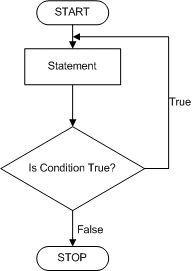
This compiler first executes the Statement or Statements. After executing the Statement(s) section, the compiler checks the Condition. If the Condition is true, then the compiler returns to the Statement(s) and execute(s) it(them). The compiler keeps doing this check-execution gymnastic. As long as the Condition is true, the Statement(s) section will be executed and the Condition will be tested again. If the Condition is false or once the condition becomes false, the statement will not be executed and the program will move on. Here is an example:
Module Exercise

    Public Function Main() As Integer
        Dim Answer As String

        Do
            Answer = InputBox("Are we there yet (1=Yes/0=No)? ")
        Loop While Answer <> "1"

        MsgBox("Wonderful, we have arrived")

        Return 0
    End Function

End Module
Here is an example of running the program:


As you may guess already, the Condition must provide a way for it to be true or to be false. Otherwise, the looping would be executed over and over again.
|
|
- To apply Do...Loop While condition, change the document as follows:
Module BethesdaCarRental Public Function Main() As Integer Dim EmployeeName As String Dim StrHourlySalary As String, StrWeeklyHours As String Dim HourlySalary As Double Dim WeeklyHours As Double Dim RegularTime As Double, Overtime As Double Dim RegularPay As Double, OvertimePay As Double Dim NetPay As Double Dim Answer As String Dim Payroll As String Answer = "0" HourlySalary = "0.00" WeeklyHours = "0.00" Do EmployeeName = InputBox("Enter Employee Name:", "Bethesda Car Rental", "John Doe") StrHourlySalary = InputBox("Enter Employee Hourly Salary:", "Bethesda Car Rental", "0.00") If IsNumeric(StrHourlySalary) Then HourlySalary = CDbl(StrHourlySalary) Else MsgBox("The number " & StrHourlySalary & " you entered " & "for the hourly salary is not valid", MsgBoxStyle.Exclamation Or MsgBoxStyle.Critical, "Bethesda Car Rental") End If StrWeeklyHours = InputBox("Enter Employee Weekly Hours:", "Bethesda Car Rental", "0.00") If IsNumeric(StrWeeklyHours) Then WeeklyHours = CDbl(StrWeeklyHours) Else MsgBox("The value " & StrWeeklyHours & " you provided " & "for the weekly hours is not valid", MsgBoxStyle.Exclamation Or MsgBoxStyle.Critical, "Bethesda Car Rental") End If If WeeklyHours < 40 Then RegularTime = WeeklyHours Overtime = 0 RegularPay = HourlySalary * RegularTime OvertimePay = 0 NetPay = RegularPay Else RegularTime = 40 Overtime = WeeklyHours - 40 RegularPay = HourlySalary * 40 OvertimePay = HourlySalary * Overtime NetPay = RegularPay + OvertimePay End If Payroll = "======================" & vbCrLf & "=//= BETHESDA CAR RENTAL =//=" & vbCrLf & "==-=-= Employee Payroll =-=-==" & vbCrLf & "-------------------------------------------" & vbCrLf & "Employee Name:" & vbTab & EmployeeName & vbCrLf & "Hourly Salary:" & vbTab & FormatCurrency(HourlySalary) & vbCrLf & "Weekly Hours:" & vbTab & FormatNumber(WeeklyHours) & vbCrLf & "Regular Pay:" & vbTab & FormatCurrency(RegularPay) & vbCrLf & "Overtime Pay:" & vbTab & FormatCurrency(OvertimePay) & vbCrLf & "Total Pay:" & vbTab & FormatCurrency(NetPay) & vbCrLf & "======================" MsgBox(Payroll, MsgBoxStyle.Information Or MsgBoxStyle.OkOnly, "Bethesda Car Rental") Answer = InputBox("Do you want to create another payroll (y=Yes/n=No)?") Loop While Answer.ToUpper() = "Y" Return 0 End Function End Module - Execute the application and create a payroll
- When asked whether you want to create another payroll, enter y and create another payroll
- When asked whether you want to create another payroll, enter y again and create another payroll
- When asked whether you want to create another payroll, enter q
- Close the form and return to your programming environment
An alternative to the Do... Loop While uses the following formula:
Do
    Statement(s)
Loop Until Condition
Once again, the Statement(s) section executes first. After executing the Statement(s), the compiler checks the Condition. If the Condition is true, the compiler returns to the Statement(s) section to execute it. This will continue until the Condition becomes false. Once the Condition becomes false, the compiler gets out of this loop and continues with the section under the Loop Until line.
Here is an example:
Module Exercise

    Public Function Main() As Integer
        Dim Answer As String

        Do
            Answer = InputBox("Are we there yet (1=Yes/0=No)? ")
        Loop Until Answer = "1"

        MsgBox("Wonderful, we have arrived")

        Return 0
    End Function

End Module
|
|
- Create a new Console Application named BCR6
- In the Solution Explorer, right-click Module1.vb and click Rename
- Type BethesdaCarRental.vb and press Enter
- Accept to change the name of the module and change the document as
follows:
Module BethesdaCarRental Private Function GetEmployeeName(ByVal EmplNbr As Long) As String Dim Name As String If EmplNbr = 22804 Then Name = "Helene Mukoko" ElseIf EmplNbr = 92746 Then Name = "Raymond Kouma" ElseIf EmplNbr = 54080 Then Name = "Henry Larson" ElseIf EmplNbr = 86285 Then Name = "Gertrude Monay" Else Name = "Unknown" End If Return Name End Function Public Function Main() As Integer Dim EmployeeNumber As Long, EmployeeName As String Dim CustomerName As String Dim TagNumber As String, CarSelected As String Dim CarStatus As Integer, CarCondition As String Dim Tank As Integer, TankLevel As String Dim RentStartDate As Date, RentEndDate As Date Dim NumberOfDays As Integer Dim RateType As String, RateApplied As Double Dim OrderTotal As Double Dim OrderInvoice As String Dim Answer As MsgBoxResult RateType = "Weekly Rate" RateApplied = 0 OrderTotal = RateApplied Do EmployeeNumber = CLng(InputBox("Employee number (who processed this order):", "Bethesda Car Rental", "00000")) EmployeeName = GetEmployeeName(EmployeeNumber) CustomerName = InputBox("Enter Customer Name:", "Bethesda Car Rental", "John Doe") TagNumber = InputBox("Enter the tag number of the car to rent:", "Bethesda Car Rental", "000000") CarSelected = Microsoft.VisualBasic.Switch( TagNumber = "297419", "BMW 335i", TagNumber = "485M270", "Chevrolet Avalanche", TagNumber = "247597", "Honda Accord LX", TagNumber = "924095", "Mazda Miata", TagNumber = "772475", "Chevrolet Aveo", TagNumber = "M931429", "Ford E150XL", TagNumber = "240759", "Buick Lacrosse", True, "Unidentified Car") CarStatus = CInt(InputBox("After inpecting it, enter car condition:" & vbCrLf & "1. Excellent - No scratch, no damage, no concern" & vbCrLf & "2. Good - Some concerns (scratches or missing something)." & "Make sure the customer is aware." & vbCrLf & "3. Drivable - The car is good enough to drive." & "The customer must know the status of the car " & "and agree to rent it", "Bethesda Car Rental", 1)) Select Case CarStatus Case 1 CarCondition = "Excellent" Case 2 CarCondition = "Good" Case 3 CarCondition = "Drivable" Case Else CarCondition = "Unknown" End Select Tank = CInt(InputBox("Enter Tank Level:" & vbCrLf & "1. Empty" & vbCrLf & "2. 1/4 Empty" & vbCrLf & "3. 1/2 Full" & vbCrLf & "4. 3/4 Full" & vbCrLf & "5. Full", "Bethesda Car Rental", 1)) TankLevel = Choose(Tank, "Empty", "1/4 Empty", "1/2 Full", "3/4 Full", "Full") RentStartDate = CDate(InputBox("Enter Rent Start Date:", "Bethesda Car Rental", #1/1/1900#)) RentEndDate = CDate(InputBox("Enter Rend End Date:", "Bethesda Car Rental", #1/1/1900#)) NumberOfDays = DateDiff(DateInterval.Day, RentStartDate, RentEndDate) RateApplied = CDbl(InputBox("Enter Rate Applied:", "Bethesda Car Rental", 0)) Dim TemporaryRate As Double Select Case NumberOfDays Case 0, 1 RateType = "Daily Rate" OrderTotal = RateApplied Case 2 RateType = "Weekend Rate" TemporaryRate = RateApplied * 50 / 100 RateApplied = RateApplied - TemporaryRate OrderTotal = RateApplied * 2 Case 2 To 7 RateType = "Weekly Rate" TemporaryRate = RateApplied * 25 / 100 RateApplied = RateApplied - TemporaryRate OrderTotal = RateApplied * NumberOfDays Case Is > 8 RateType = "Monthly Rate" TemporaryRate = RateApplied * 15 / 100 RateApplied = RateApplied - TemporaryRate OrderTotal = RateApplied * NumberOfDays End Select OrderInvoice = "===========================" & vbCrLf & "=//= BETHESDA CAR RENTAL =//=" & vbCrLf & "==-=-= Order Processing =-=-==" & vbCrLf & "------------------------------------------------" & vbCrLf & "Processed by:" & vbTab & EmployeeName & vbCrLf & "Processed for:" & vbTab & CustomerName & vbCrLf & "------------------------------------------------" & vbCrLf & "Car Selected:" & vbCrLf & _ vbTab & "Tag #:" & vbTab & TagNumber & vbCrLf & vbTab & "Car:" & vbTab & CarSelected & vbCrLf & vbTab & "Tank:" & vbTab & TankLevel & vbCrLf & "Car Condition:" & vbTab & CarCondition & vbCrLf & "------------------------------------------------" & vbCrLf & "Start Date:" & vbTab & RentStartDate & vbCrLf & "End Date:" & vbTab & RentEndDate & vbCrLf & "Nbr of Days:" & vbTab & NumberOfDays & vbCrLf & "------------------------------------------------" & vbCrLf & "Rate Type:" & vbTab & RateType & vbCrLf & _ "Rate Applied:" & vbTab & FormatCurrency(RateApplied) & vbCrLf & "Order Total:" & vbTab & FormatCurrency(OrderTotal) & vbCrLf & "===========================" MsgBox(OrderInvoice, MsgBoxStyle.Information Or MsgBoxStyle.OkOnly, "Bethesda Car Rental") Answer = MsgBox("Do you want to process another order?", MsgBoxStyle.Information Or MsgBoxStyle.YesNo, "Bethesda Car Rental") Loop Until Answer = MsgBoxResult.No Return 0 End Function End Module - Execute the application
- Enter the employee number as 92746, the customer name as James Wiley, the tag number as 297419, the car condition as 1,
the tank level as 5, the start date as 11/07/2008,
the end date as 11/10/2008, and the rate applied 49.95

- When asked whether you want to process another order, click Yes
- Enter the employee number as 54080, the customer name as Sunil
Ajat, the tag number as 240759, the car condition as 3,
the tank level as 3, the start date as 11/05/2008, the end date as 11/15/2008,
and the rate applied 70.25

- When asked whether you want to process another order, click Yes
- Enter the employee number as 22804, the customer name as George Livingstone, the tag number as 924095, the car condition as 2, the tank level as 4, the start date as 09/15/2008, the end date as 09/19/2008, and the rate applied 65.75
- When asked whether you want to process another order, click Yes
- Enter the employee number as 86285, the customer name as Antoinette D. Liel, the tag number as 485M270, the car condition as 2, the tank level as 2, the start date as 11/15/2008, the end date as 11/17/2008, and the rate applied 55.50
- When asked whether you want to process another order, click No
- Close the message box and the DOS window to return to your programming environment
|
The Do While... Loop Statement |
As mentioned above, the Do While... Loop expression executes a statement first before checking a condition that would allow it to repeat. If you want to check a condition first before executing a statement, you can use another version as Do While... Loop. Its formula is:
Do While Condition
  Statement(s)
Loop
In this case, the compiler checks the Condition first. If the Condition is true, the compiler then executes the Statement(s) and checks the Condition again. If the Condition is false, or when the Condition becomes false, the compiler skips the Statement(s) section and continues with the code below the Loop keyword.
Here is an example:
Module Exercise

    Public Function Main() As Integer
        Dim Number As Short

        Do While Number < 46
            Number += CShort(InputBox("Enter a number"))
        Loop

        MsgBox("Counting Stopped at: " & Number)
        Return 0
    End Function

End Module
|
The Do Until... Loop Statement |
An alternative to the Do While... Loop loop uses the following formula:
Do Until Condition
    Statement(s)
Loop
This loop works like the Do While... Loop expression. The compiler examines the Condition first. If the condition is true, then it executes the Statement(s) section.
Here is an example:
Module Exercise

    Public Function Main() As Integer
        Dim Answer As String
        Answer = "0"

        Do Until Answer = "1"
            Answer = InputBox("Are we there yet (1=Yes/0=No)? ")
        Loop

        MsgBox("Wonderful, we have arrived")
        Return 0
    End Function

End Module
|
Loop Counters |
|
Introduction |
The looping statements we reviewed above are used when you don't know or can't anticipate the number of times a condition needs to be checked in order to execute a statement. If you know with certainty how many times you want to execute a statement, you can use another form of loops that use the For...Next expression.
One of the loop counters you can use is For...To...Next. Its formula is:
For Counter = Start To End
  Statement(s)
Next
Used for counting, the expression begins counting at the Start point. Then it examines whether the current value (after starting to count) is lower than End. If that's the case, it then executes the Statement(s). Next, it increments the value of Counter by 1 and examines the condition again. This process goes on until the value of Counter becomes equal to the End value. Once this condition is reached, the looping stops.
Here is an example:
Module Exercise

    Public Function Main() As Integer
        Dim Number As Short

        For Number = 5 To 16
            MsgBox(Number)
        Next

        MsgBox("Counting Stopped at: " & Number)
        Return 0
    End Function

End Module
The formula above will increment the counting by 1 at the end of each statement. If you want to control how the incrementing processes, you can set your own, using the Step option. Here is the formula:
For Counter = Start To End Step Increment
  Statement(s)
Next
You can set the incrementing value to your choice. If the value of Increment is positive, the Counter will be added its value. Here is an example:
Module Exercise

    Public Function Main() As Integer
        Dim Number As Short

        For Number = 5 To 42 Step 4
            MsgBox(Number)
        Next

        MsgBox("Counting Stopped at: " & Number)
        Return 0
    End Function

End Module
You can also set a negative value to the Increment factor, in which case the Counter will be subtracted the set value.
|
|
|||
| Previous | Copyright © 2008-2026, FunctionX | Tueday 15 August 2024 | Next |
|
|
|||