Introduction to Microsoft SQL Server

Introduction to Microsoft SQL Server
Fundamentals of Microsoft SQL Server
Installing Microsoft SQL Server
A database is one or more lists of values. A computer database is one or a unit of lists (the lists are treated as a unit) that are stored in a computer medium such as a hard disk. A desktop database is a database that is used in one computer. A client/server database is a database that is stored in one computer named a server and other computers named clients connect to the server to access and use the database.
Microsoft SQL Server is an application used to create computer databases for the Microsoft Windows family of operating systems. Microsoft SQL Server provides an environment used to generate databases that can be accessed from workstations, the Internet, or other media such as a personal digital assistant (PDA).
To follow our lessons, you must have access to a computer in which Microsoft SQL Server 2025 is installed. You must also install SQL Server Management Studio. Both applications are freely available from the Microosft websites (in some cases, you can also use a computer at your work place where they would install those applications for you).
The MSSQLSERVER Service
After installing Microsoft SQL Server, you can start using it.
Because Microsoft SQL Server works as a service to the operating system, in order to use it, you must make sure its service has started. Sometimes you will have to start the service and sometimes you will have to stop it. To check it, you can open the Control Panel and the Administrative Tools. In the Administrative Tools window, open the Services.
In the Services window, check the status of the SQL Server (MSSQLSERVER), the SQL Server Agent (MSSQLSERVER), and the SQL Server Browser. When the service has started, it should be labeled Running:

If the MSSQLSERVER service is stopped, you should start it. To do this, you can right-click it and click Start. If it fails to start, check the account with which you logged in. You must use the computer with a formal account and a password (some installations of Microsoft Windows allow you to use a computer without providing a username and password; in most cases, you cannot use Microsoft SQL Server without logging in using a username and a password). You should open the Settings or the Control Panel, depending on your operating syste. Access the user accounts. If necessary, create an Administrator account and create a password for it.
Opening Microsoft SQL Server
To launch Microsoft SQL Server, you can click Start -> Microsoft SQL Server Tools -> SQL Server Management Studio. When it starts, it would present a dialog box that expects you to log in:
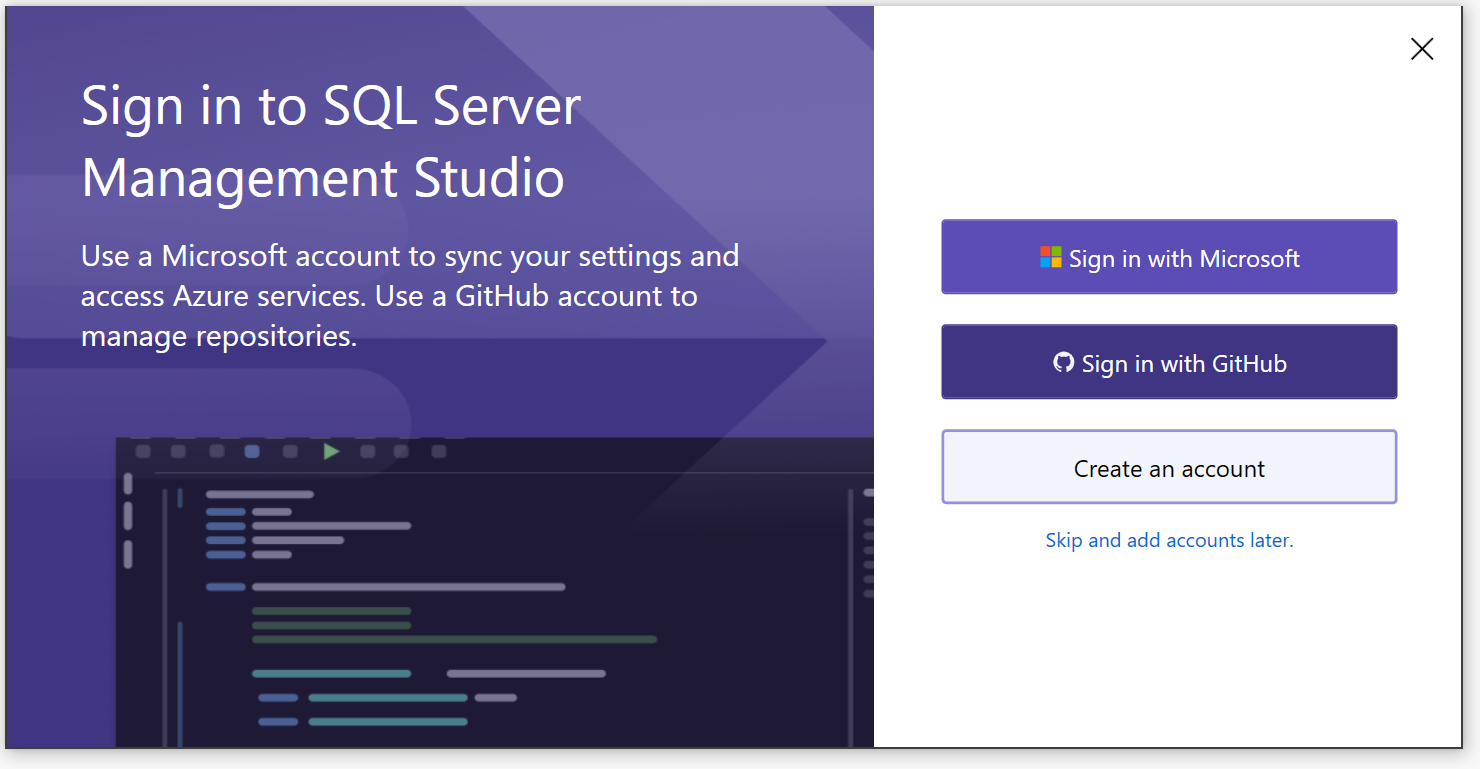
You should then provide the requested information and connect. That would open Microsoft SQL Server. You may get an error:
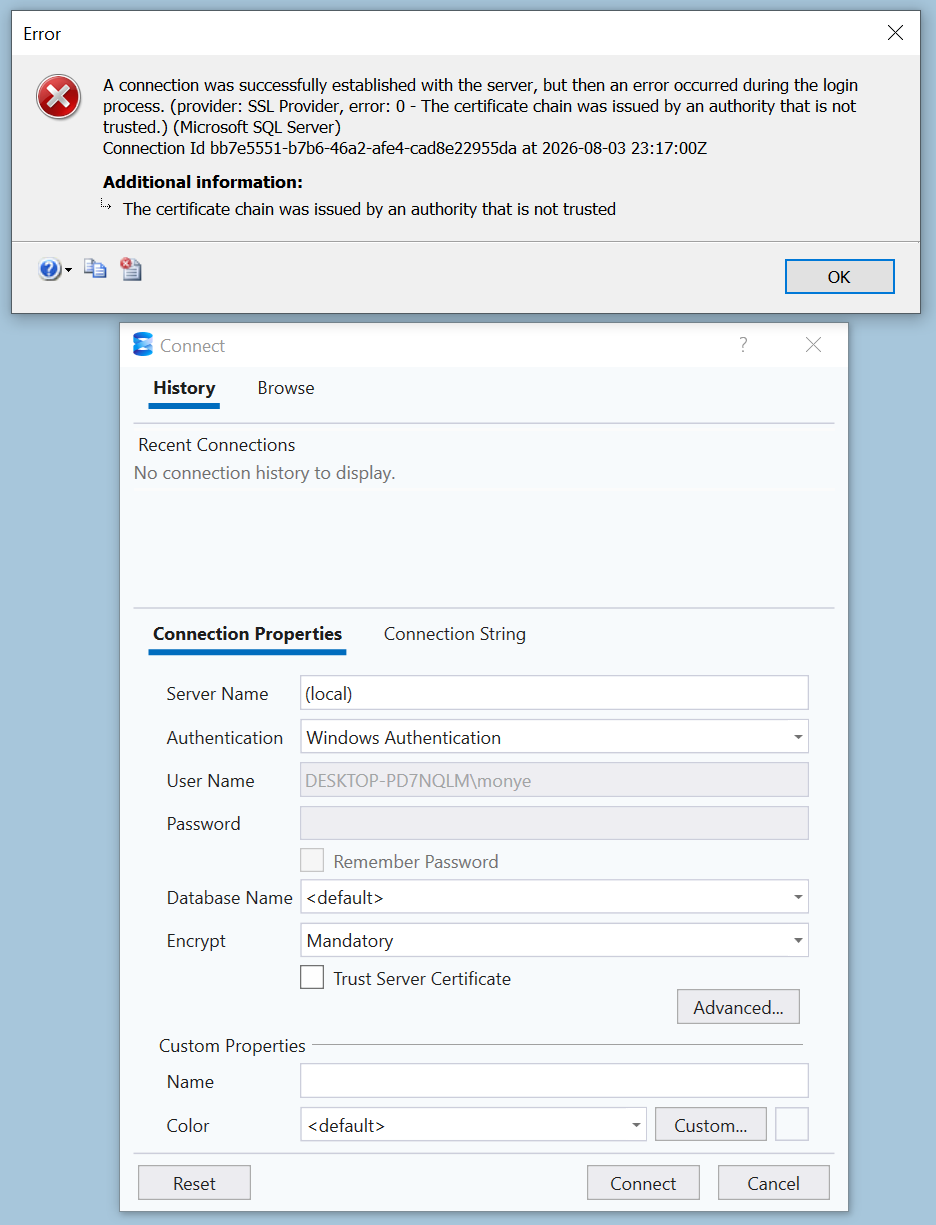
If that happens, click OK on the error message box. Click the Trust Server Certificate check box:
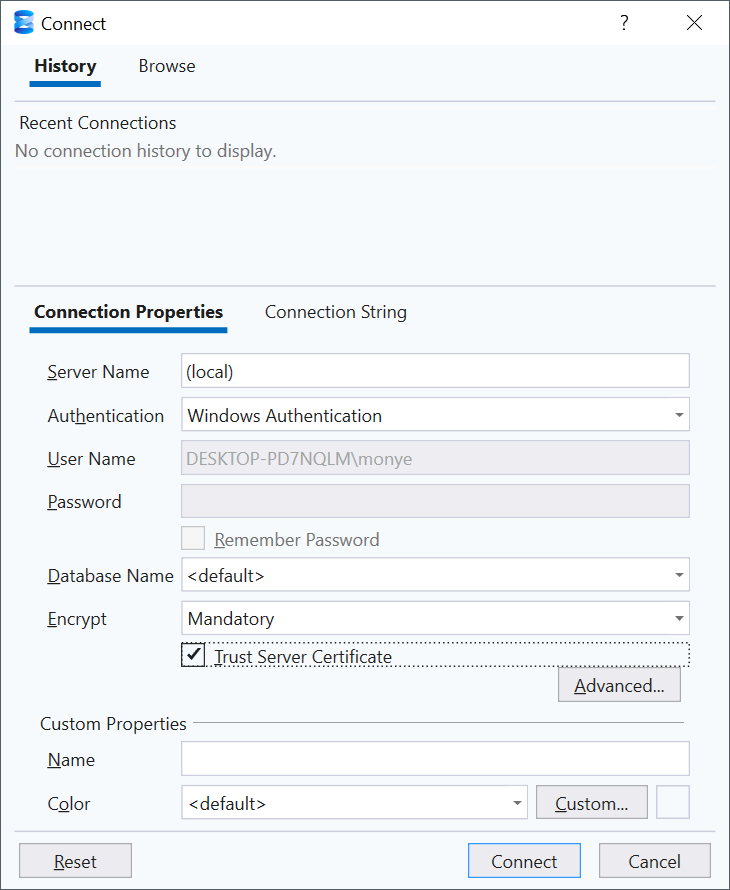
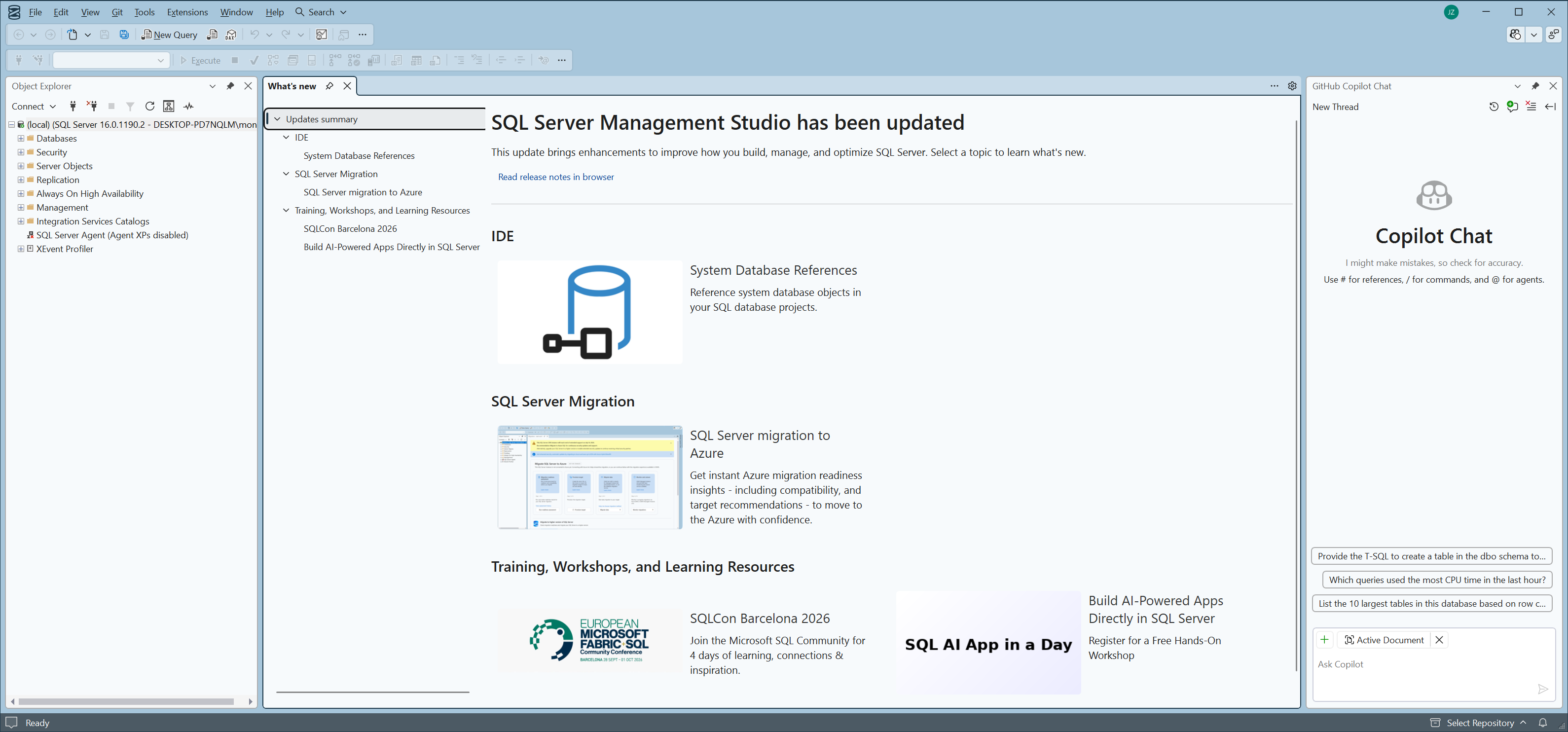
Then click Connect. That should open Microsoft SQL Server:
Closing Microsoft SQL Server
After using Microsoft SQL Server Management Studio, you can close it. To do this:

Connecting to Microsoft SQL Server
Introduction
In order to do anything significant in Microsoft SQL Server, you will have to establish a connection to it. If you start Microsoft SQL Server Management Studio from the Start button, the Connect To Server dialog box would come up:
If you had started from the Start button but clicked Cancel, to connect to a server:
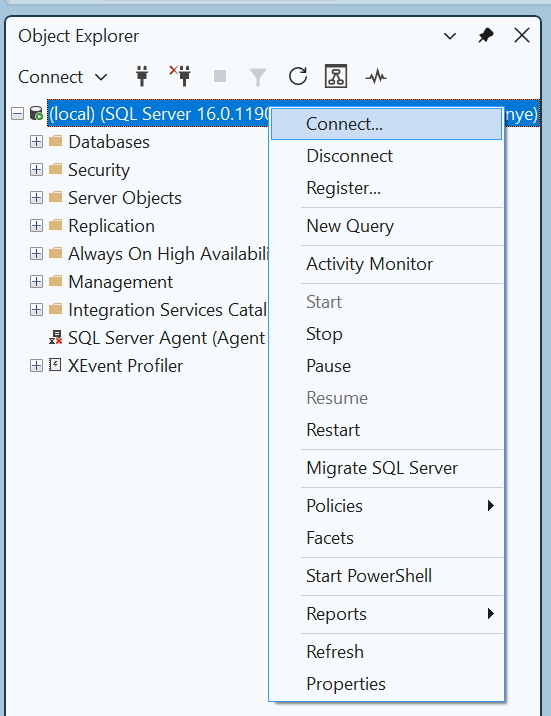
Any of these actions would display the Connect to Server dialog box.
After starting the computer and logging in, on the Connect to Server dialog box, the Database Engine option would be selected in the Server Type combo box. The name of the computer should be selected in the Server Name combo box. As an alternative, if Microsoft SQL Server is installed on the computer you are using, you can set the Server name as (local).
The easiest way to connect is to select Windows Authentication in the Authentication combo box. The User Name combo box should have the name of the computer, followed by a back slash, and followed by the user name of the account that is currently logged in. You don't have to enter a password (this is because you are using Windows Authentication and because you are logged in already).
Using the Microsoft SQL Server Management Studio
The Object Explorer
The Object Explorer displays a list of items as a tree. Each item on the tree is called a node. When a node has at least one node that belongs to it:
To show the child nodes of a node, you must expand the parent node. To do this:
One of the most regularly used items will be the name of the server you are using. This is the first node of the Object Explorer. It is first represented by a name. The name of the server is followed by parentheses.
Disconneting from the Database Server
We saw that, to establish a connection to a server, you must authenticate yourself. To close a connection:

Object Explorer Details
By default, the right area of Microsoft SQL Server Management Studio displays an empty window:

When you select something in the Object Explorer, you can use that right area to display more detailed information about the selected item. To do this, on the main menu, click View -> Object Explorer Details. The main area on the right side would then be filled with information:
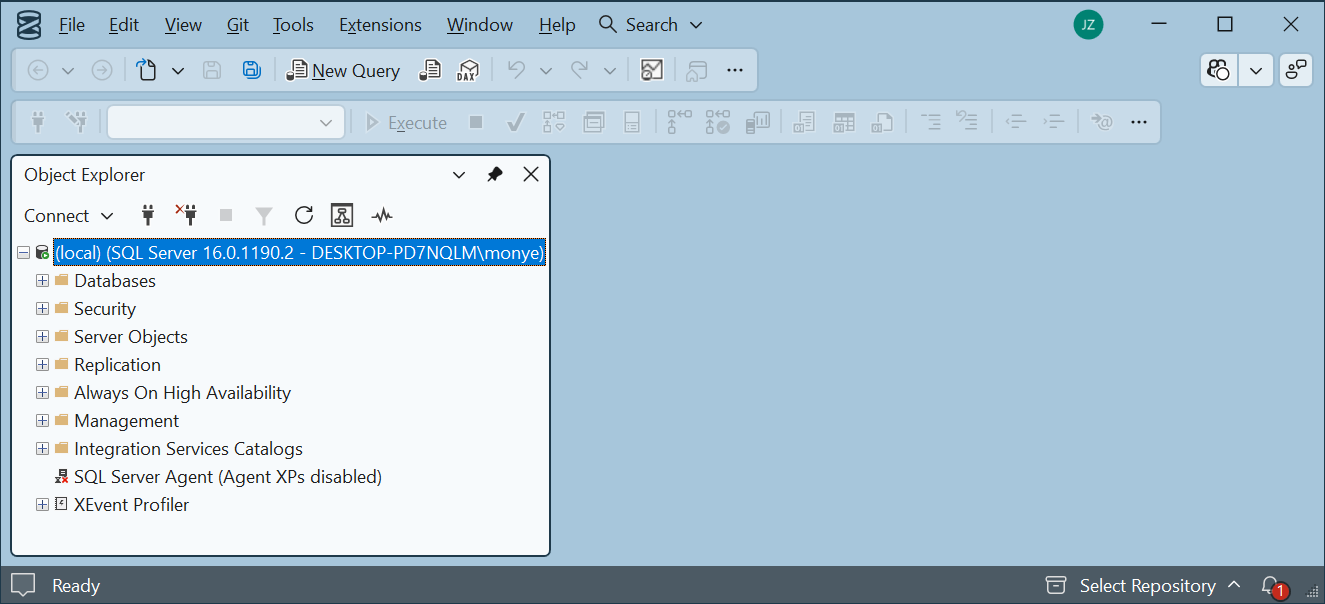
Probably the most regular node you will be interested in, is labeled Databases. This node holds the names of databases on the server. Also, from that node, you can perform many operations of a database. To see most of the regularly available actions, you can expand the Databases node and some of its children. You can then right-click either Databases or one of its child nodes. For example, to start PowerShell, you can right-click the Databases node or the server name and click Start PowerShell:
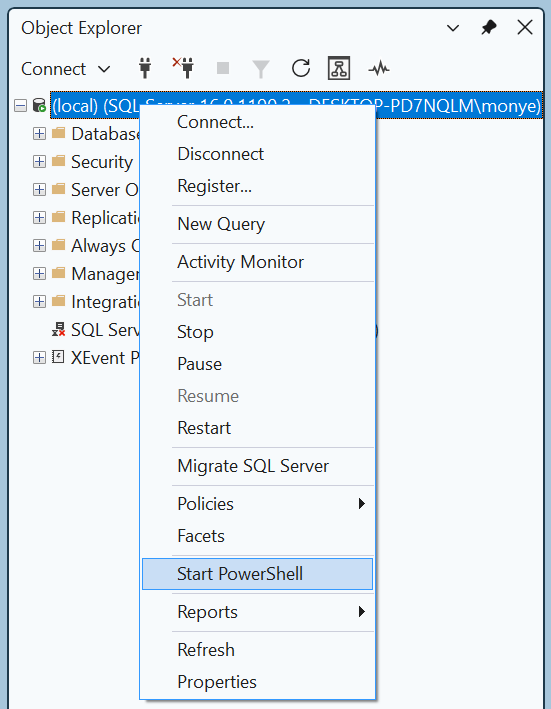
When the PowerShell comes up, what it displays depends on what you had right-clicked.
The Properties Window
Introduction
Besides the Template Explorer, Microsoft SQL Server provides the Properties window that can assist you with some issues. To get the Properties window if it is not visible:
The Properties window uses the common behaviors of other windows: it can auto-hide, it can be docked, or it can float.
The Title Bar of the Properties Window
The Properties window is divided in 5 sections:
The Properties window starts on top with a title bar, which displays the string Properties. If the window is docked somewhere, it displays the Window Position  , the Auto-Hide
  , and the Close
  buttons on its right side.
The Toolbar
Under the title bar, the Properties window displays a toolbar with two buttons: Categorized button  and Alphabetically
  .
.
The Fields of the Properties Window
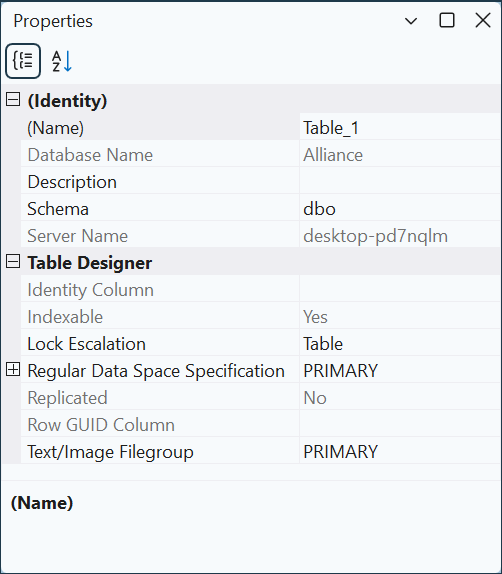
Under the toolbar, the Properties window displays a list of fields. This list depends on the contents of the main window and on what is going on. Here is an example:
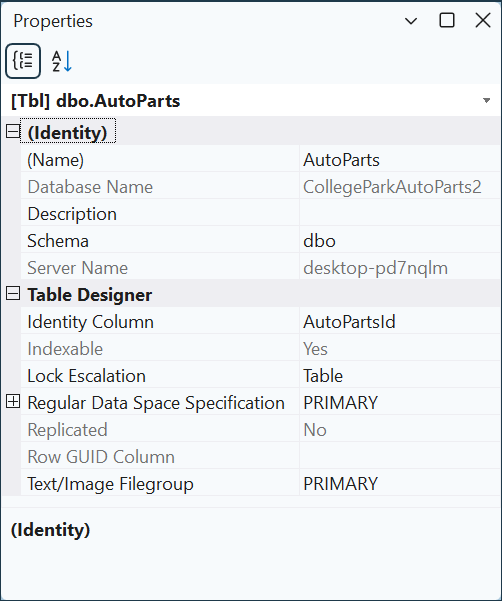
On the right side, the list may be equipped with a vertical scroll bar. To rearrange the list, you can click the Alphabetical button .
Each field in the Properties window has two sections: the property's name and the property's value:
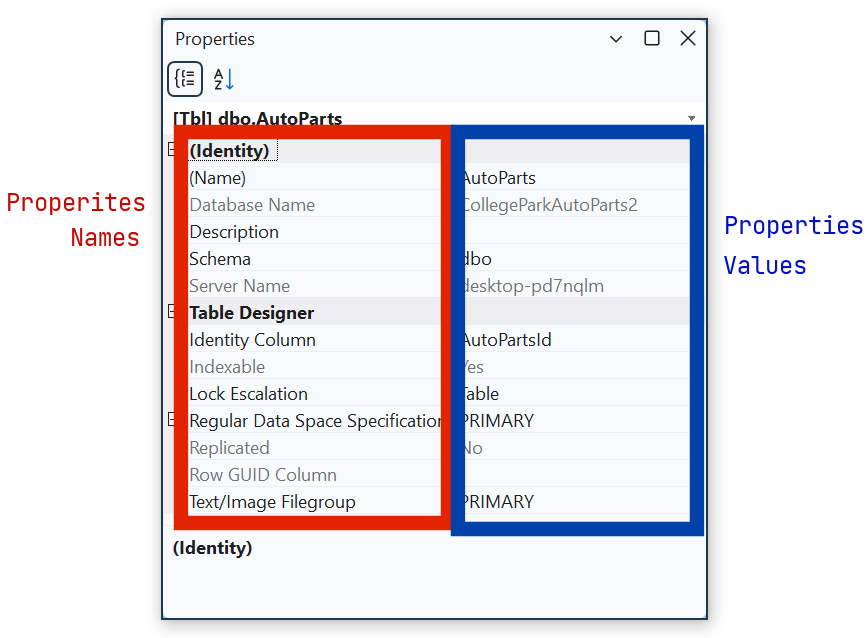
The box on the right side of each property name represents the value of the property. Some values can be changed and some others not.
When the name of a property appears disabled, it means the value cannot be changed.
Besides the SQL Server Management Studio, you can also work on Microsoft SQL Server from the DOS Command Prompt. To access the command Prompt, click the Start button:
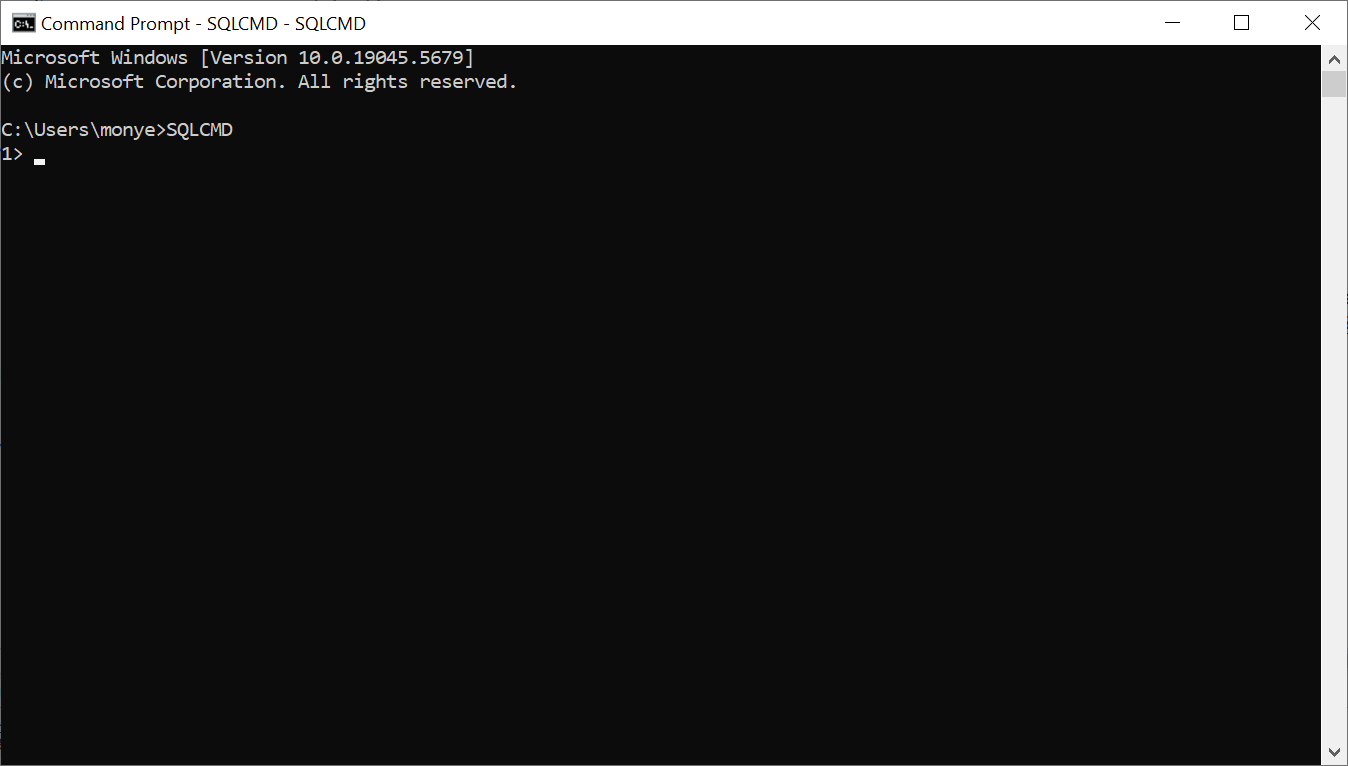
Once at the Command Prompt, type SQLCMD (case-insensitive) and press Enter.
Quitting or Exitting Microsoft SQL Server
After using Microsoft SQL Server from the command prompt, to close it, type either Exit or Quit (case-insensitive) and press Enter. To close the DOS window:
Introduction
Microsoft PowerShell is a command-based application that can be used to create applications, to perform scripting tasks on the operation system, etc. PowerShell is a free application from Microsoft. Before using it, you must install it. Normally, it is automatically installed with most Microsoft Windows installations; otherwise, you can freely download it from the Microsoft websites and install it.
PowerShell for MS SQL Server
Microsoft provides a special implementation of PowerShell to be used with MS SQL Server. As a result, you must install PowerShell for SQL Server. To start with the installation, you may have to first open PowerShell (click the Windows Start button and click PowerShell). At the PowerShell command prompt, you should type "Install-Module -Name SqlServer" and press Enter:
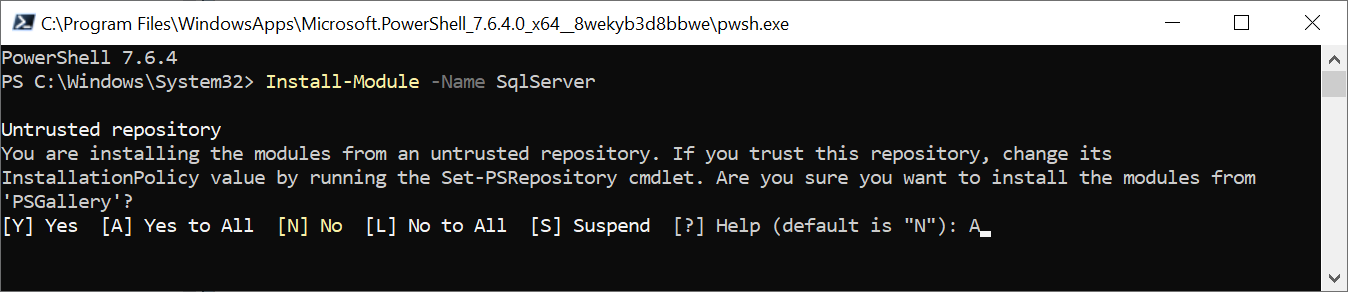
Continue by following the instructions (otherwise, you can do an Internet search on "SQL Server PowerShell"; you should get a link to a Microsoft webpage ("Install SQL Server PowerShell module" for "https://learn.microsoft.com/en-us/powershell/sql-server/download-sql-server-ps-module?view=sqlserver-ps"); to start the installation, click the provided link (https://www.powershellgallery.com/packages/Sqlserver/22.4.5.1); you may be asked to select a version).
Besides the SQL Server Management Studio and the Command Prompt, you can use PowerShell to create and manage databases. To use PowerShell:
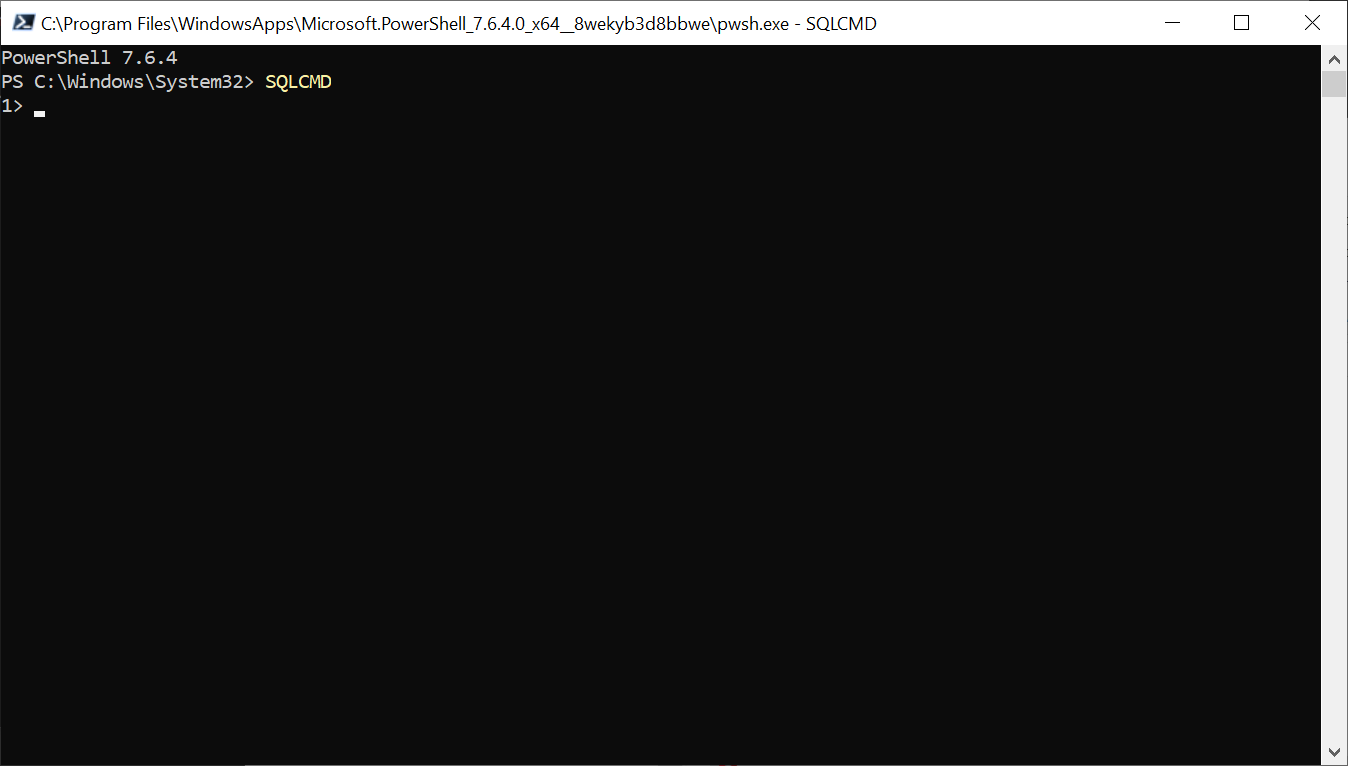

After using the PowerShell, to exit from Microsoft SQL Server, type either Exit or Quit (case-insensitive) and press Enter.
To close PowerShell and the DOS window, you can:
Introduction to the Data Definition Language
Introduction
To write code used to perform database operations, you use a set of language tools referred to as the Data Definition Language (DDL). This language is mostly made of commands. A DDL command is code that primarily appears as regular English. There are many ways and tools available to write such code.
A Query Editor
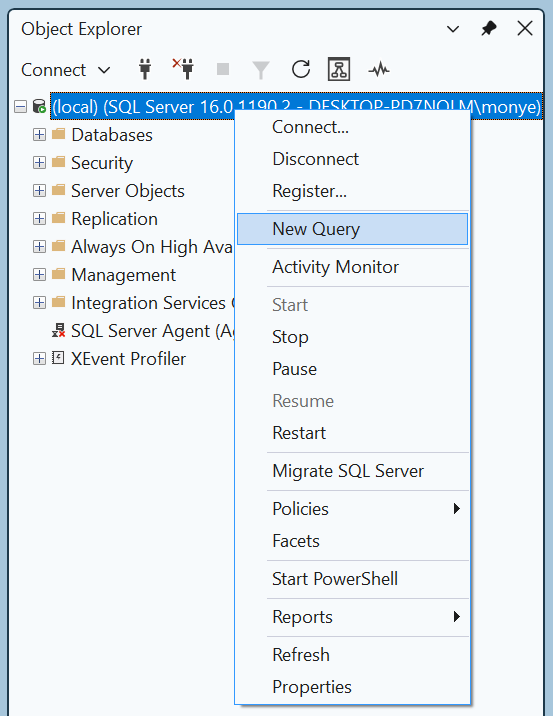
To help you write code, Microsoft SQL Server Management Studio provides a convenient text editor. We will call it the Query Editor. To display the Query Editor:

 Practical Learning: Ending the Lesson
|
|
|||
| Home | Copyright © 2008-2025, FunctionX | Last Update: Monday 03 August 2026, 19:50 | Next |
|
|
|||